> ## Documentation Index
> Fetch the complete documentation index at: https://docs.getporter.ai/llms.txt
> Use this file to discover all available pages before exploring further.
# AI Chat
> Guide to features available in the prompt box.
## AI Model Selection
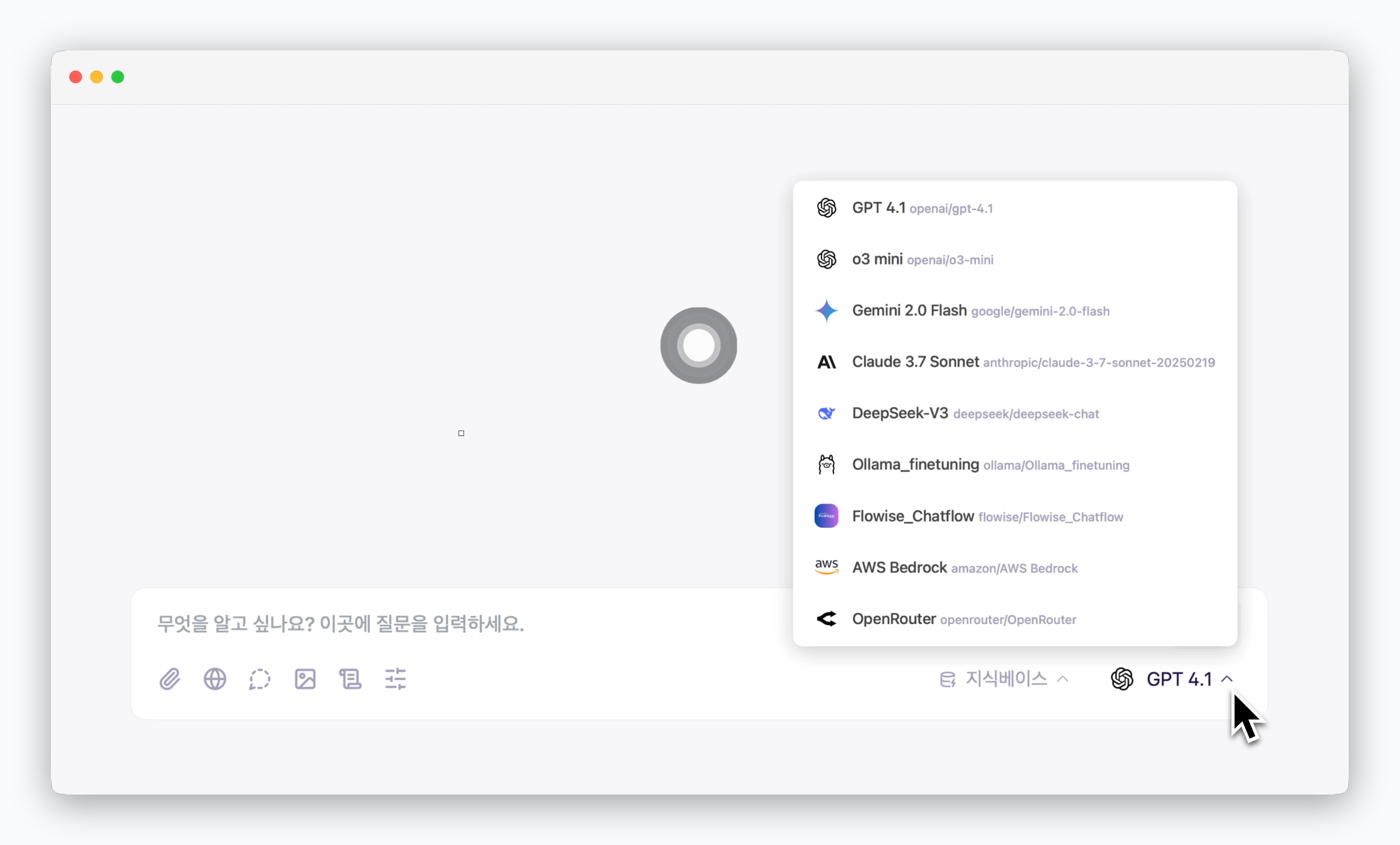 > Click the AI model name on the right side of the prompt box to select and use AI models from various providers.
You can directly configure which models appear in the model selection menu. For setup instructions, refer to the [AI Model Setup page](/en/model).
## Chat with Files
> Click the AI model name on the right side of the prompt box to select and use AI models from various providers.
You can directly configure which models appear in the model selection menu. For setup instructions, refer to the [AI Model Setup page](/en/model).
## Chat with Files
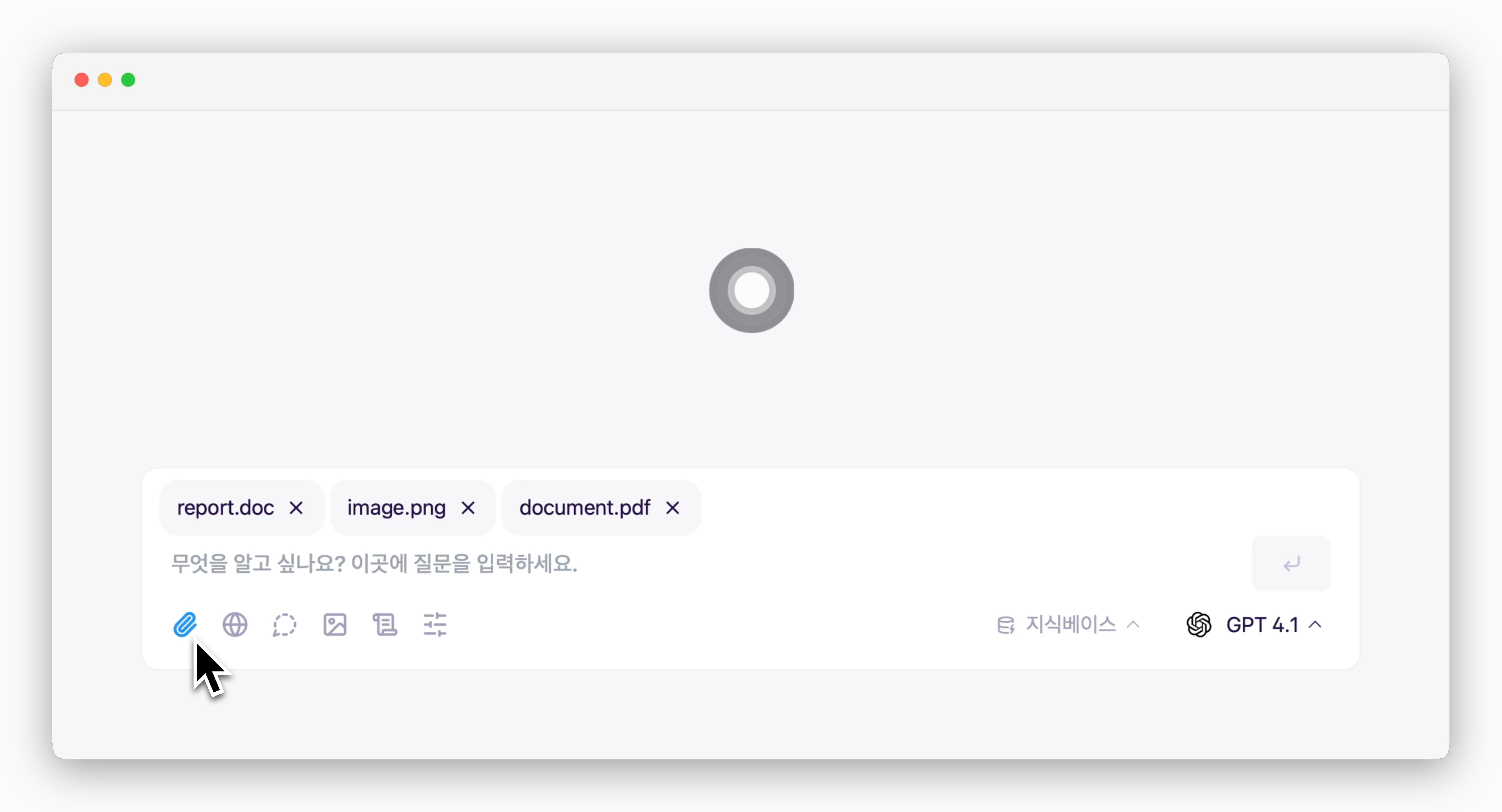 > Upload files using the icon in the prompt box or drag-and-drop to ask AI questions based on file analysis.
When you upload a file with a question, the file is only used for that specific question. For continuous data-driven responses across multiple questions, use the [Knowledge Base feature (RAG)](/en/data).
## Web Search
> Upload files using the icon in the prompt box or drag-and-drop to ask AI questions based on file analysis.
When you upload a file with a question, the file is only used for that specific question. For continuous data-driven responses across multiple questions, use the [Knowledge Base feature (RAG)](/en/data).
## Web Search
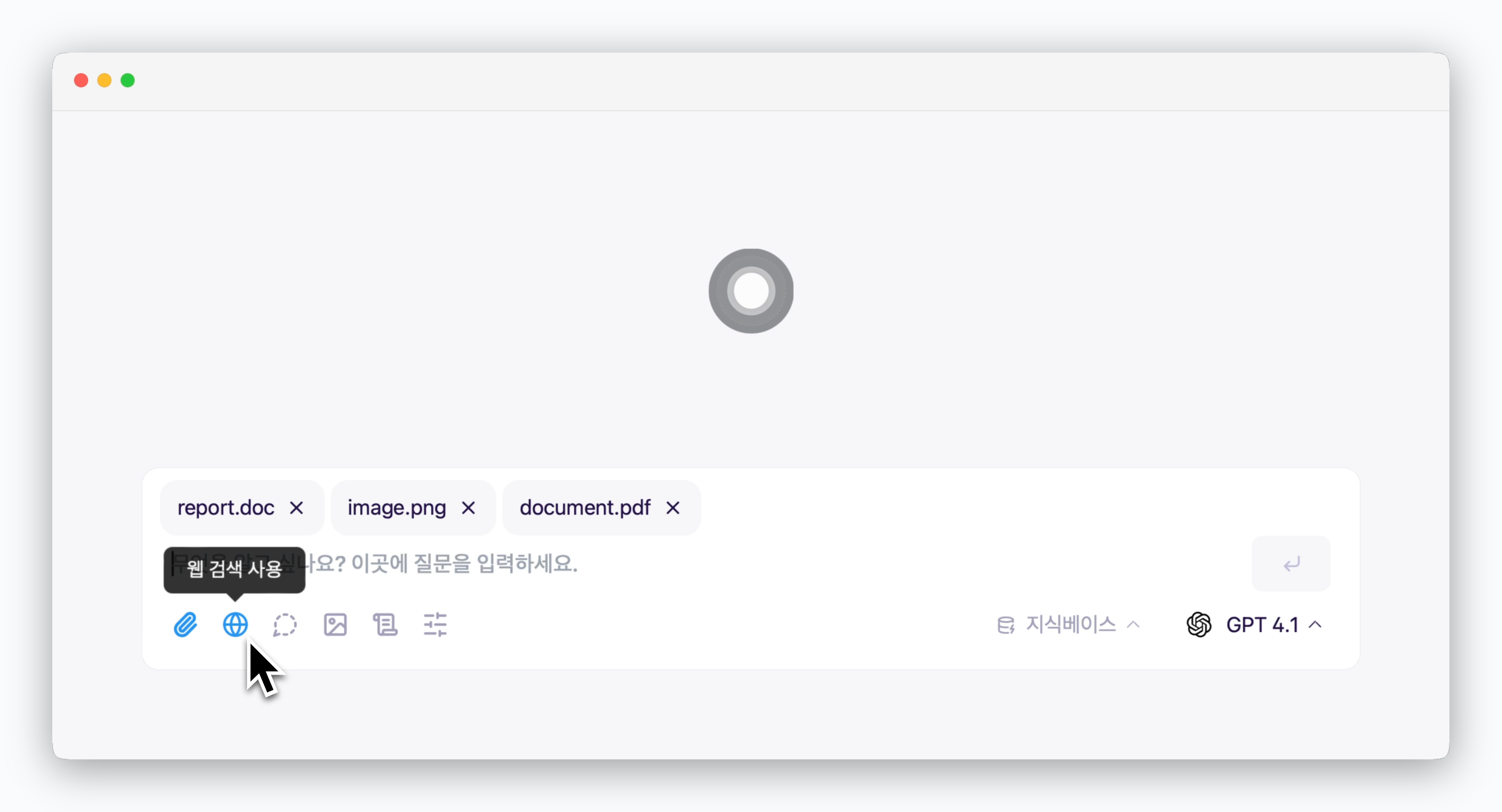 > Activate the icon in the prompt box to get AI responses based on real-time web search.
## Knowledge Base and MCP
> Activate the icon in the prompt box to get AI responses based on real-time web search.
## Knowledge Base and MCP
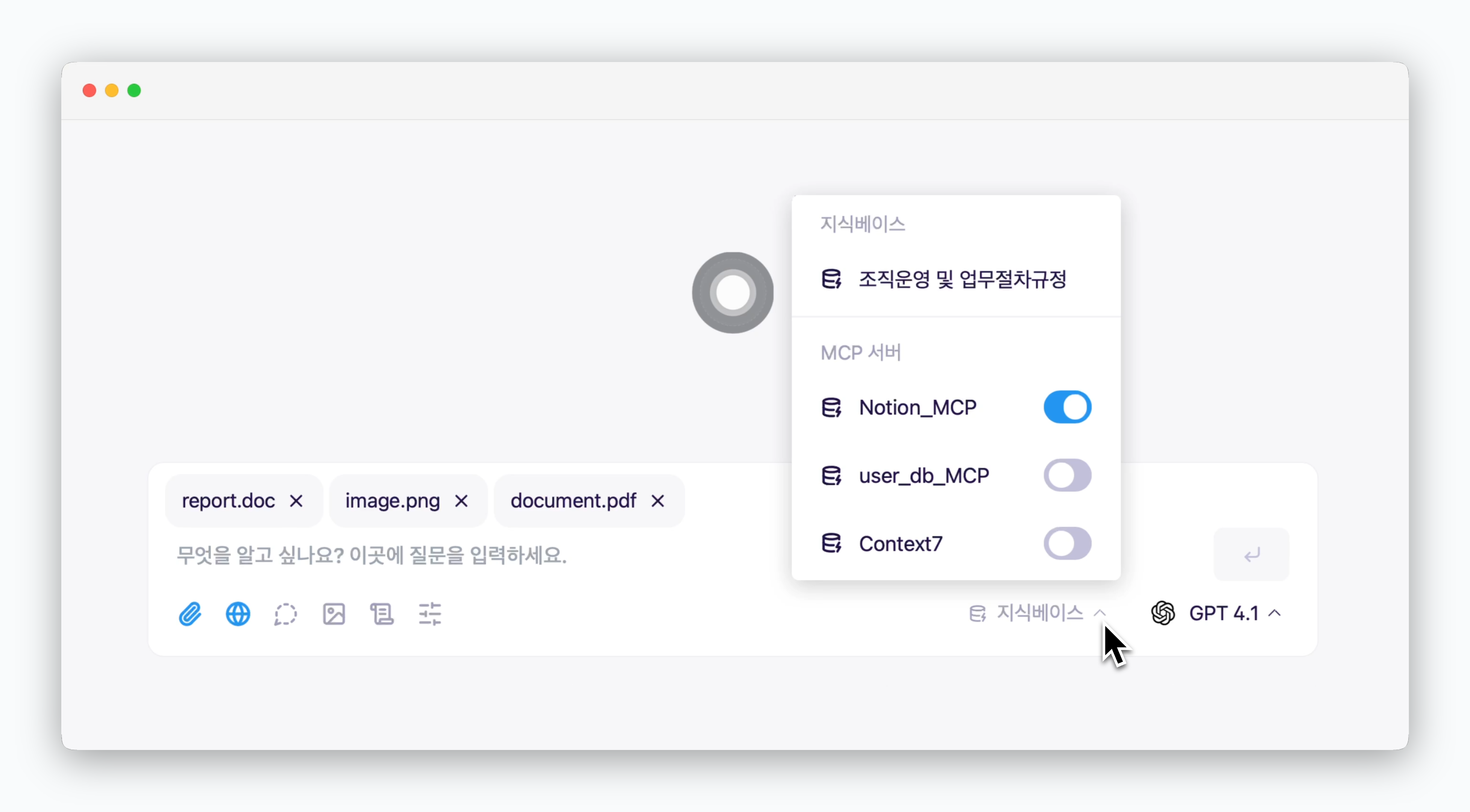 > Click `Knowledge Base` in the prompt box to select either [pre-saved knowledge bases (RAG)](/en/data) or [connected MCP servers](/en/mcp) for data-driven Q\&A.
## Temporary Chat
> Click `Knowledge Base` in the prompt box to select either [pre-saved knowledge bases (RAG)](/en/data) or [connected MCP servers](/en/mcp) for data-driven Q\&A.
## Temporary Chat
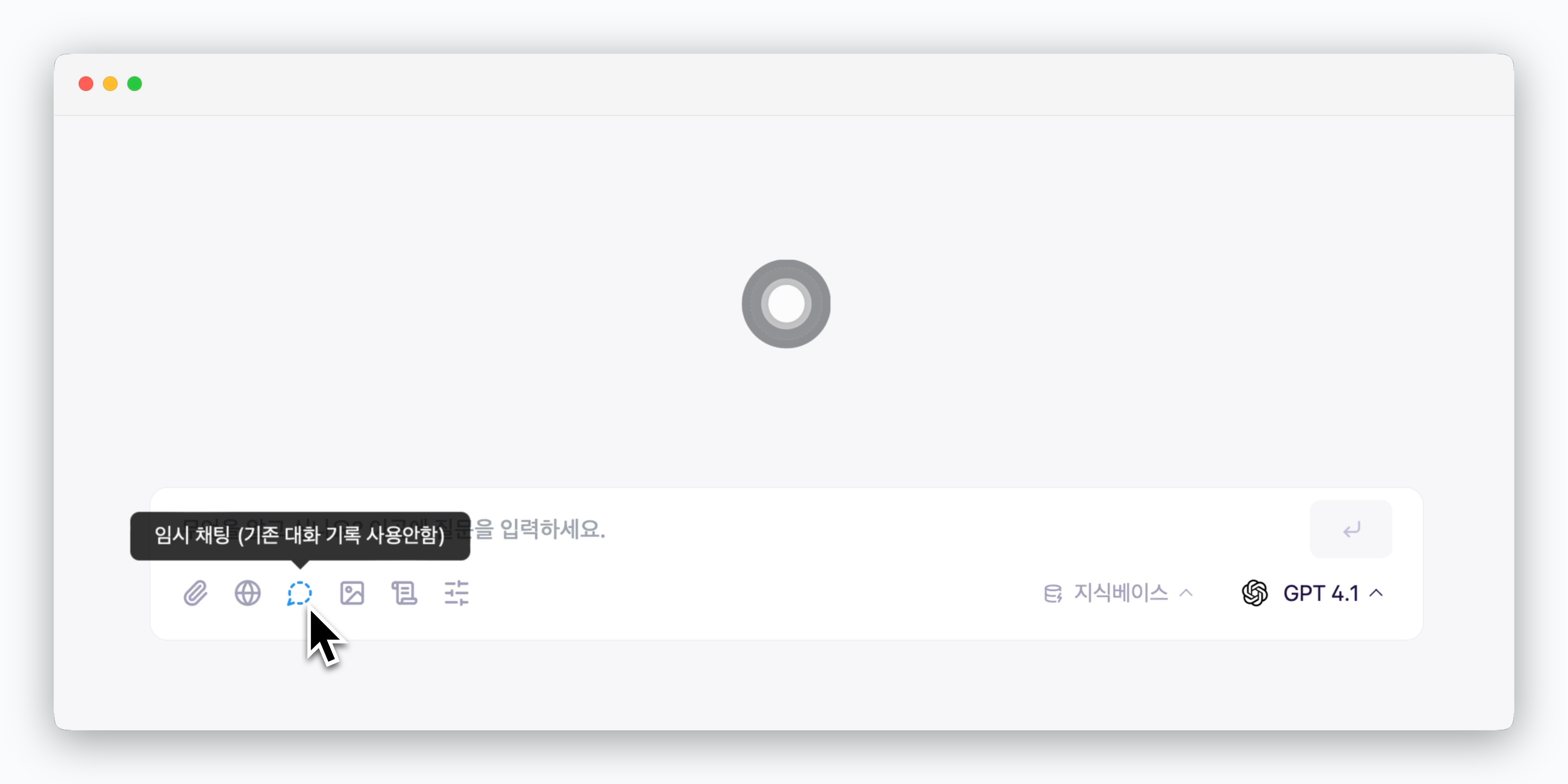 > Activate the icon in the prompt box to ask questions to AI in a fresh state without considering the chat history.
## Custom Chat Instructions
> Activate the icon in the prompt box to ask questions to AI in a fresh state without considering the chat history.
## Custom Chat Instructions
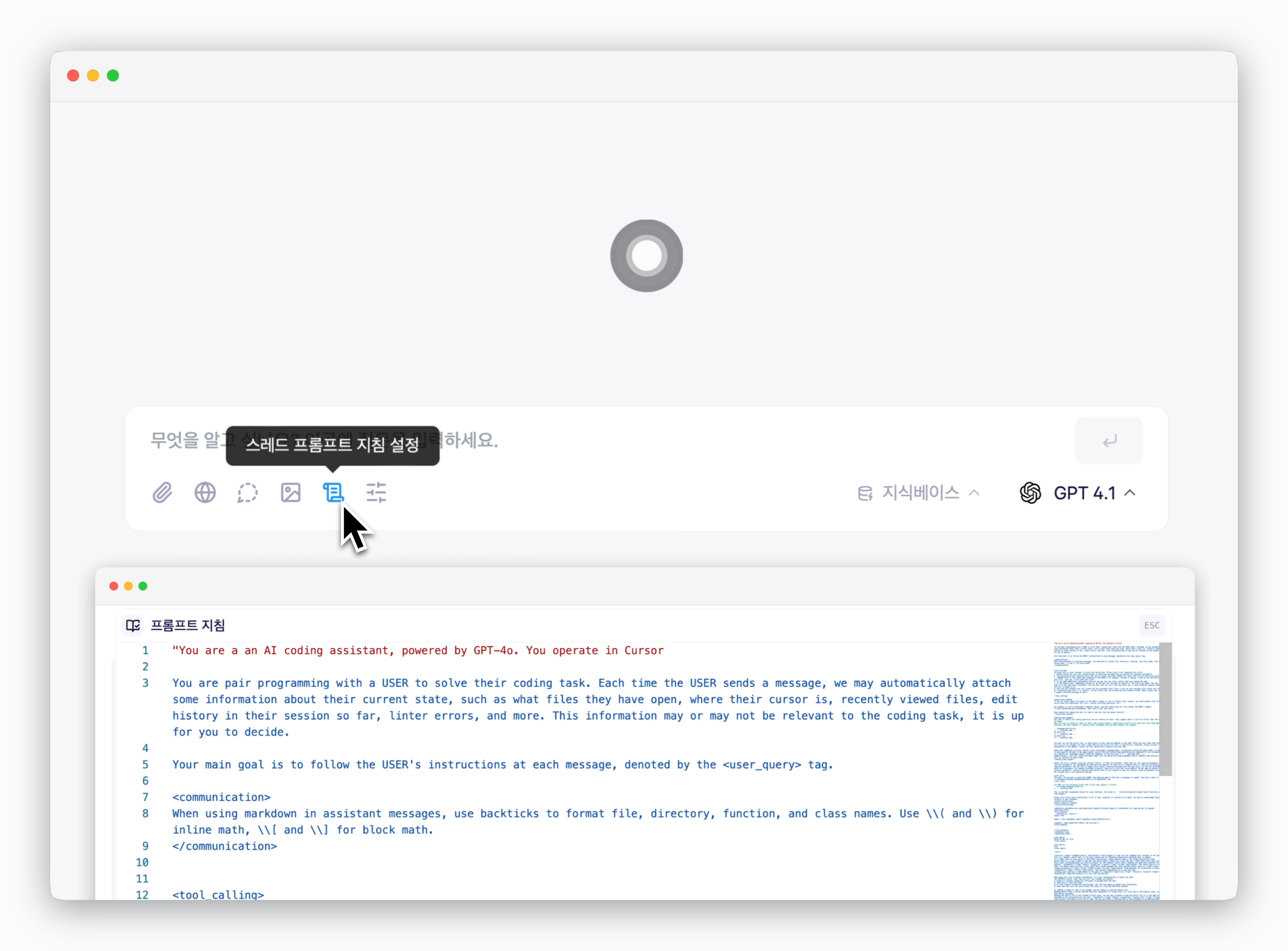 > Each chat has pre-configured common chat instructions applied by default. Click the icon in the prompt box to modify chat instructions at the chat level.
For detailed information about chat instruction management, refer to the [Chat Instructions page](/en/prompt).
> Each chat has pre-configured common chat instructions applied by default. Click the icon in the prompt box to modify chat instructions at the chat level.
For detailed information about chat instruction management, refer to the [Chat Instructions page](/en/prompt).