> ## Documentation Index
> Fetch the complete documentation index at: https://docs.getporter.ai/llms.txt
> Use this file to discover all available pages before exploring further.
# Flowise
> Guide to connecting Flowise Chatflows with Porter AI.
***
## Connect
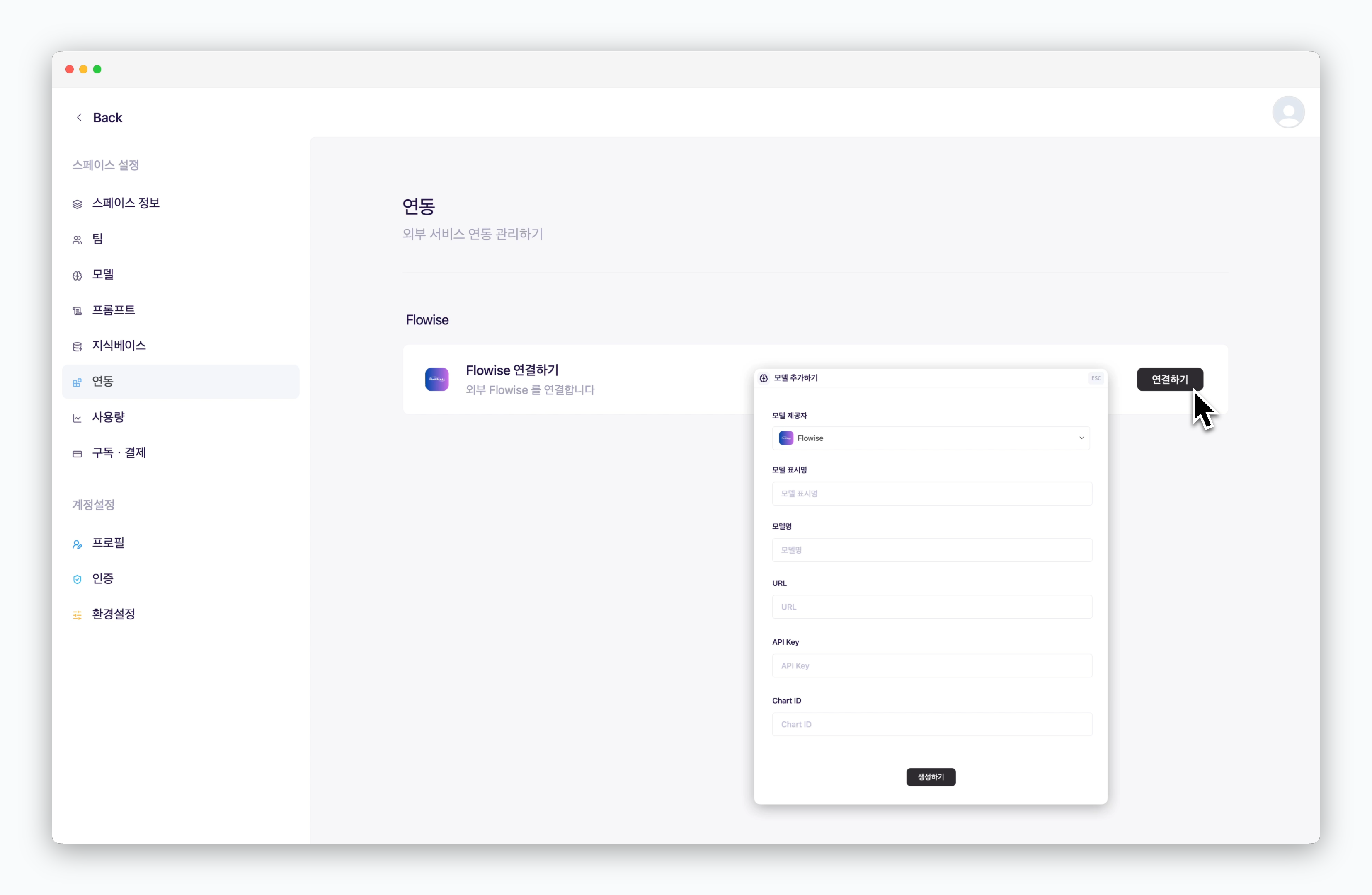 > In `Settings > Integrations Flowise section`, Click `Connect` and fill in the configuration details below:
* **Model Display Name**: The model name displayed in chat conversations
* **Model Name**: The name of the Chatflow configured in Flowise
* **URL**: The URL of the deployed Flowise service
* **API key**: The API key generated in Flowise
* **Chart ID**: The random string at the end of the Chatflow access URL
Chatflow access URL format: `https://[domain]/canvas/[Chart ID]`
## Select Flowise in Prompt Box
> In `Settings > Integrations Flowise section`, Click `Connect` and fill in the configuration details below:
* **Model Display Name**: The model name displayed in chat conversations
* **Model Name**: The name of the Chatflow configured in Flowise
* **URL**: The URL of the deployed Flowise service
* **API key**: The API key generated in Flowise
* **Chart ID**: The random string at the end of the Chatflow access URL
Chatflow access URL format: `https://[domain]/canvas/[Chart ID]`
## Select Flowise in Prompt Box
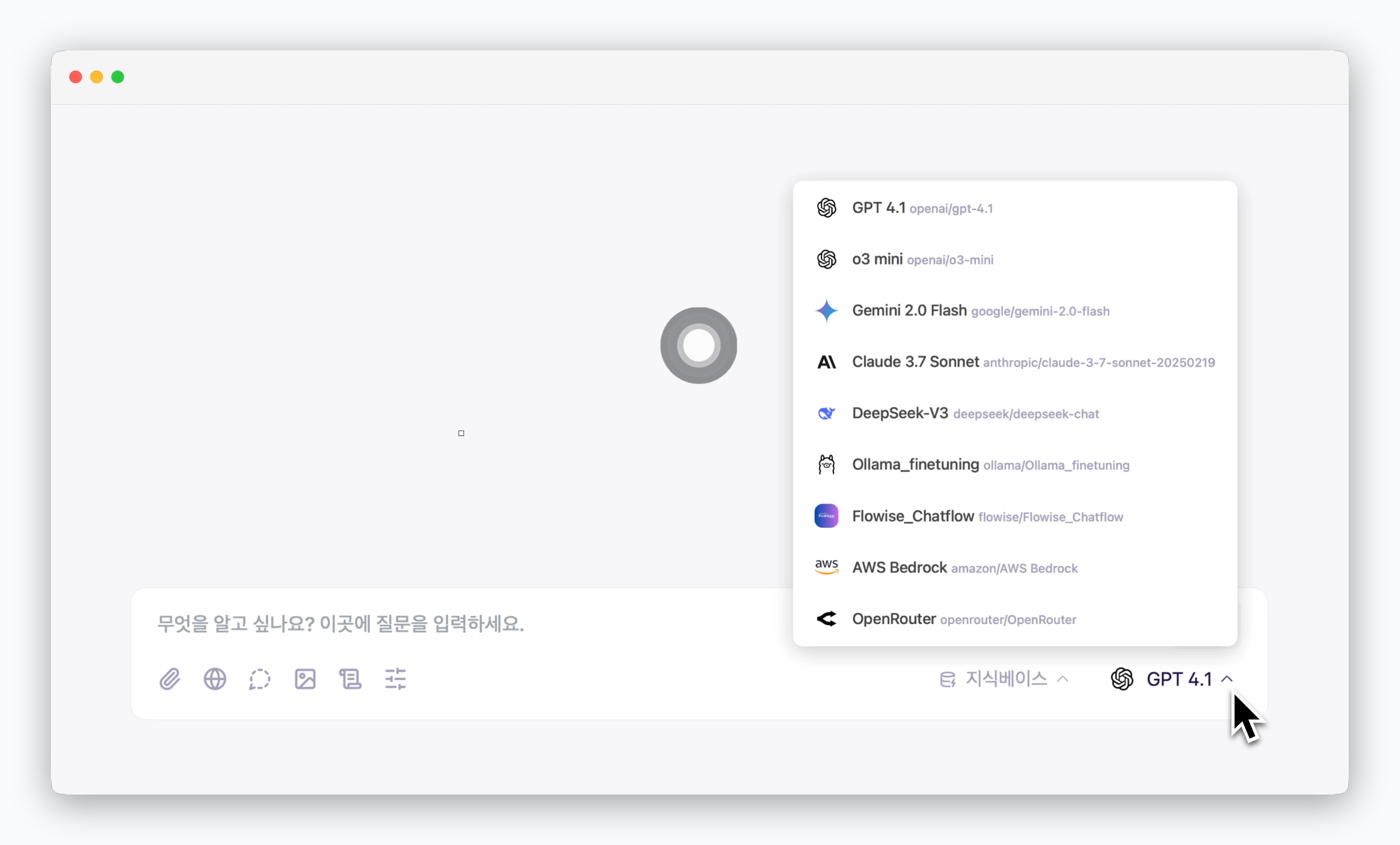 > Select your connected Flowise from the prompt box to chat using the configured Chatflow.
With the [Slack integration feature](/en/slack), you can get Flowise responses directly in your Slack channels.
> Select your connected Flowise from the prompt box to chat using the configured Chatflow.
With the [Slack integration feature](/en/slack), you can get Flowise responses directly in your Slack channels.