> ## Documentation Index
> Fetch the complete documentation index at: https://docs.getporter.ai/llms.txt
> Use this file to discover all available pages before exploring further.
# Image Generation
> Guide to generating, editing, and combining images through chat interactions.
***
## Select Image Generation Models
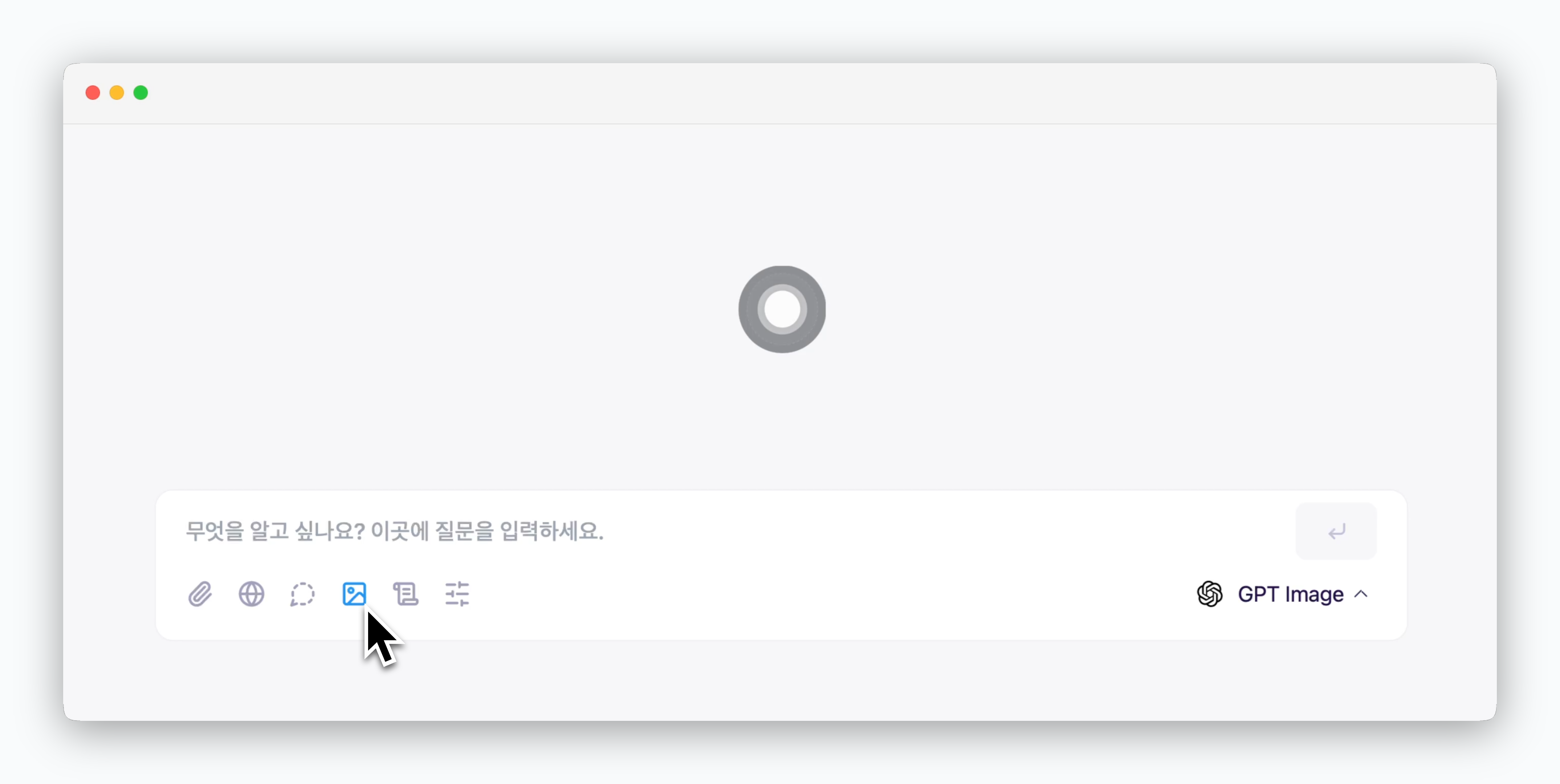 > Click the icon in the prompt box to access image generation models.
## Image Settings
> Click the icon in the prompt box to access image generation models.
## Image Settings
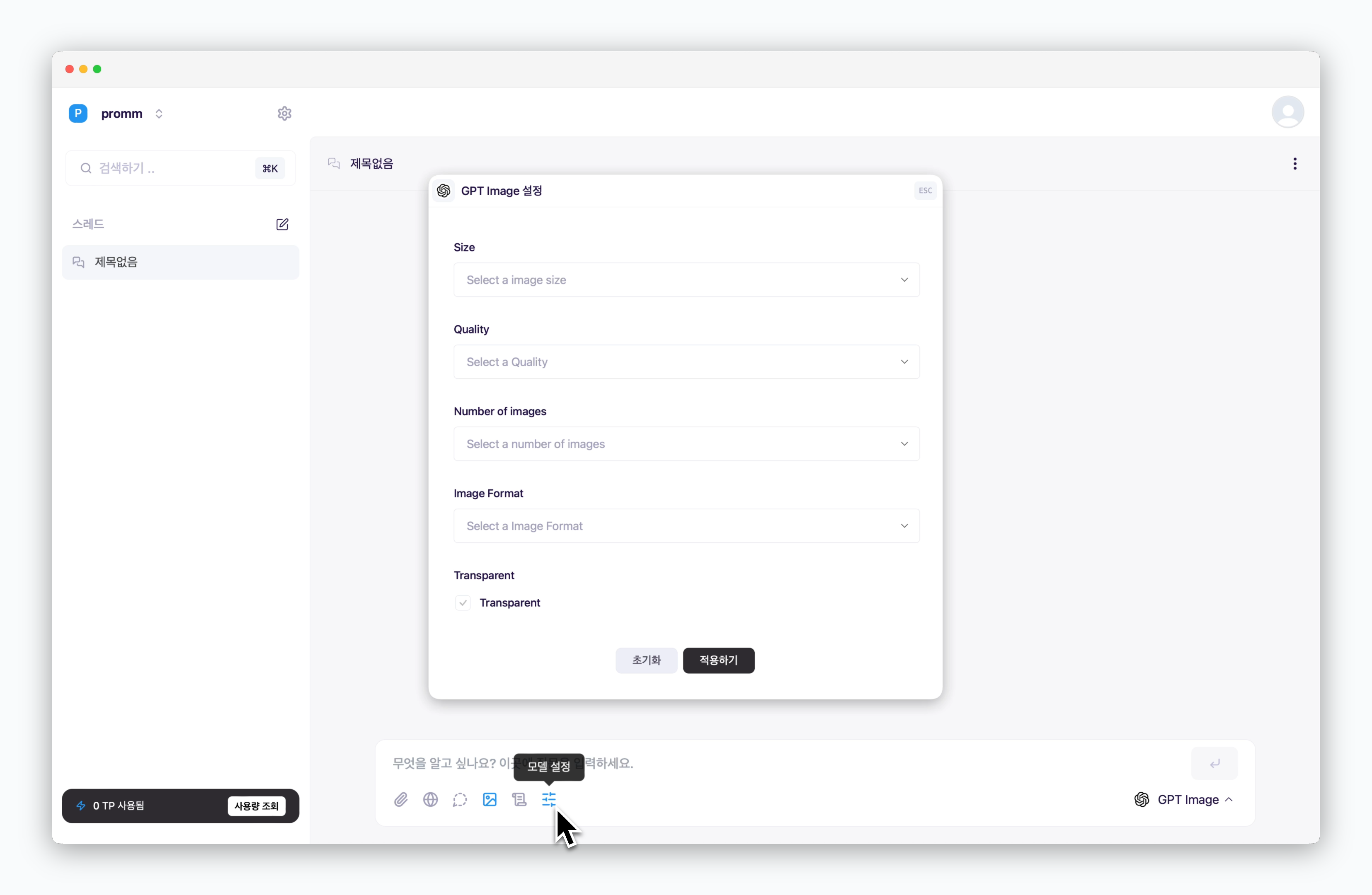 > Use the icon in the prompt box to configure image size, resolution, and other settings.
Available configuration options vary depending on the image generation model selected.
## Generating Images
> Use the icon in the prompt box to configure image size, resolution, and other settings.
Available configuration options vary depending on the image generation model selected.
## Generating Images
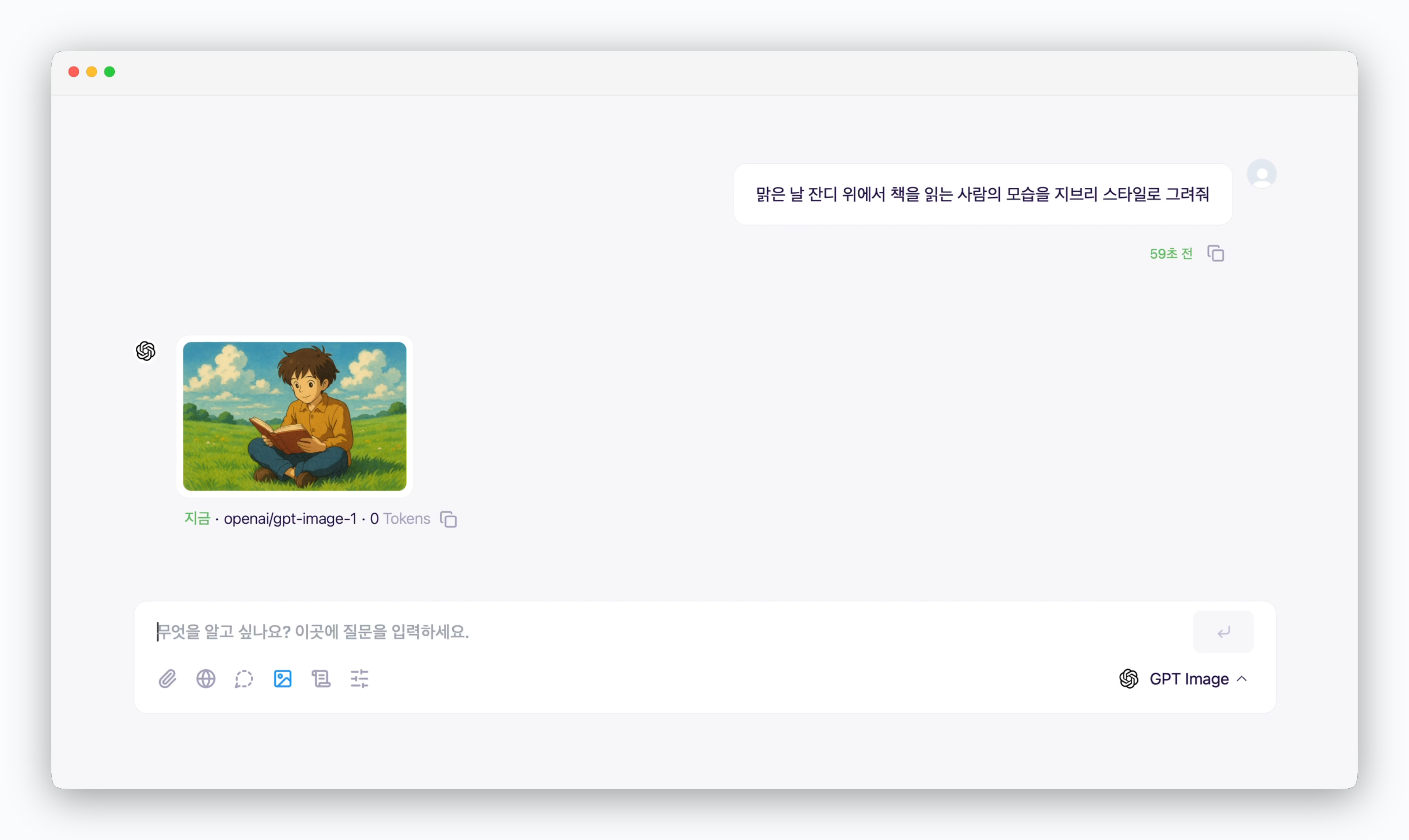 > Generate images by describing what you want in the prompt box.
## Editing Images
> Generate images by describing what you want in the prompt box.
## Editing Images
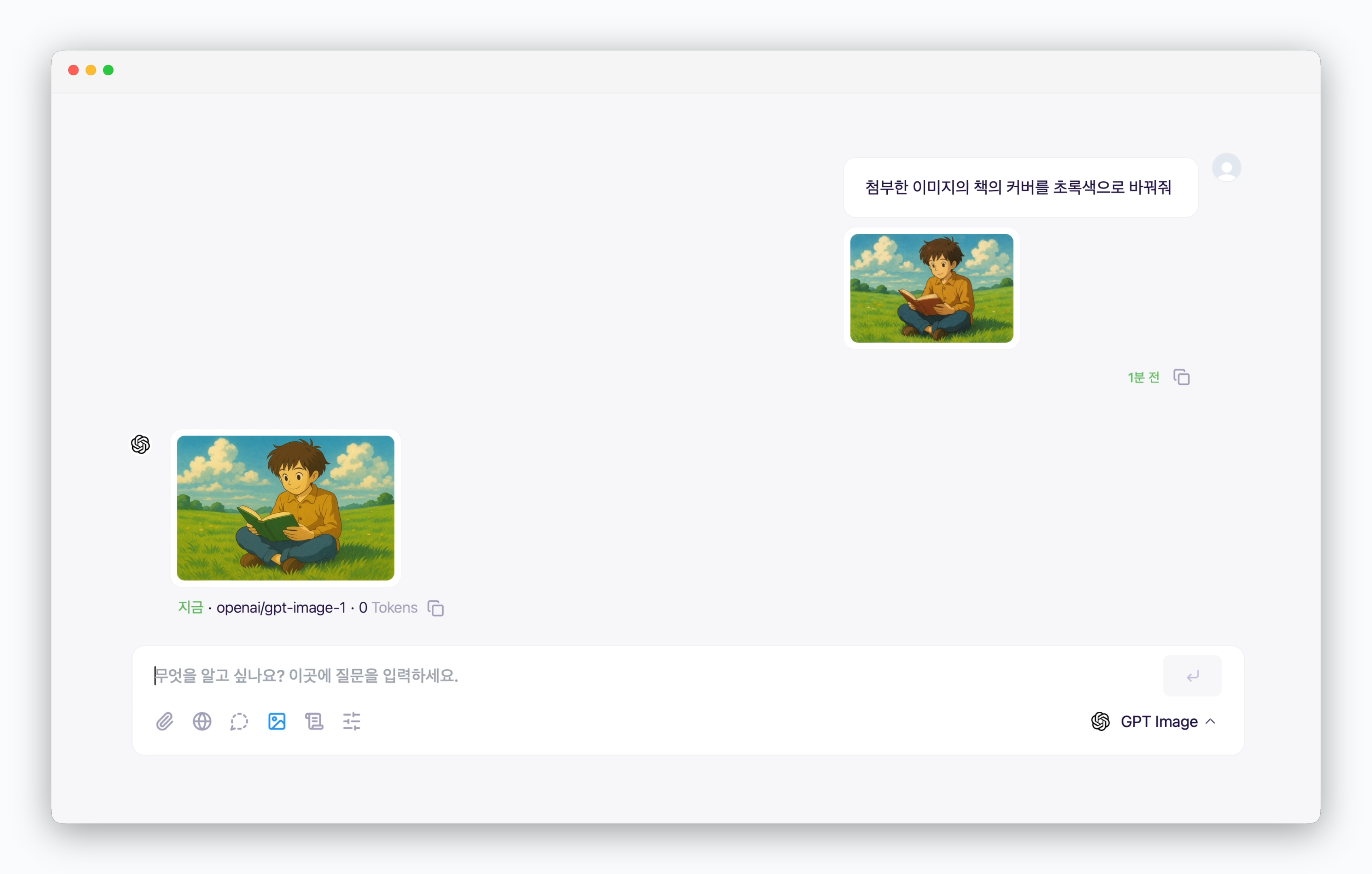 > You can edit uploaded image files.
## Combining Images
> You can edit uploaded image files.
## Combining Images
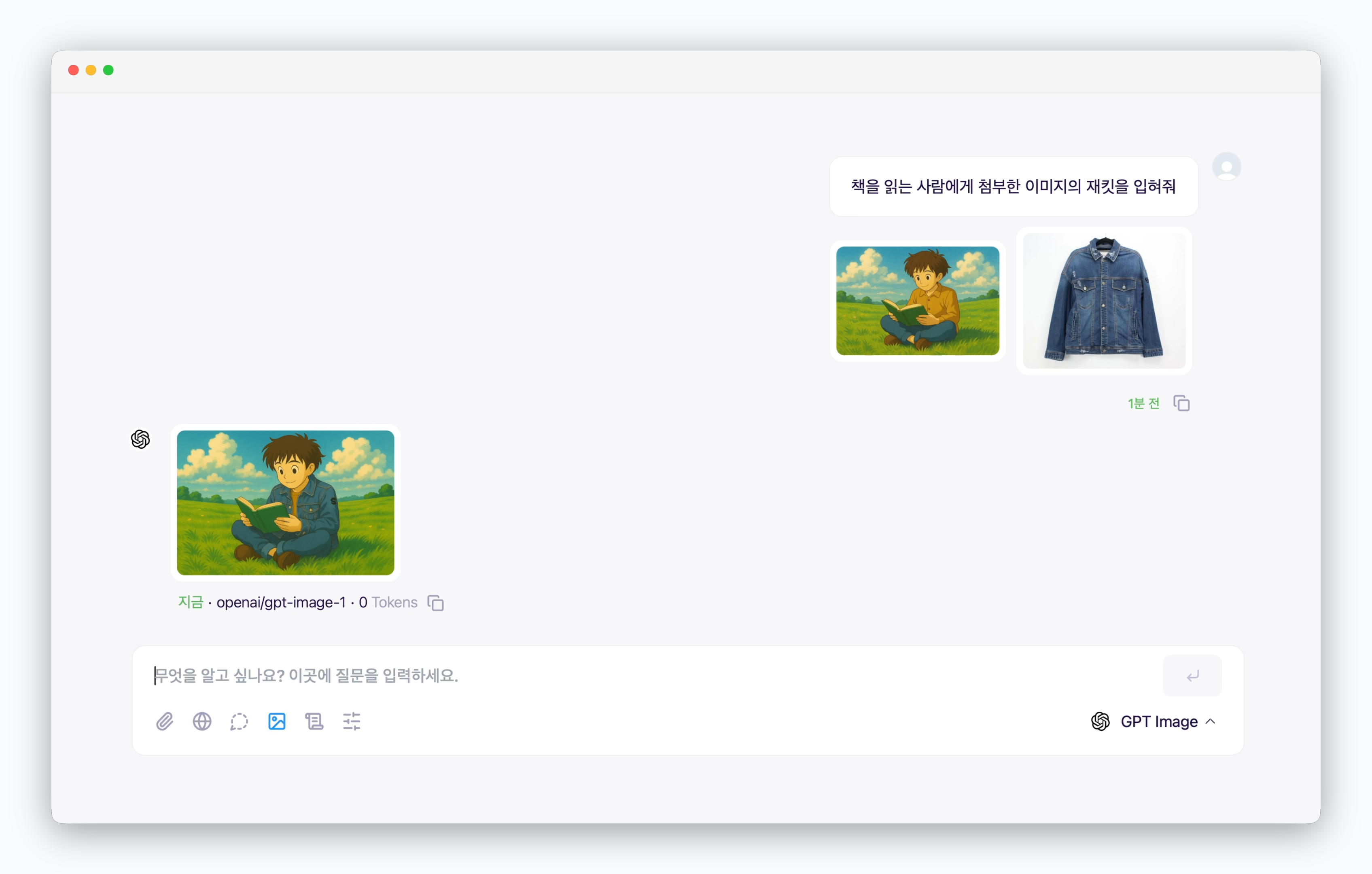 > Upload multiple images and combine them according to your specific needs.