> ## Documentation Index
> Fetch the complete documentation index at: https://docs.getporter.ai/llms.txt
> Use this file to discover all available pages before exploring further.
# MCP Server
> Guide on connecting and utilizing remote MCP servers.
## Add an MCP Server
### Enter Connection URL
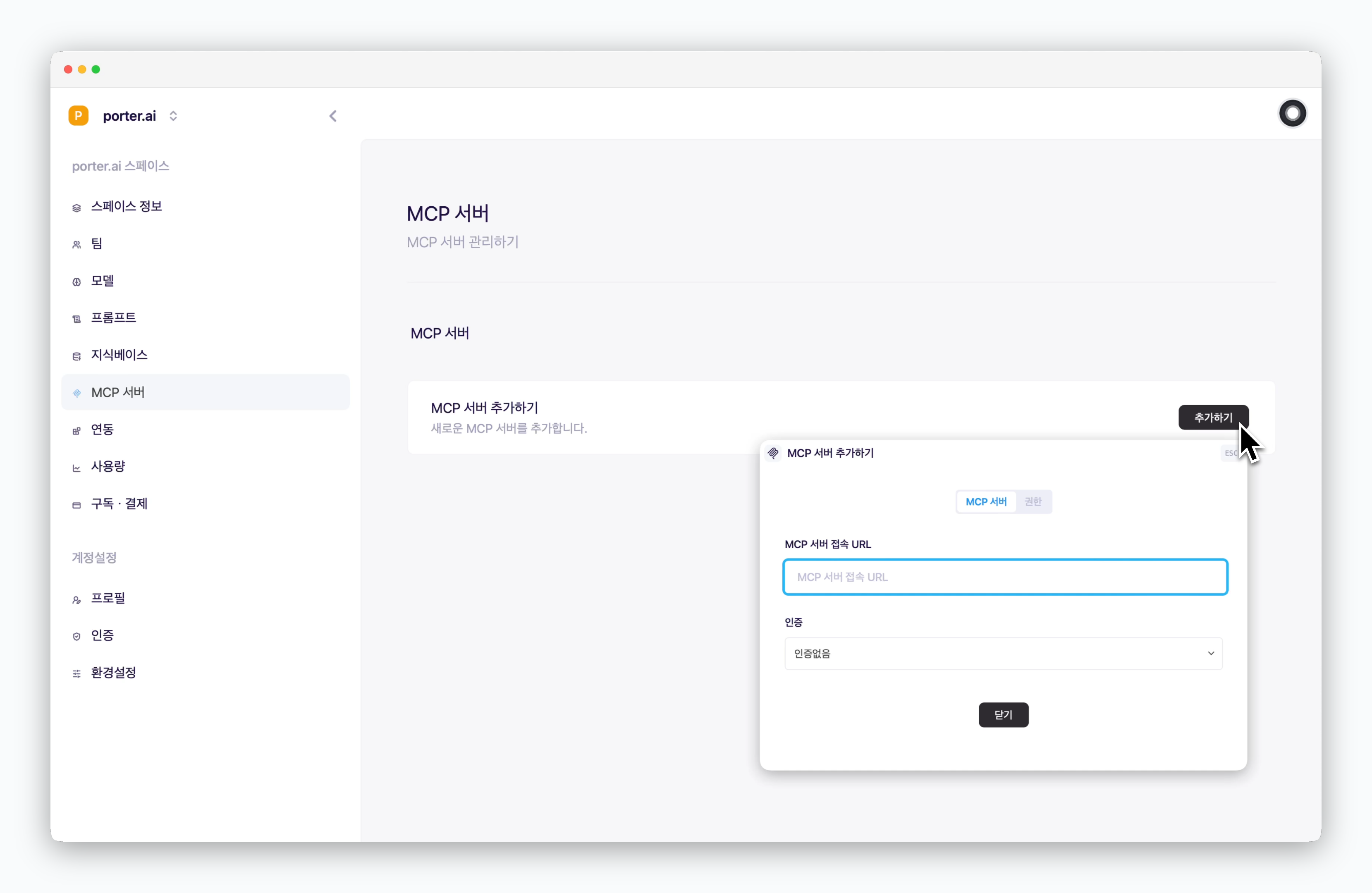 > Go to `Settings > MCP Server`, click `Add` MCP server, and enter the connection URL of the MCP server you want to connect to.
### Select Authentication Method
> Go to `Settings > MCP Server`, click `Add` MCP server, and enter the connection URL of the MCP server you want to connect to.
### Select Authentication Method
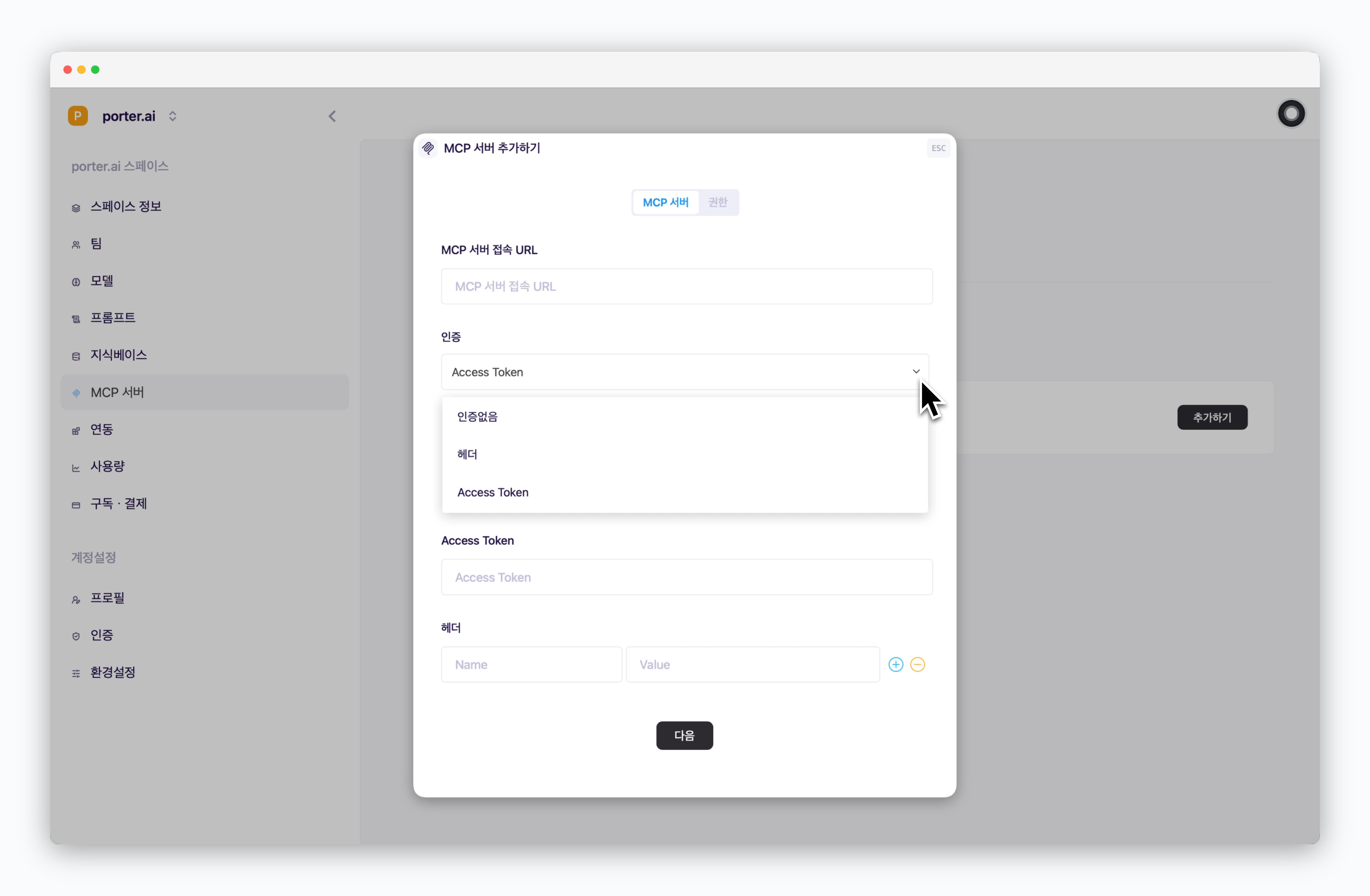 > For public MCP servers, such as Context7, that don't require authentication, select No Authentication. For servers that do require authentication, choose either Access Token or Header, enter the necessary values, and click `Next`.
OAuth authentication functionality will be available in future updates.
### Configure Name and Tools
> For public MCP servers, such as Context7, that don't require authentication, select No Authentication. For servers that do require authentication, choose either Access Token or Header, enter the necessary values, and click `Next`.
OAuth authentication functionality will be available in future updates.
### Configure Name and Tools
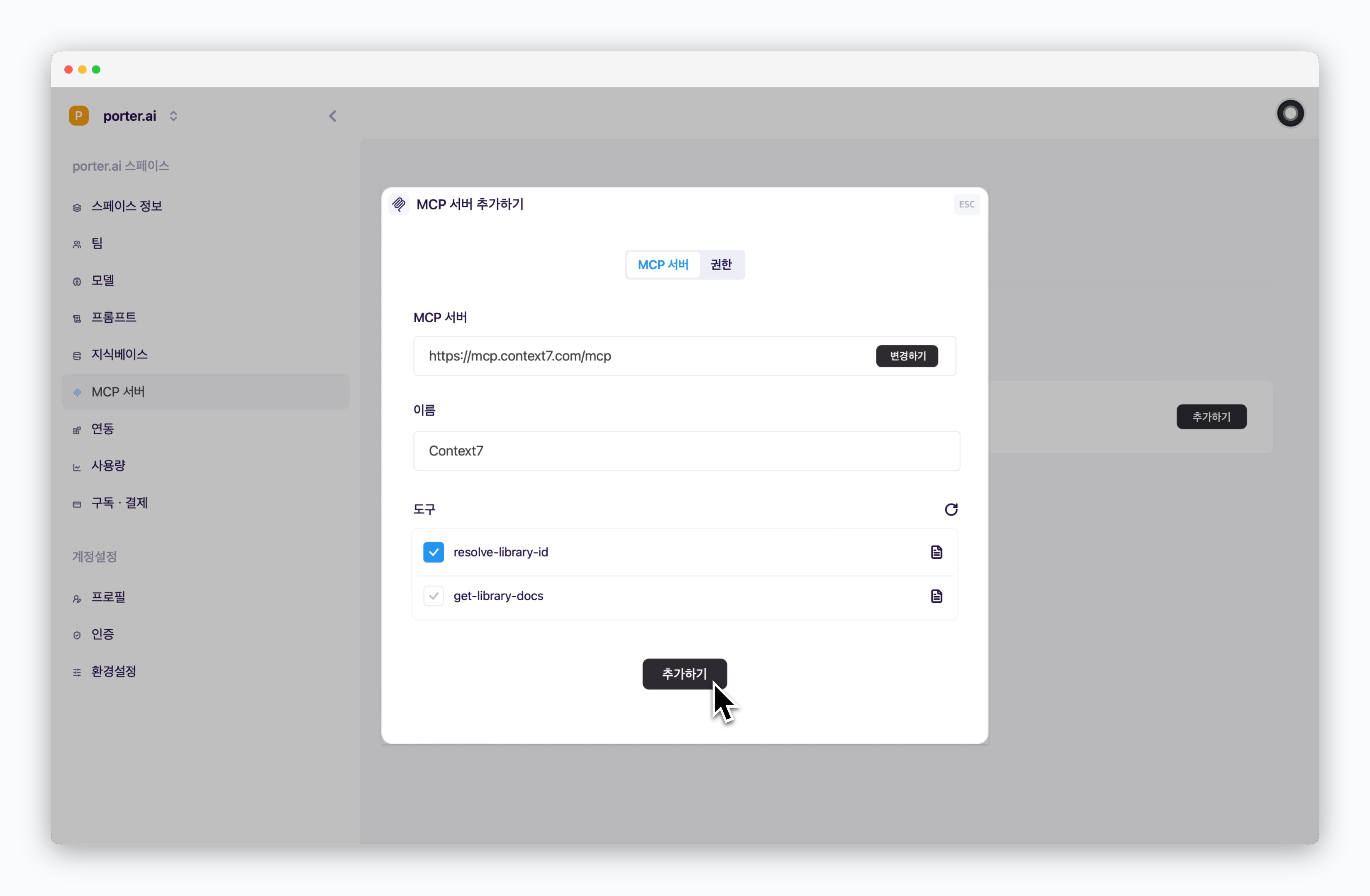 > When the MCP server connects successfully, the name and tools will be displayed automatically. Set a custom name and click `Add` to complete the MCP server setup.
You can disable unused tools or review tool descriptions and parameter details.
### Set Access Permissions
> When the MCP server connects successfully, the name and tools will be displayed automatically. Set a custom name and click `Add` to complete the MCP server setup.
You can disable unused tools or review tool descriptions and parameter details.
### Set Access Permissions
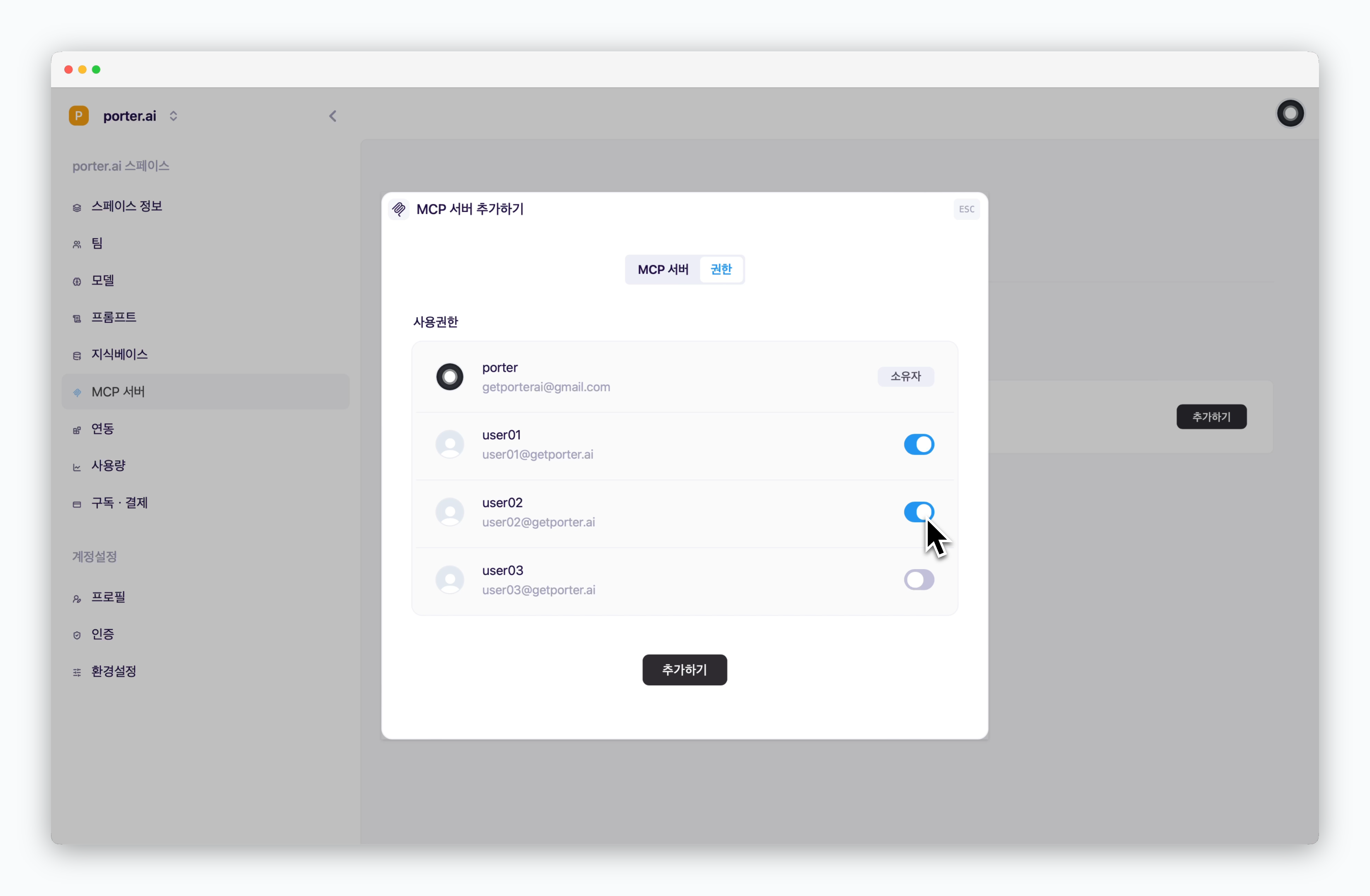 > When adding an MCP server, you can set access permissions for each team member in the Permissions tab.
## Use in Chat
> When adding an MCP server, you can set access permissions for each team member in the Permissions tab.
## Use in Chat
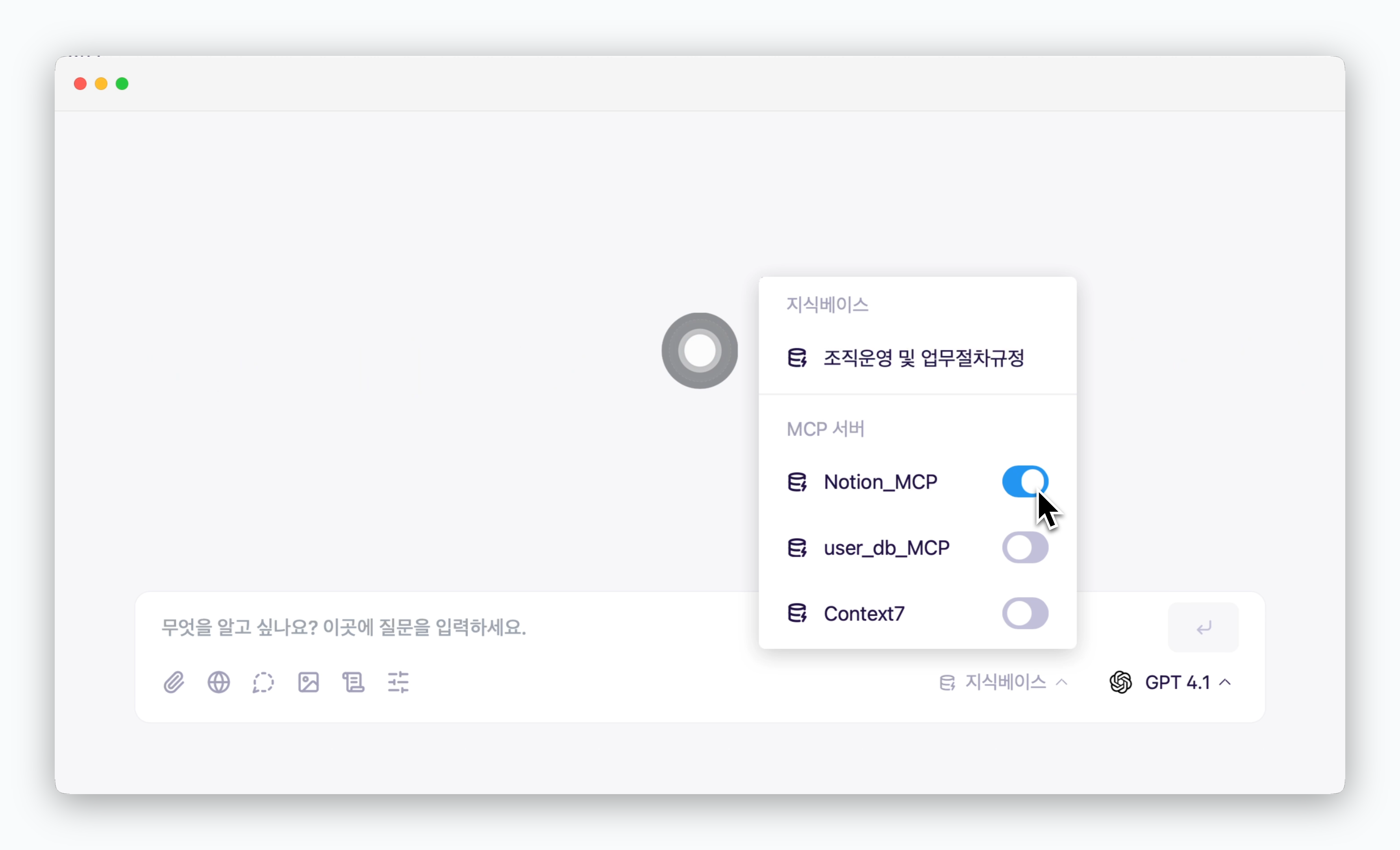 > Click Knowledge Base in the prompt box and activate the added MCP to get AI responses powered by the MCP server.
Performance in calling and utilizing MCP server tools varies depending on the AI model.
## Integrate with Slack
> Click Knowledge Base in the prompt box and activate the added MCP to get AI responses powered by the MCP server.
Performance in calling and utilizing MCP server tools varies depending on the AI model.
## Integrate with Slack
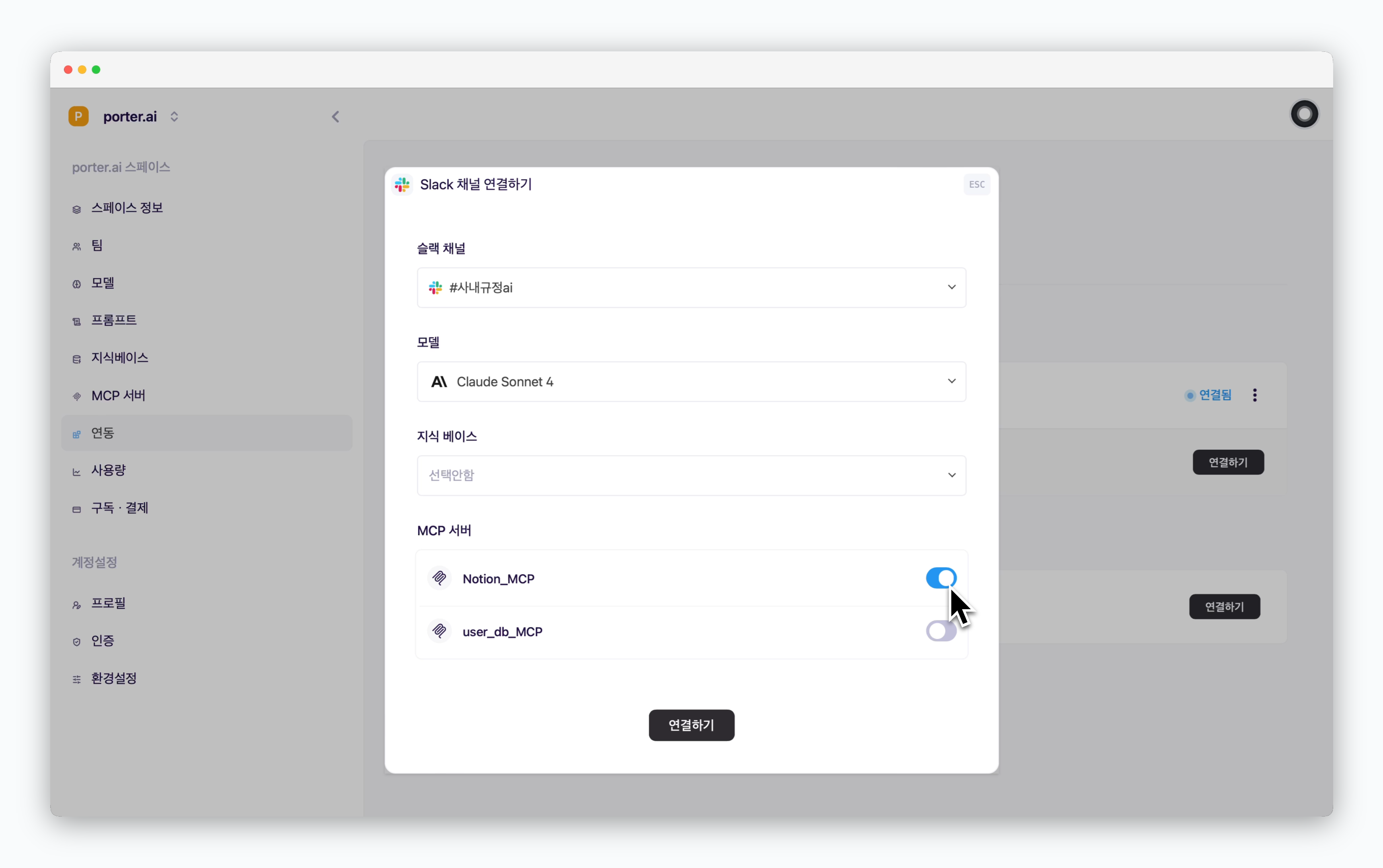 > When [connecting Slack channels in the Settings > Integrations Slack section](/en/slack), activating the added MCP server enables the Slack AI chatbot to respond using the MCP server.