> ## Documentation Index
> Fetch the complete documentation index at: https://docs.getporter.ai/llms.txt
> Use this file to discover all available pages before exploring further.
# OpenAI ChatGPT
> Guide on generating OpenAI API keys and using them in Porter AI.
***
## Access OpenAI Developer Platform
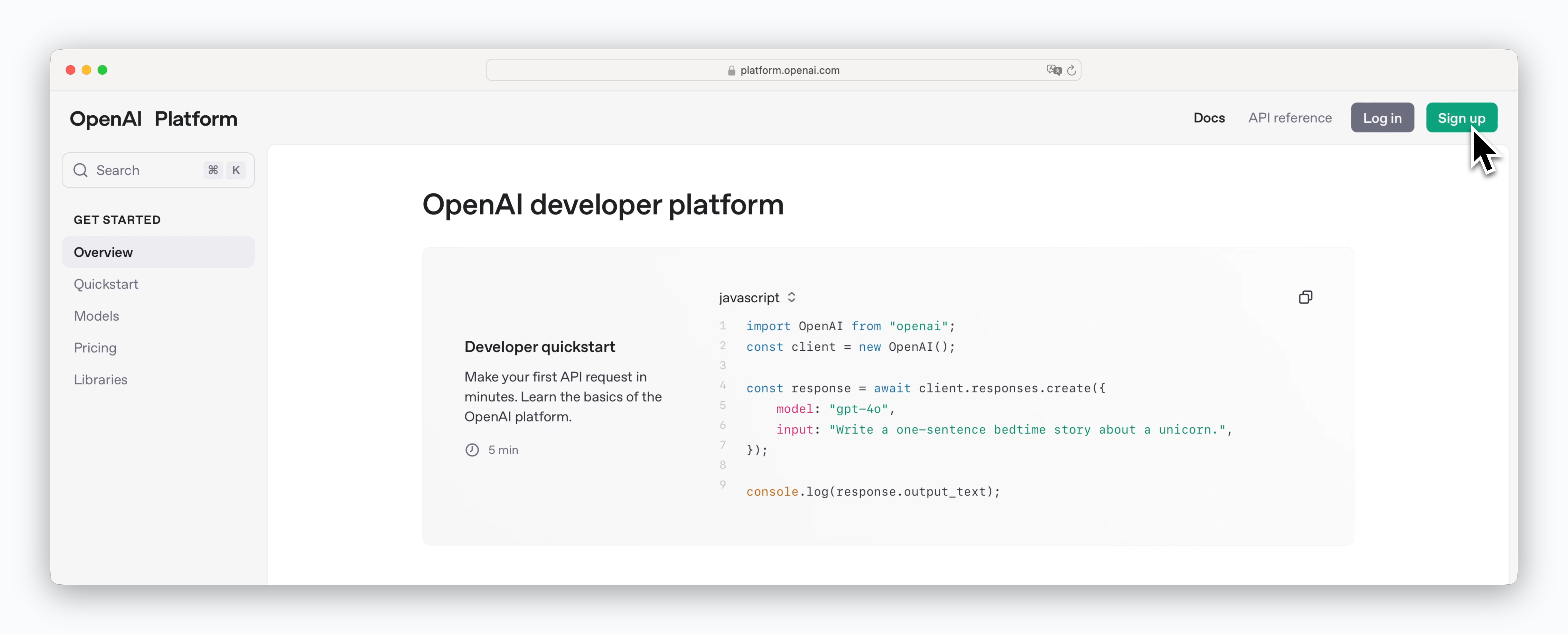 > Go to [https://platform.openai.com](https://platform.openai.com) and sign up or log in.
## Generate API Keys
### During Sign-up
> Go to [https://platform.openai.com](https://platform.openai.com) and sign up or log in.
## Generate API Keys
### During Sign-up
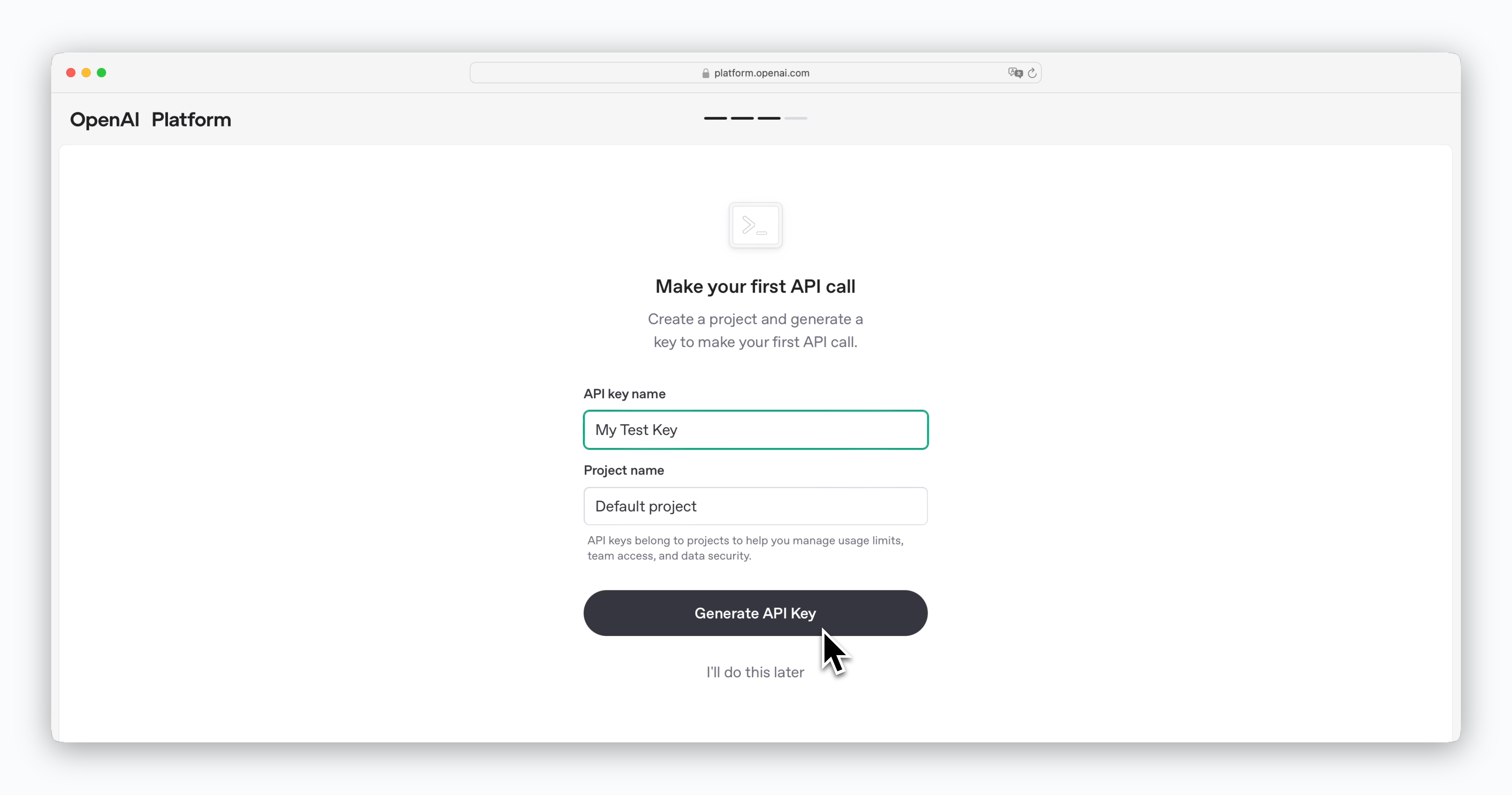 > You can generate an API key during the sign-up process. However, the API key is only visible once after generation, so be sure to store it securely.
If you lose your API key, you can delete the existing key from the dashboard and generate a new one using the instructions below.
### Generate from Dashboard
> You can generate an API key during the sign-up process. However, the API key is only visible once after generation, so be sure to store it securely.
If you lose your API key, you can delete the existing key from the dashboard and generate a new one using the instructions below.
### Generate from Dashboard
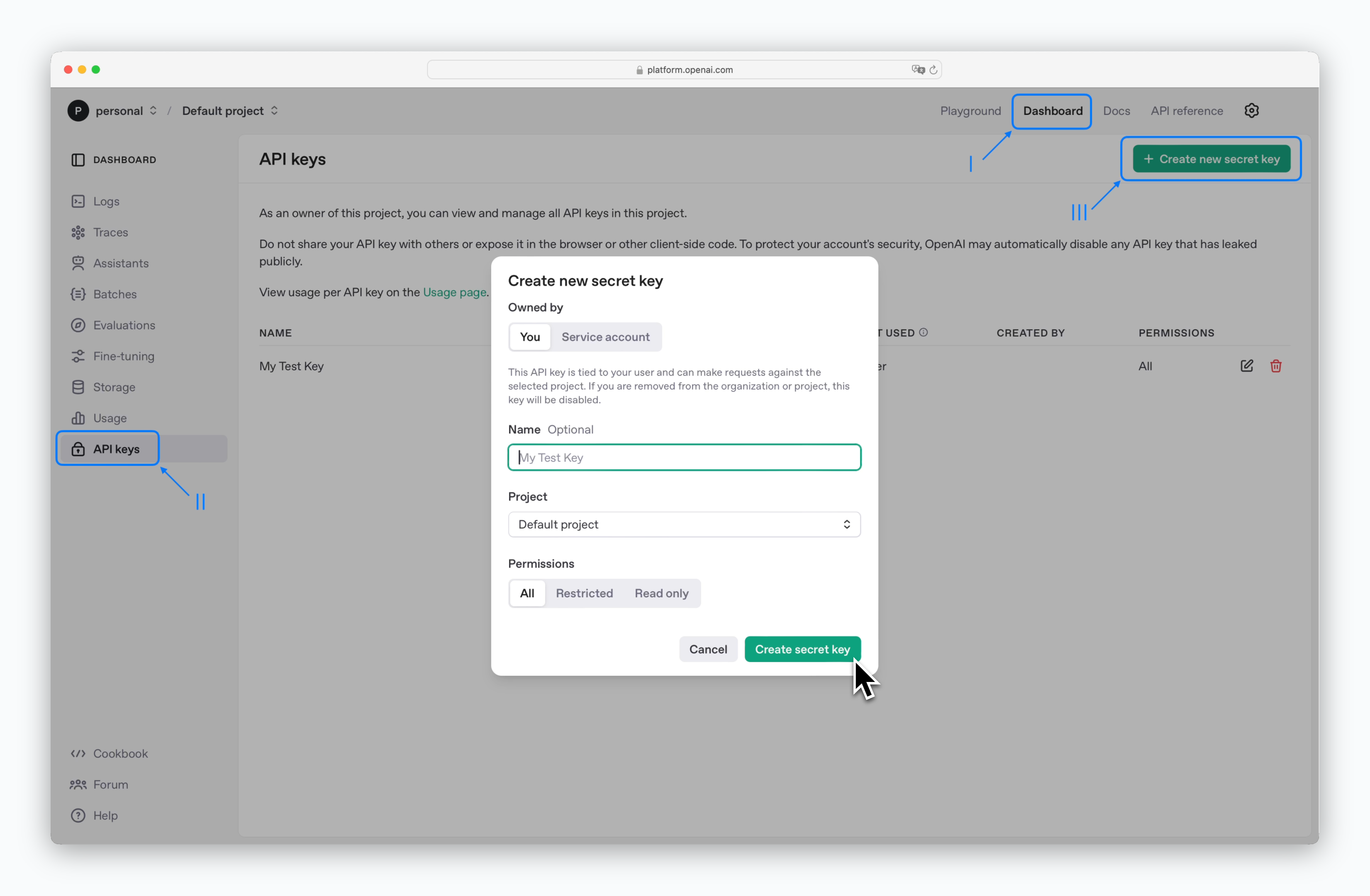 > When you log in, the initial screen is the Docs page. Click Dashboard at the top of the screen, select API keys from the left sidebar, and click the `Create new secret key` button to generate an API key.
## Add Credits
> When you log in, the initial screen is the Docs page. Click Dashboard at the top of the screen, select API keys from the left sidebar, and click the `Create new secret key` button to generate an API key.
## Add Credits
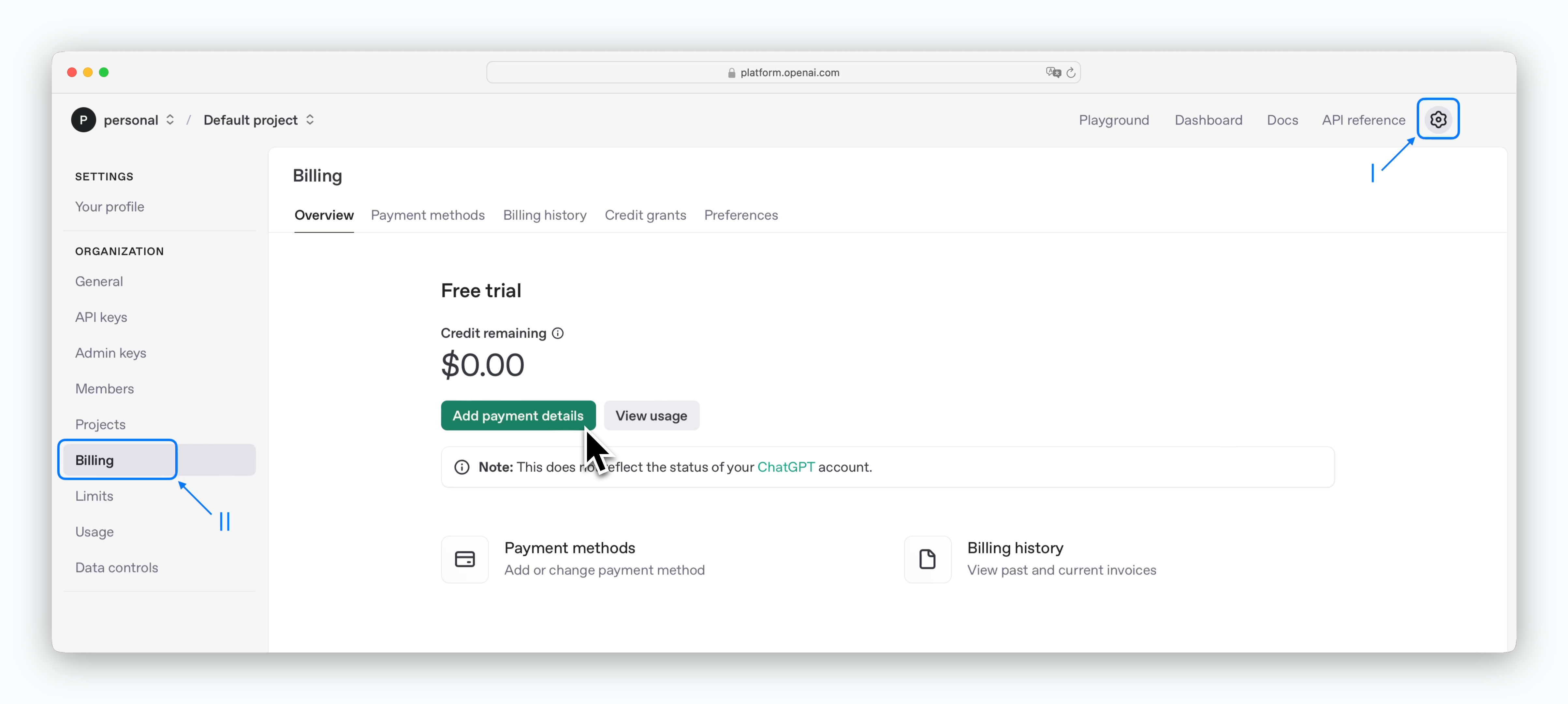 > Click the icon in the top right, select Billing from the left sidebar, and Click `Add payment details` to register a card and add credits.
OpenAI API is a paid service that charges based on token usage, deducting costs from your prepaid credits. The minimum credit purchase is \$5. For detailed pricing by model, see the [Pricing page.](https://platform.openai.com/docs/pricing)
## Register API Key in Porter AI
> Click the icon in the top right, select Billing from the left sidebar, and Click `Add payment details` to register a card and add credits.
OpenAI API is a paid service that charges based on token usage, deducting costs from your prepaid credits. The minimum credit purchase is \$5. For detailed pricing by model, see the [Pricing page.](https://platform.openai.com/docs/pricing)
## Register API Key in Porter AI
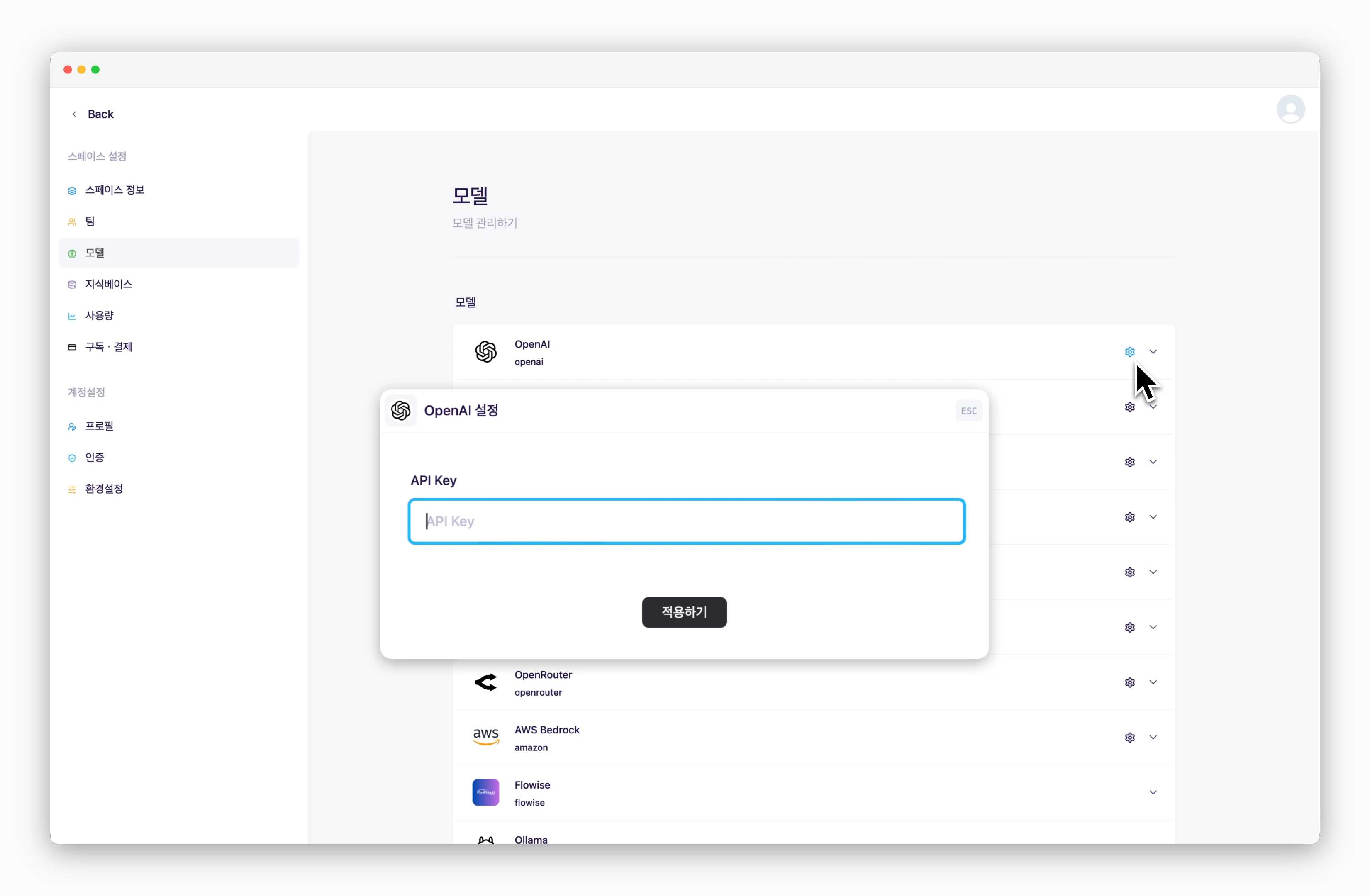 > In `Settings > Models`, click the icon for OpenAI and enter yout API key.
Once you add your API key, OpenAI model usage will be charged directly to your OpenAI account credits.
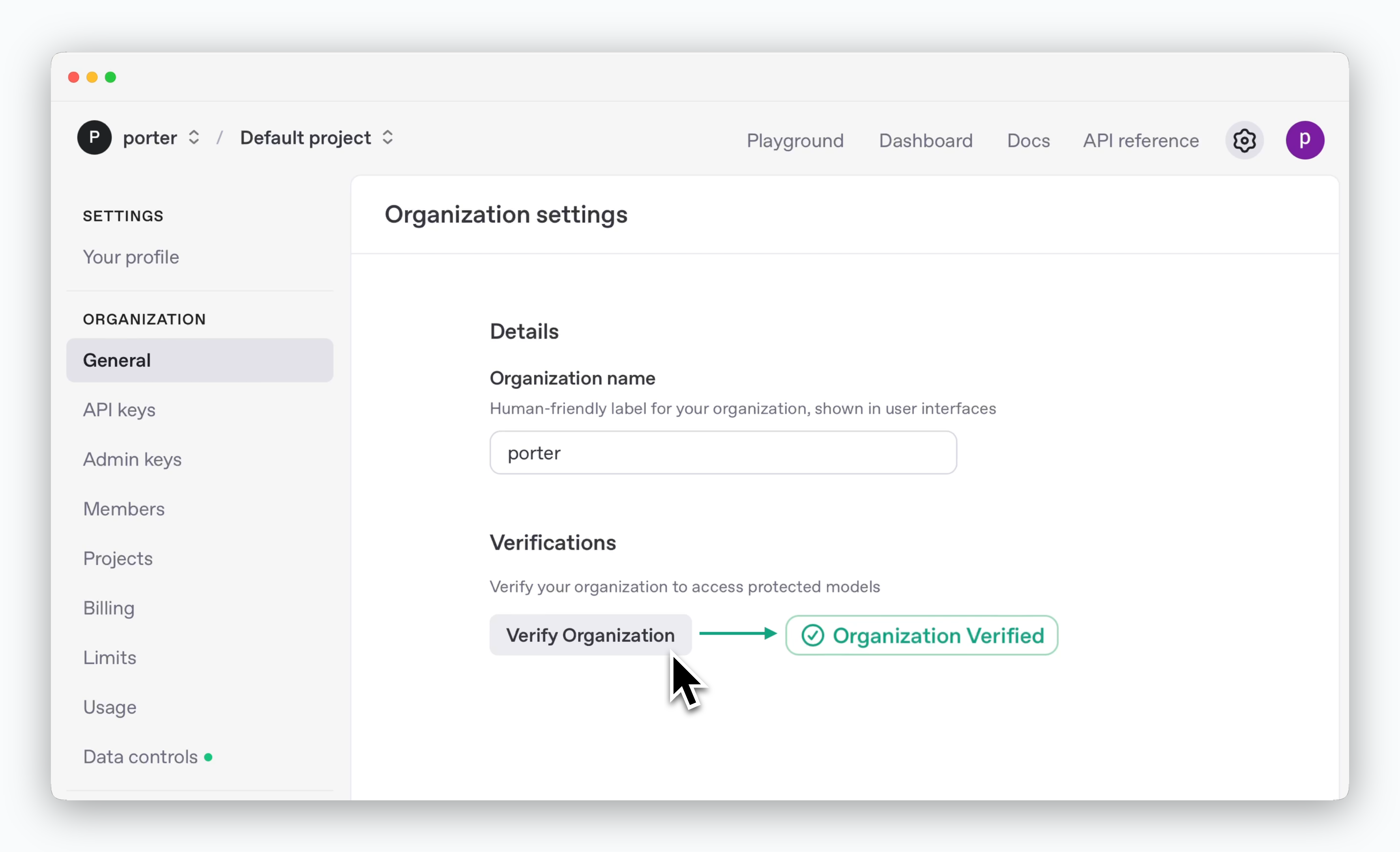
To use image generation features, you must verify your organization. Complete the identity verification process on the Organization Settings page.
> In `Settings > Models`, click the icon for OpenAI and enter yout API key.
Once you add your API key, OpenAI model usage will be charged directly to your OpenAI account credits.
To use image generation features, you must verify your organization. Complete the identity verification process on the Organization Settings page.
 ## Add Models
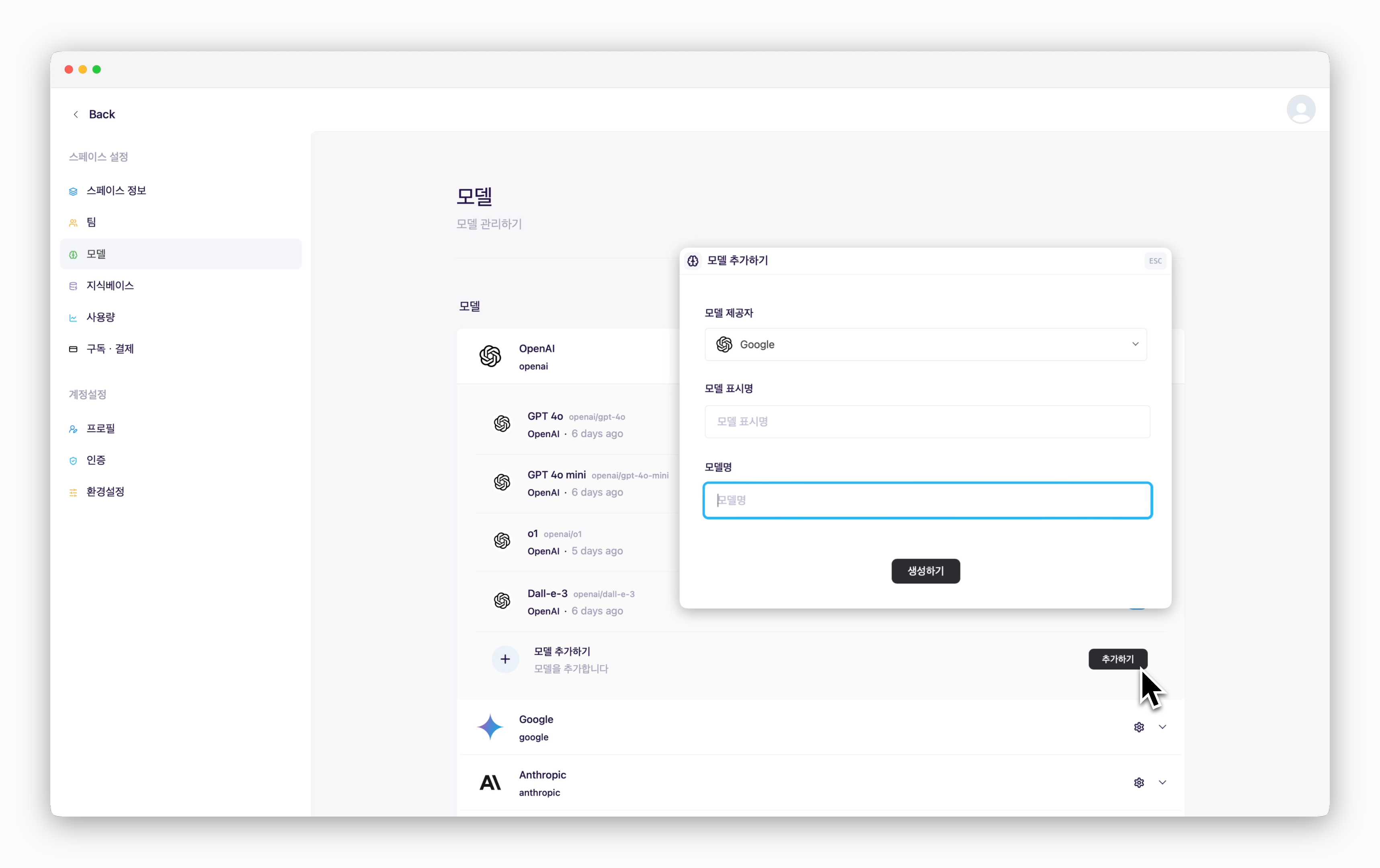 > Once you've registered an API key, you can add additional OpenAI models beyond the default ones. Simply provide a display name (shown in chats) and the official OpenAI model name.
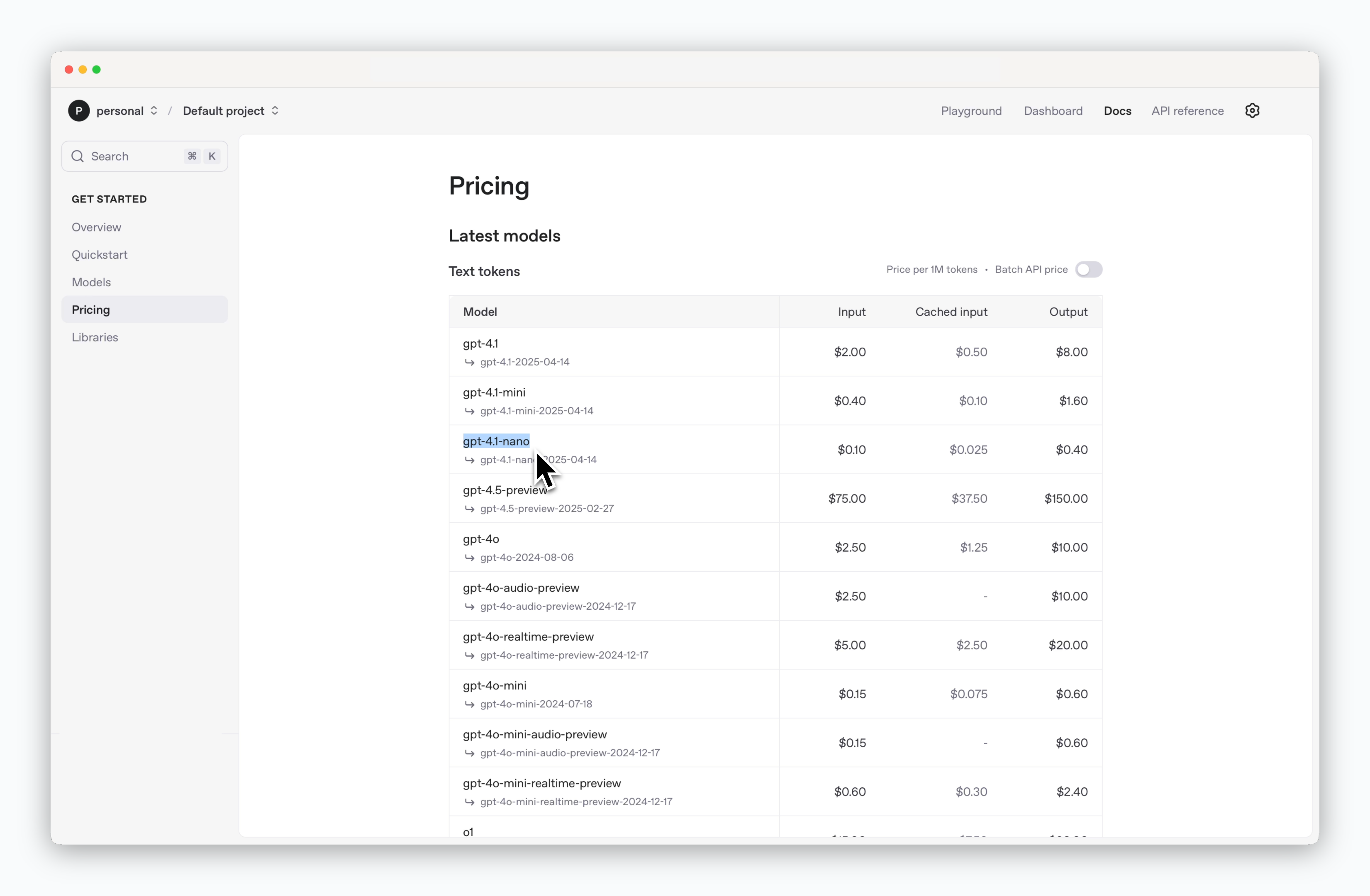
You can find the list of model names on the [API pricing page](https://platform.openai.com/docs/pricing). The highlighted section in the screenshot below shows the model name format.
> Once you've registered an API key, you can add additional OpenAI models beyond the default ones. Simply provide a display name (shown in chats) and the official OpenAI model name.
You can find the list of model names on the [API pricing page](https://platform.openai.com/docs/pricing). The highlighted section in the screenshot below shows the model name format.
 For fine-tuned models, you can add them by entering the custom model name you configured.