> ## Documentation Index
> Fetch the complete documentation index at: https://docs.getporter.ai/llms.txt
> Use this file to discover all available pages before exploring further.
# OpenRouter
> Guide on generating OpenRouter API keys and using them in Porter AI.
***
## Access OpenRouter
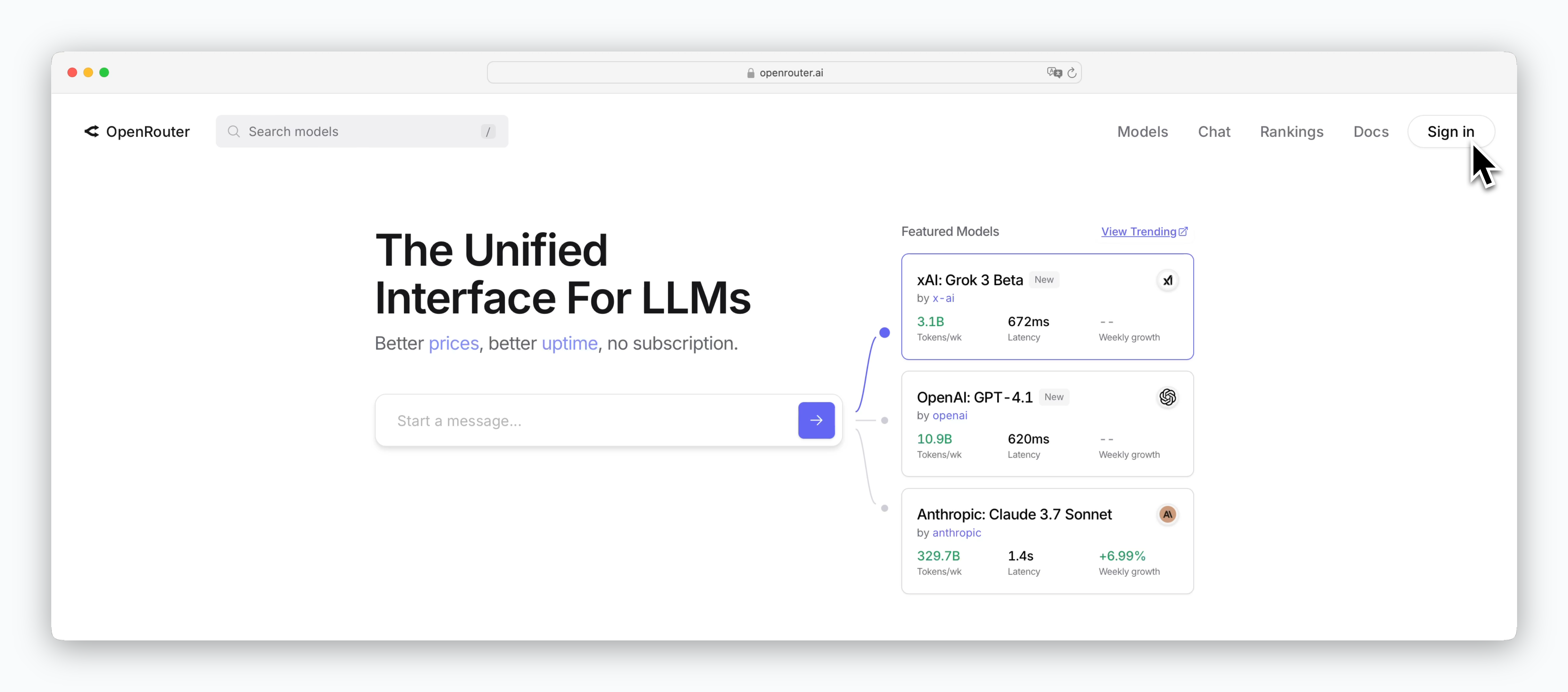 > Go to [https://openrouter.ai](https://openrouter.ai) and sign up or log in.
## Generate API Keys
> Go to [https://openrouter.ai](https://openrouter.ai) and sign up or log in.
## Generate API Keys
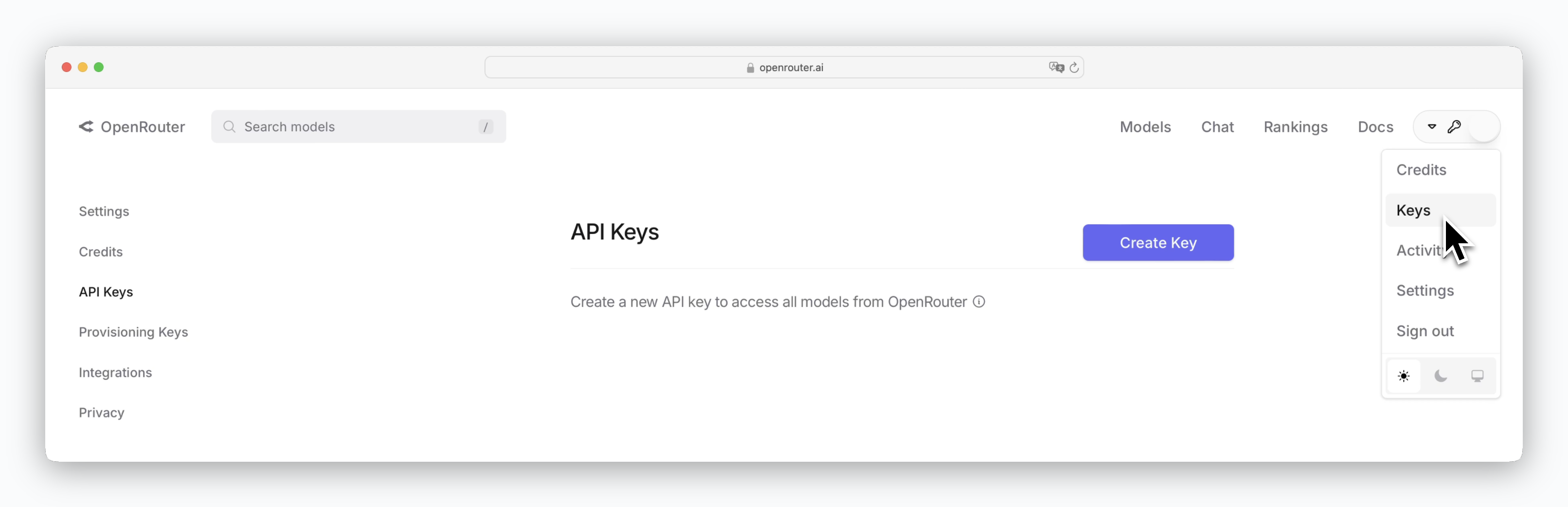 > Click your profile in the top right corner and generate an API key using the `Create Key` button on the API Keys page.
API keys can only be viewed immediately after generation, so be sure to store it securely. If you lose your API key, you can delete the existing key from the dashboard and generate a new one.
## Select Model to Route
> Click your profile in the top right corner and generate an API key using the `Create Key` button on the API Keys page.
API keys can only be viewed immediately after generation, so be sure to store it securely. If you lose your API key, you can delete the existing key from the dashboard and generate a new one.
## Select Model to Route
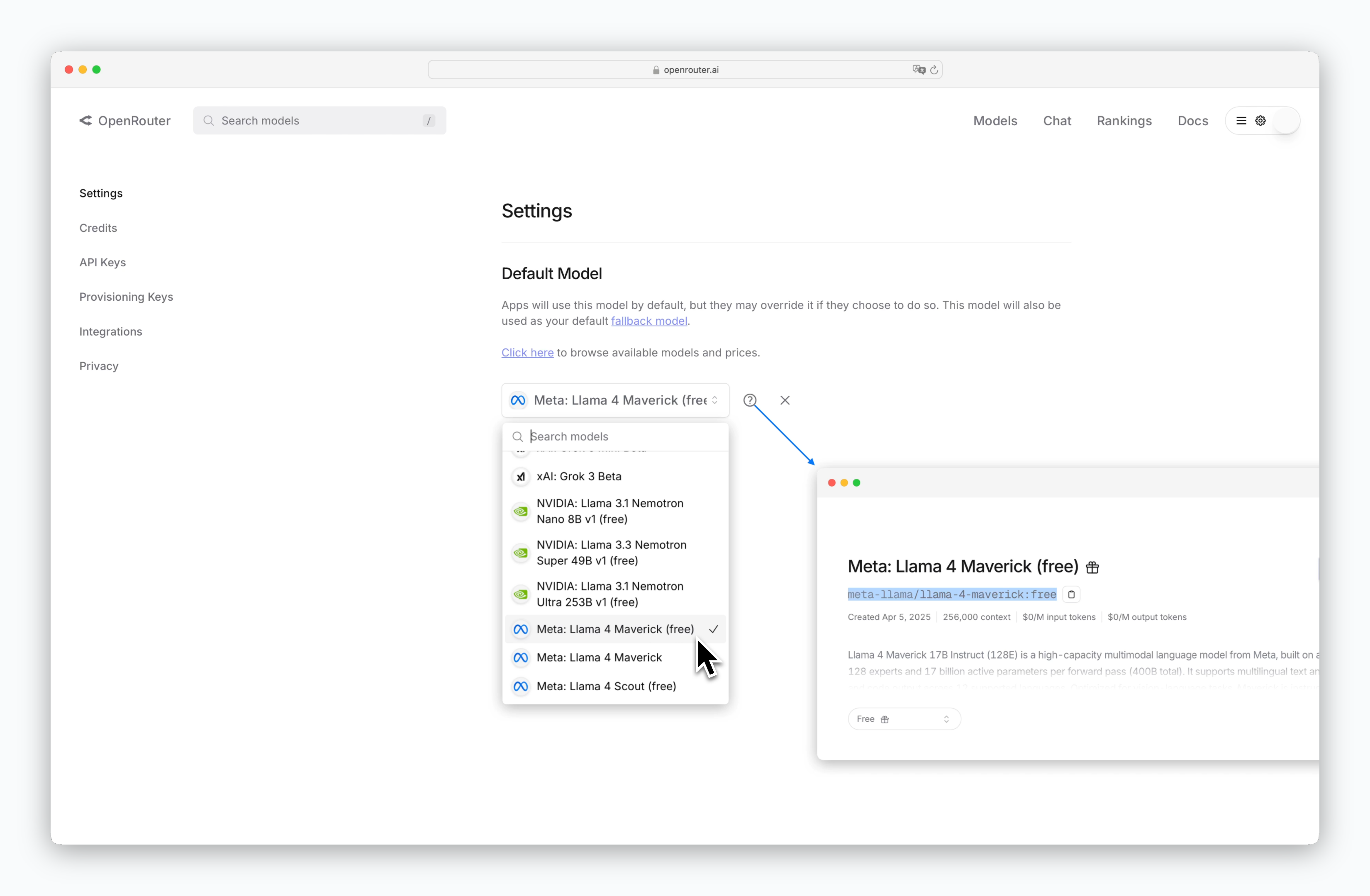 > OpenRouter is a service that routes API requests to various models from OpenAI, Anthropic, and others.
> Select the model you want to route to in the Default Model section of the Settings page.
After selecting a model, click the icon on the right to view the model name needed for Porter AI integration. When adding models to Porter AI, copy the highlighted section or use the copy button.
If you select a paid model, you'll need to add credits to use it.
## Register API Key in Porter AI
> OpenRouter is a service that routes API requests to various models from OpenAI, Anthropic, and others.
> Select the model you want to route to in the Default Model section of the Settings page.
After selecting a model, click the icon on the right to view the model name needed for Porter AI integration. When adding models to Porter AI, copy the highlighted section or use the copy button.
If you select a paid model, you'll need to add credits to use it.
## Register API Key in Porter AI
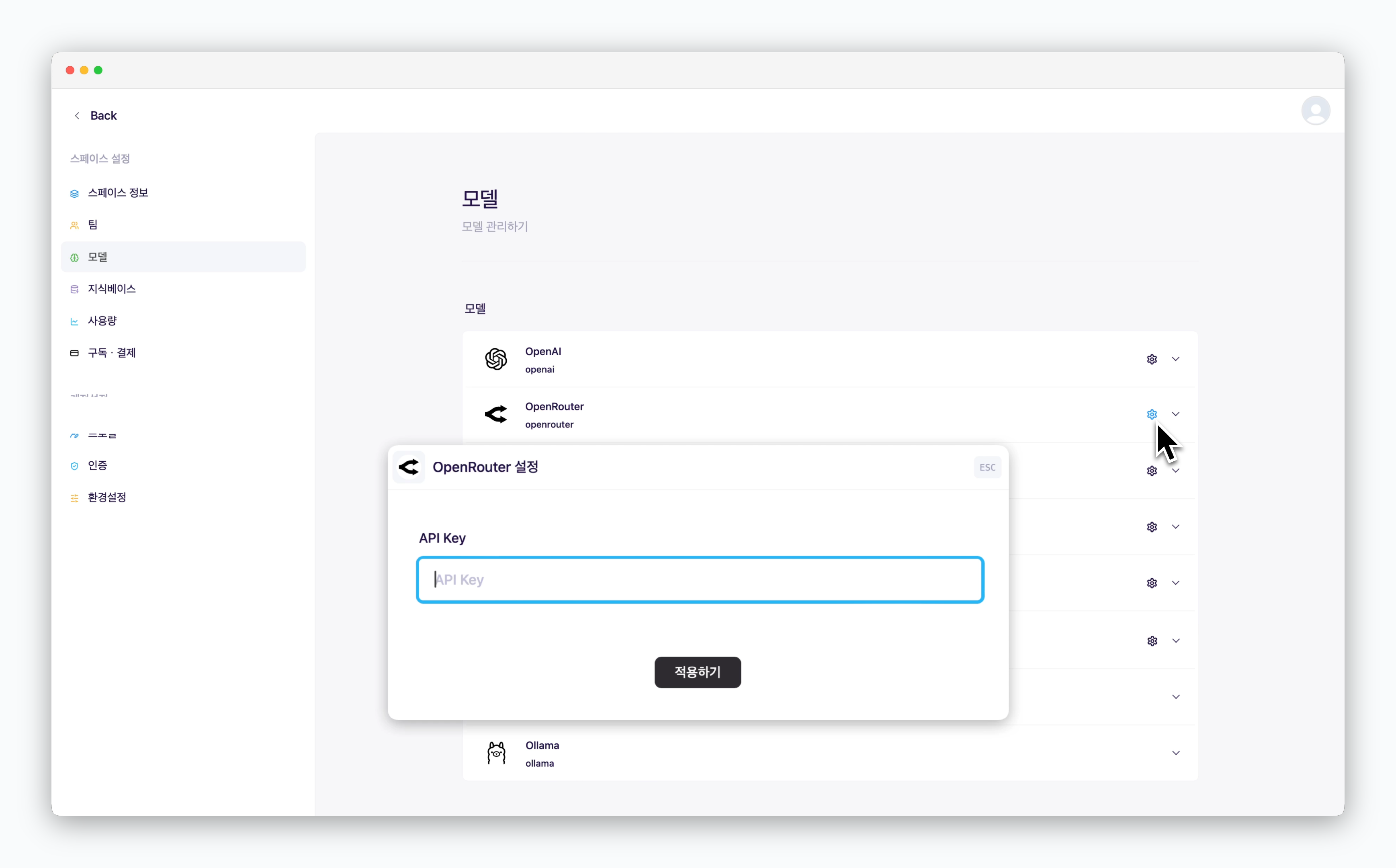 > In `Settings > Models`, click the icon for OpenRouter and enter your API key.
Once you add your API key, OpenRouter model usage will be charged to your OpenRouter credits.
## Add Models
> In `Settings > Models`, click the icon for OpenRouter and enter your API key.
Once you add your API key, OpenRouter model usage will be charged to your OpenRouter credits.
## Add Models
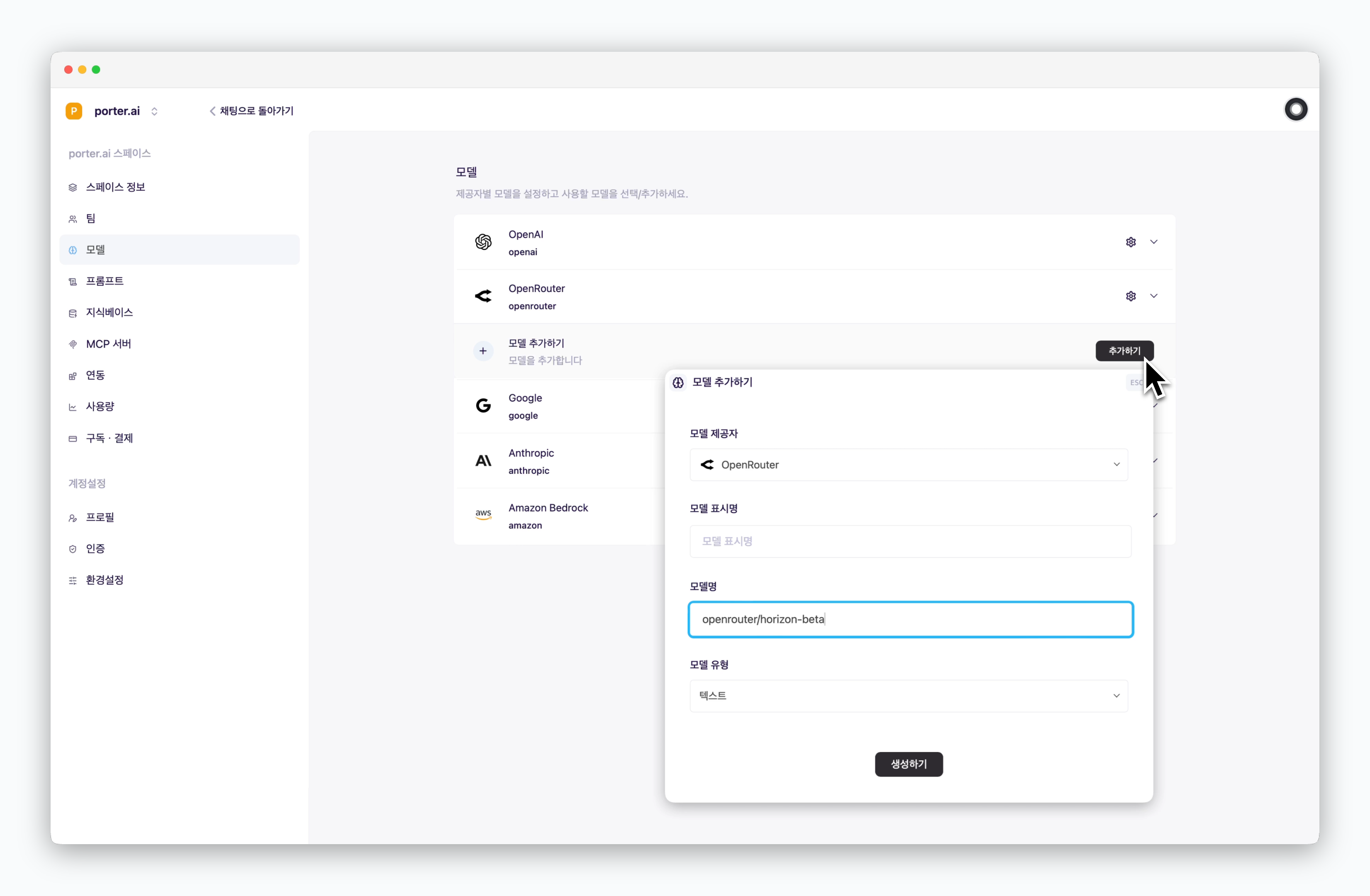 > Click the `Add` button to add a model as shown. The model display name can be customized and will be shown when selecting models in chats. For the model name, enter the [model name you set as Default Model](/en/openrouter#select-model-to-route) in OpenRouter.