> ## Documentation Index
> Fetch the complete documentation index at: https://docs.getporter.ai/llms.txt
> Use this file to discover all available pages before exploring further.
# Slack
> Get AI responses in Slack channels based on selected AI models and knowledge bases.
## Connect Slack Workspace
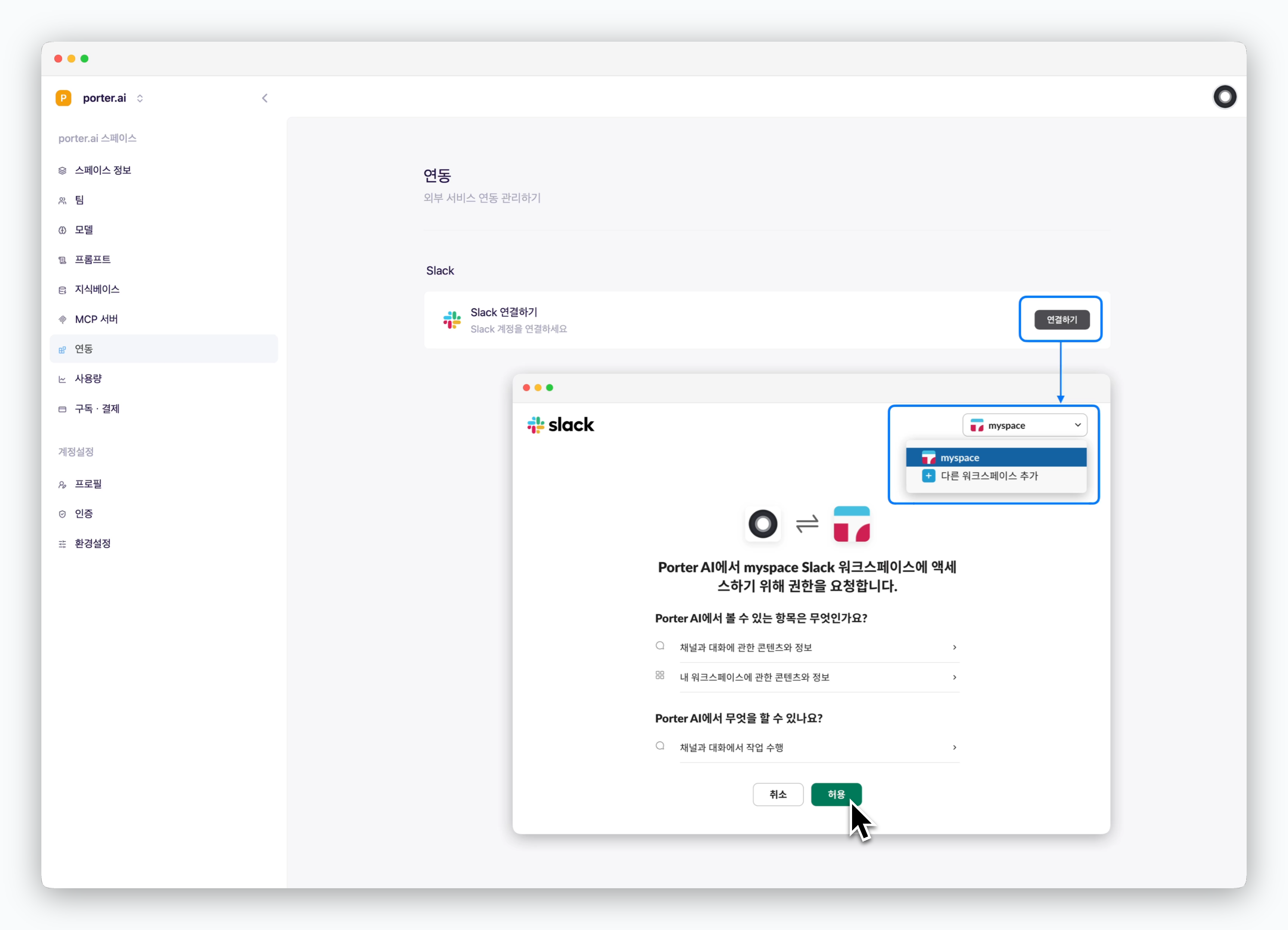 > In `Settings > Integrations > Slack section`, Click `Connect`, select the workspace you want to connect, and click `Allow` to integrate Porter AI with your Slack workspace.
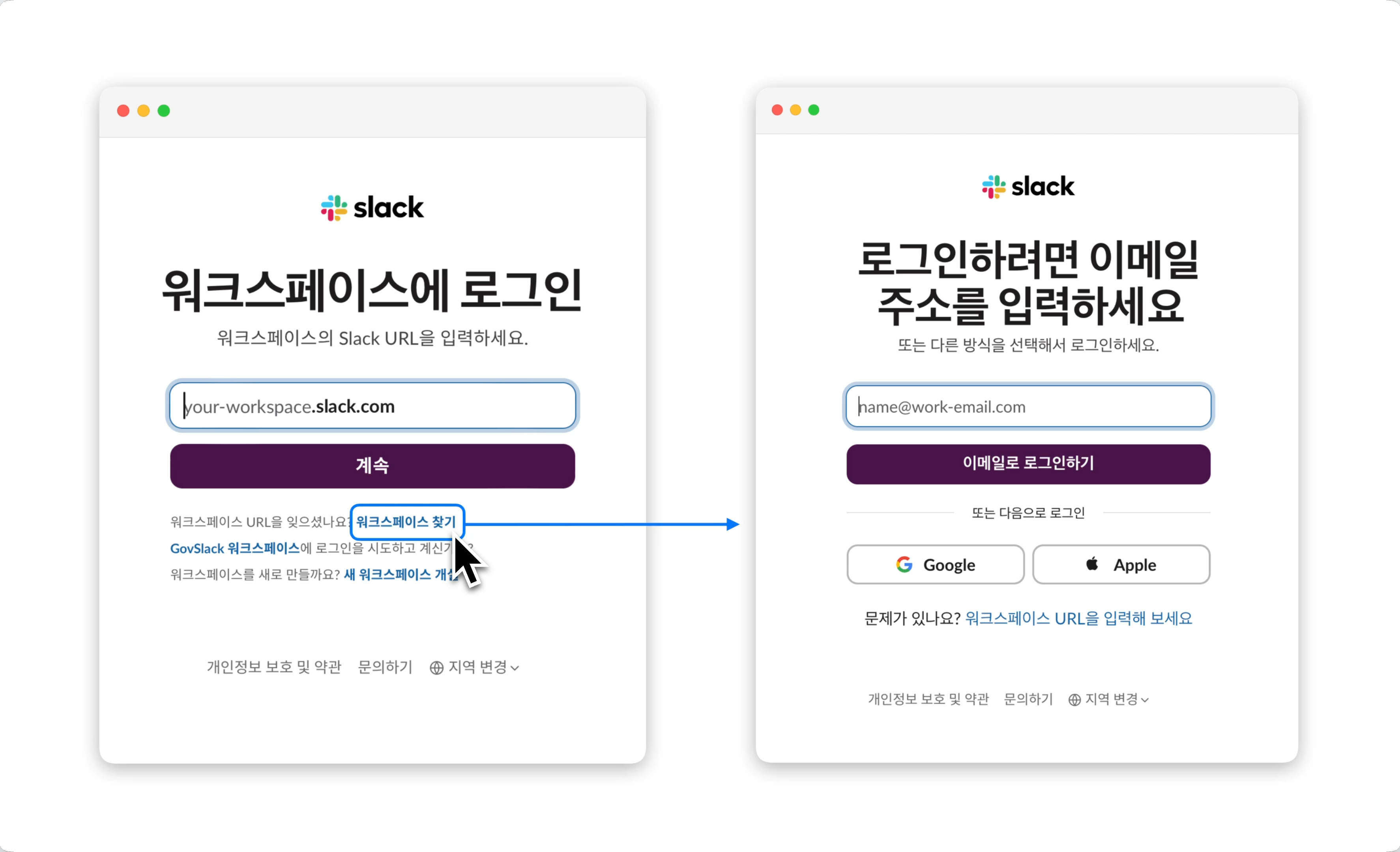
If you're not logged into Slack in your browser, you'll need to sign in to your Slack workspace before you can connect.
> In `Settings > Integrations > Slack section`, Click `Connect`, select the workspace you want to connect, and click `Allow` to integrate Porter AI with your Slack workspace.
If you're not logged into Slack in your browser, you'll need to sign in to your Slack workspace before you can connect.
 ## Channel Settings
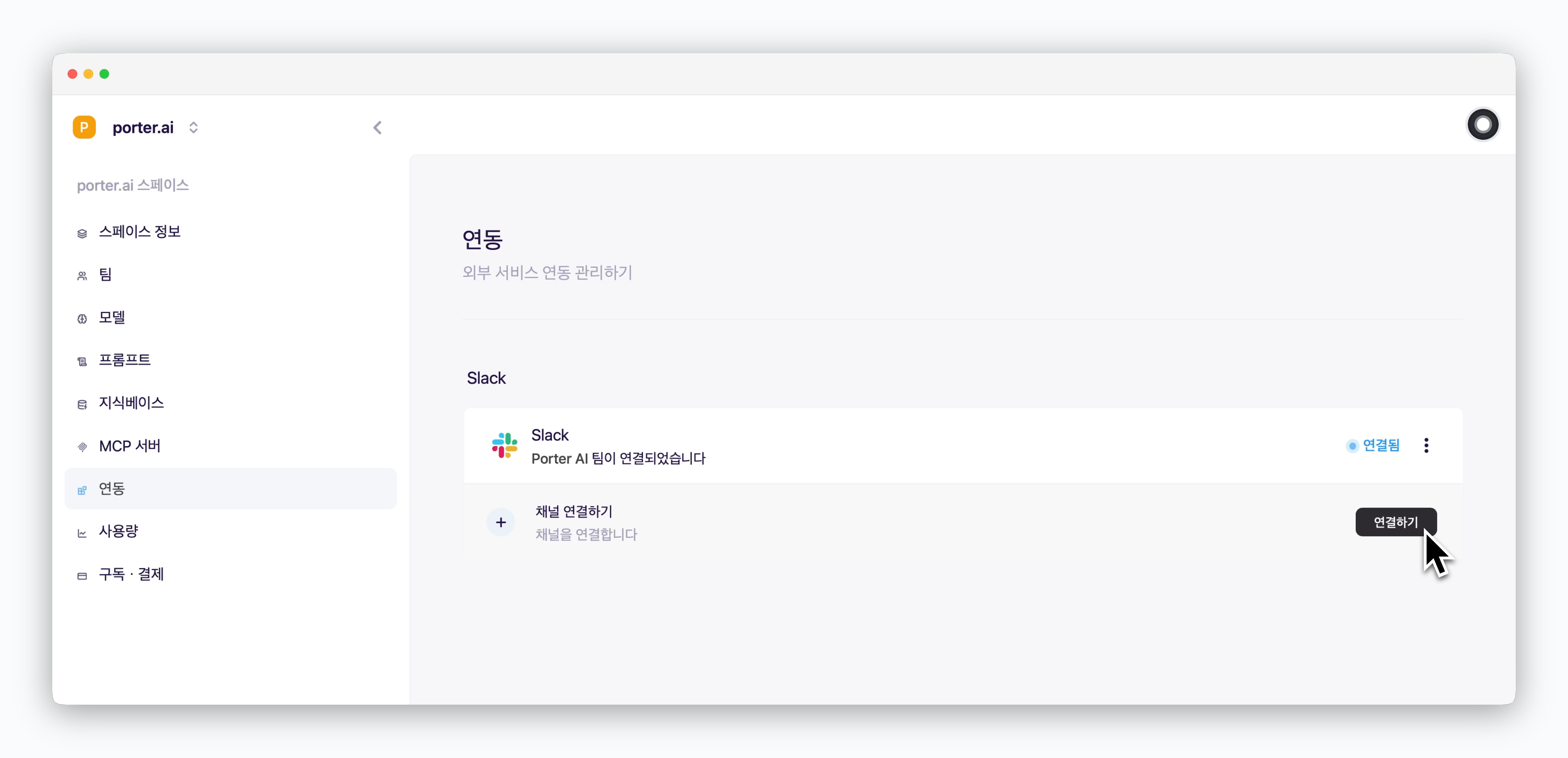 > After connecting the workspace, click 'Connect Channel' below to select which channel to connect and configure AI responses.
Once a channel is connected, a Slack app named Porter AI will be added to your workspace. The app can only be invoked in connected channels.
### Channel
> After connecting the workspace, click 'Connect Channel' below to select which channel to connect and configure AI responses.
Once a channel is connected, a Slack app named Porter AI will be added to your workspace. The app can only be invoked in connected channels.
### Channel
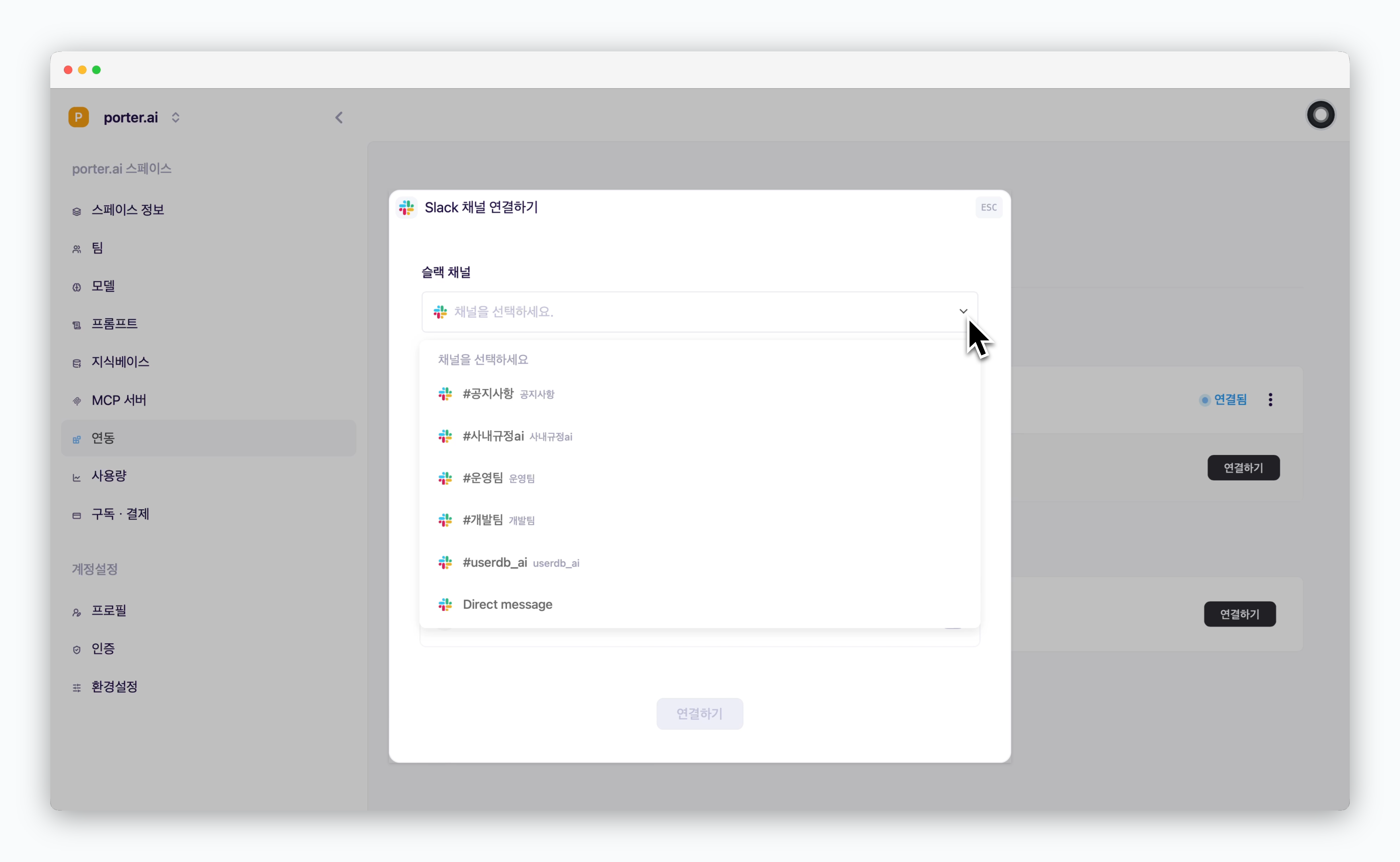 > Select the channel where you want to invoke AI and receive responses.
If you set the channel to `Direct Message`, all members of the Slack workspace can receive responses via DM with the Porter AI app.
### AI Model
> Select the channel where you want to invoke AI and receive responses.
If you set the channel to `Direct Message`, all members of the Slack workspace can receive responses via DM with the Porter AI app.
### AI Model
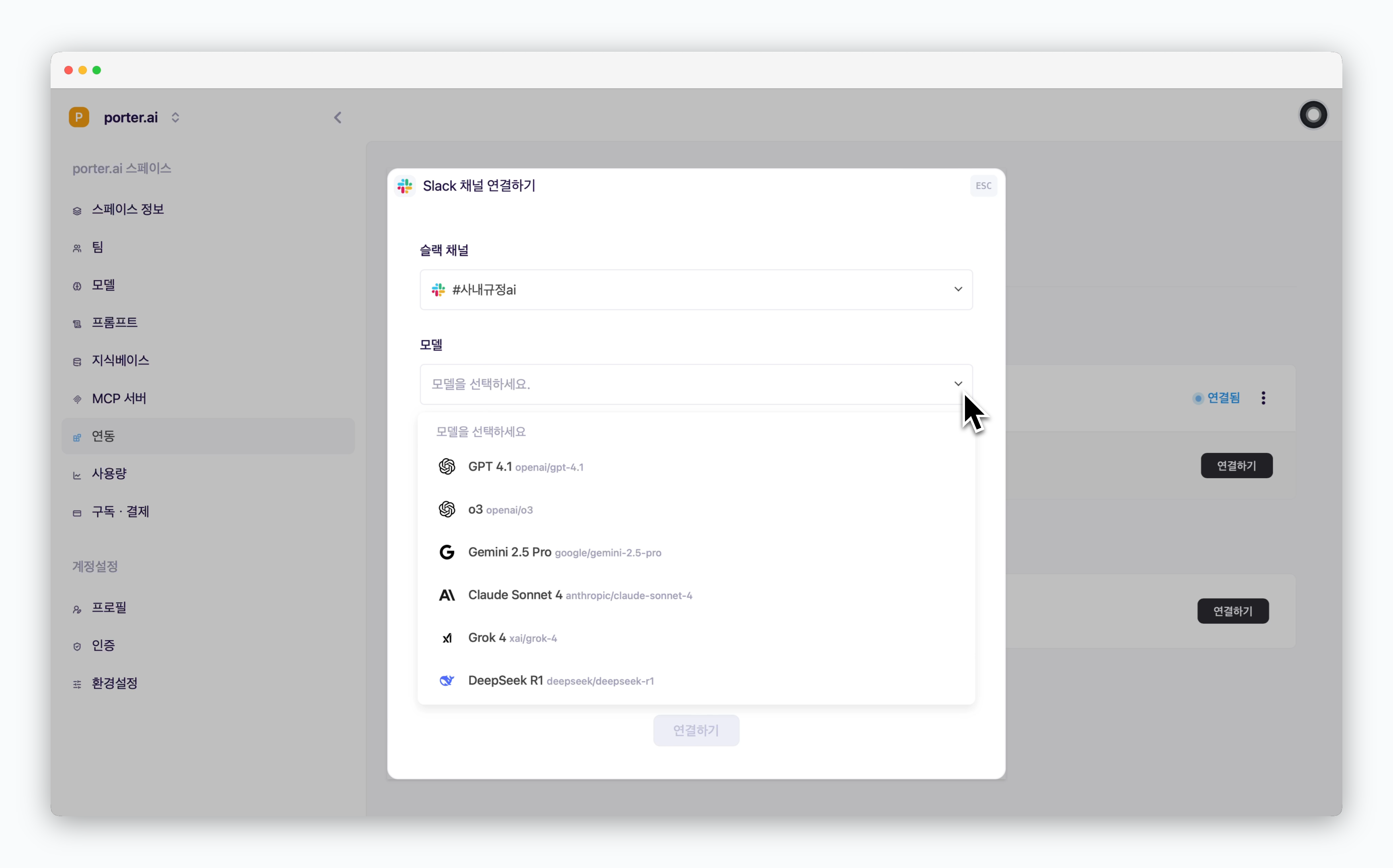 > Select the model that will respond in the Slack channel.
Only activated models are available for selection. To enable more models, refer to the [AI Models page.](/en/model)
### Knowledge Base
> Select the model that will respond in the Slack channel.
Only activated models are available for selection. To enable more models, refer to the [AI Models page.](/en/model)
### Knowledge Base
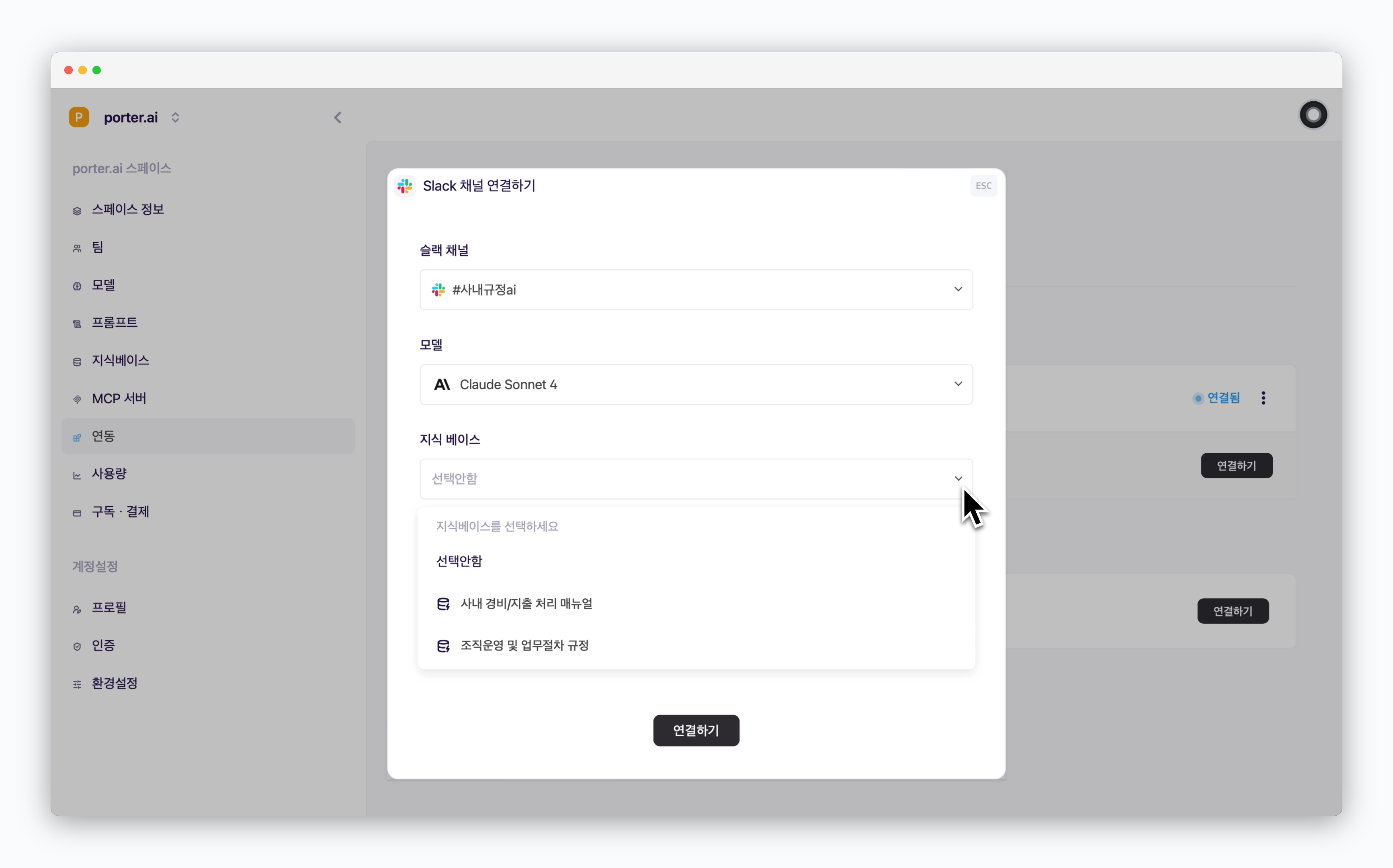 > Select a knowledge base composed of document files, web URLs, etc., so the selected AI model can respond based on that data.
For knowledge base management including adding knowledge bases, refer to the [Knowledge Base](/en/data) page.
### MCP Server
> Select a knowledge base composed of document files, web URLs, etc., so the selected AI model can respond based on that data.
For knowledge base management including adding knowledge bases, refer to the [Knowledge Base](/en/data) page.
### MCP Server
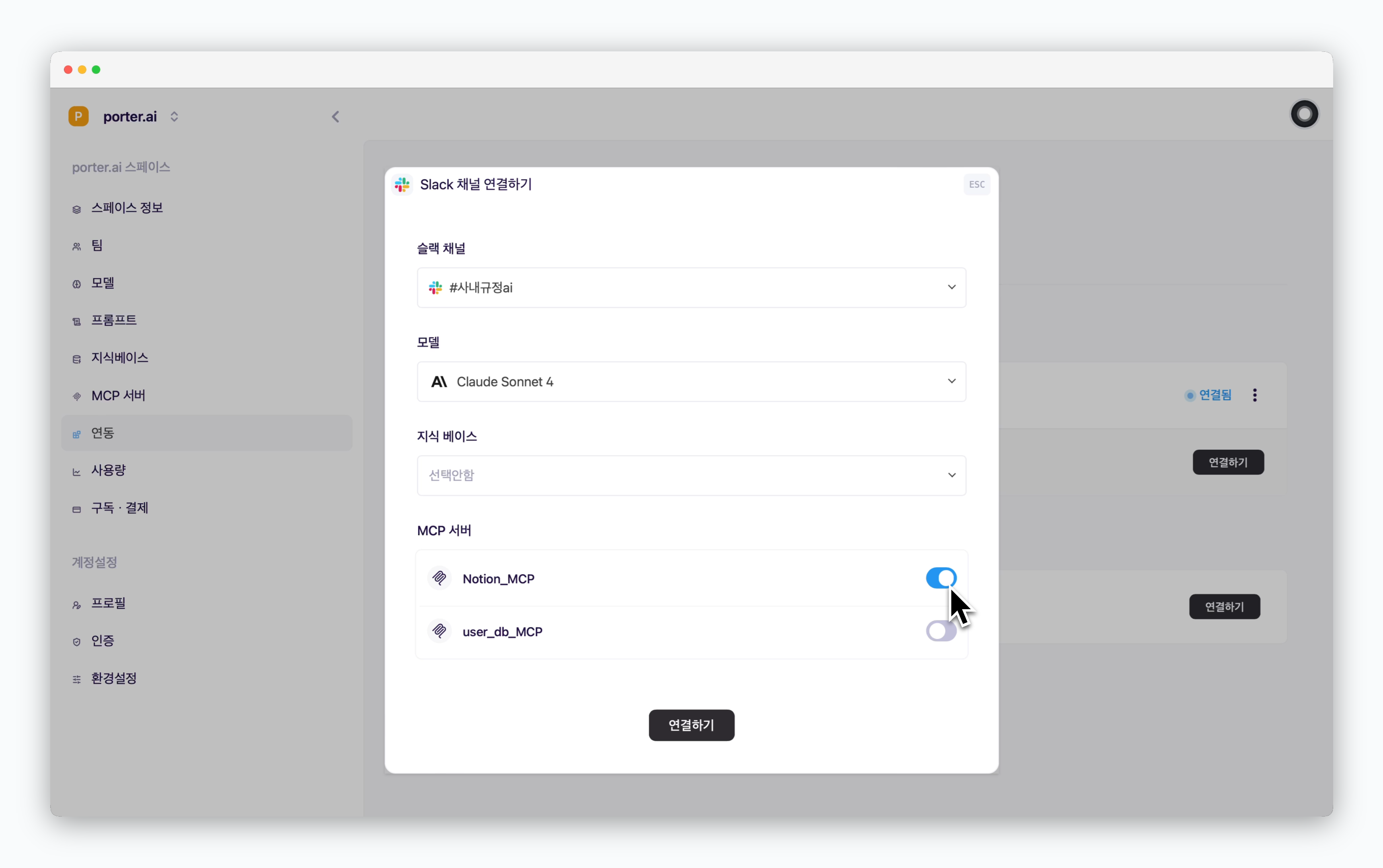 > When you activate an added MCP, the selected AI model will respond using that MCP server.
For MCP server management such as adding servers, refer to the [MCP Server Management](/en/mcp) page.
## Get AI Responses in Slack
### via Slack Channel
> When you activate an added MCP, the selected AI model will respond using that MCP server.
For MCP server management such as adding servers, refer to the [MCP Server Management](/en/mcp) page.
## Get AI Responses in Slack
### via Slack Channel
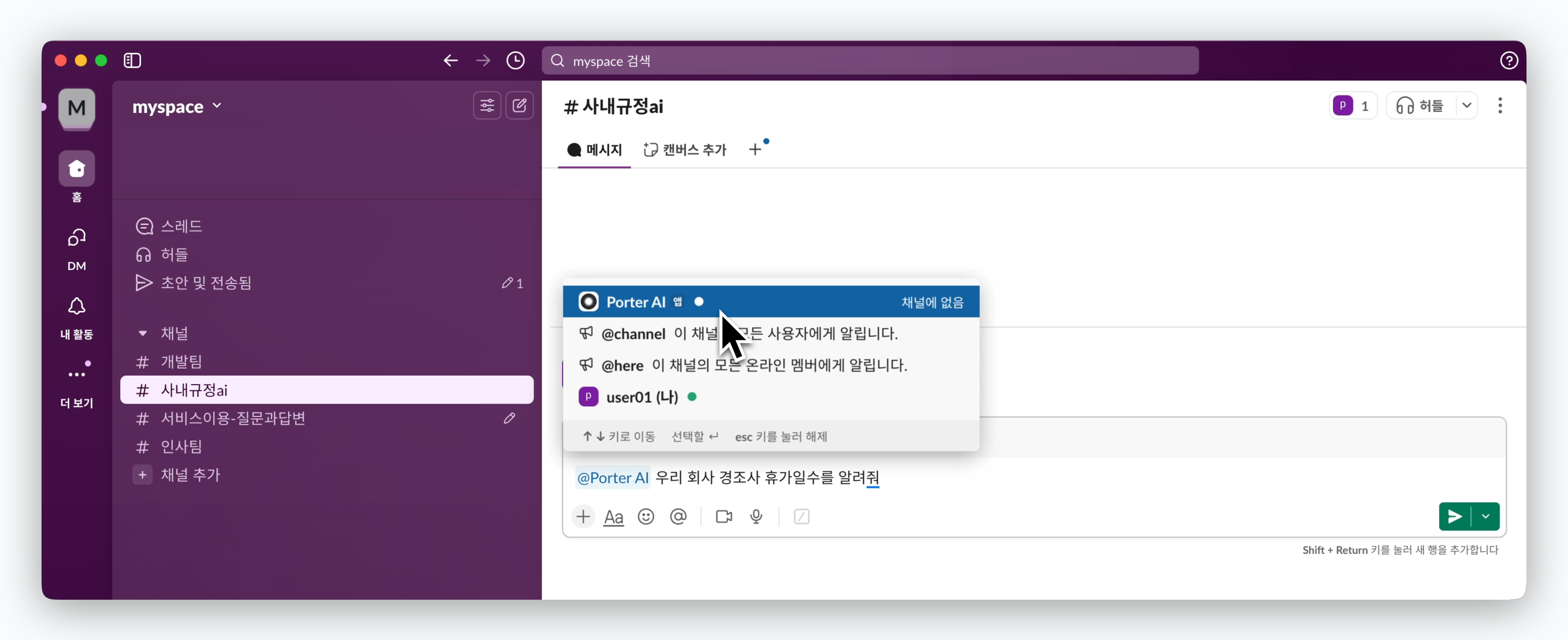 > In the connected channel, mention `@Porter AI` to start chatting with the AI.
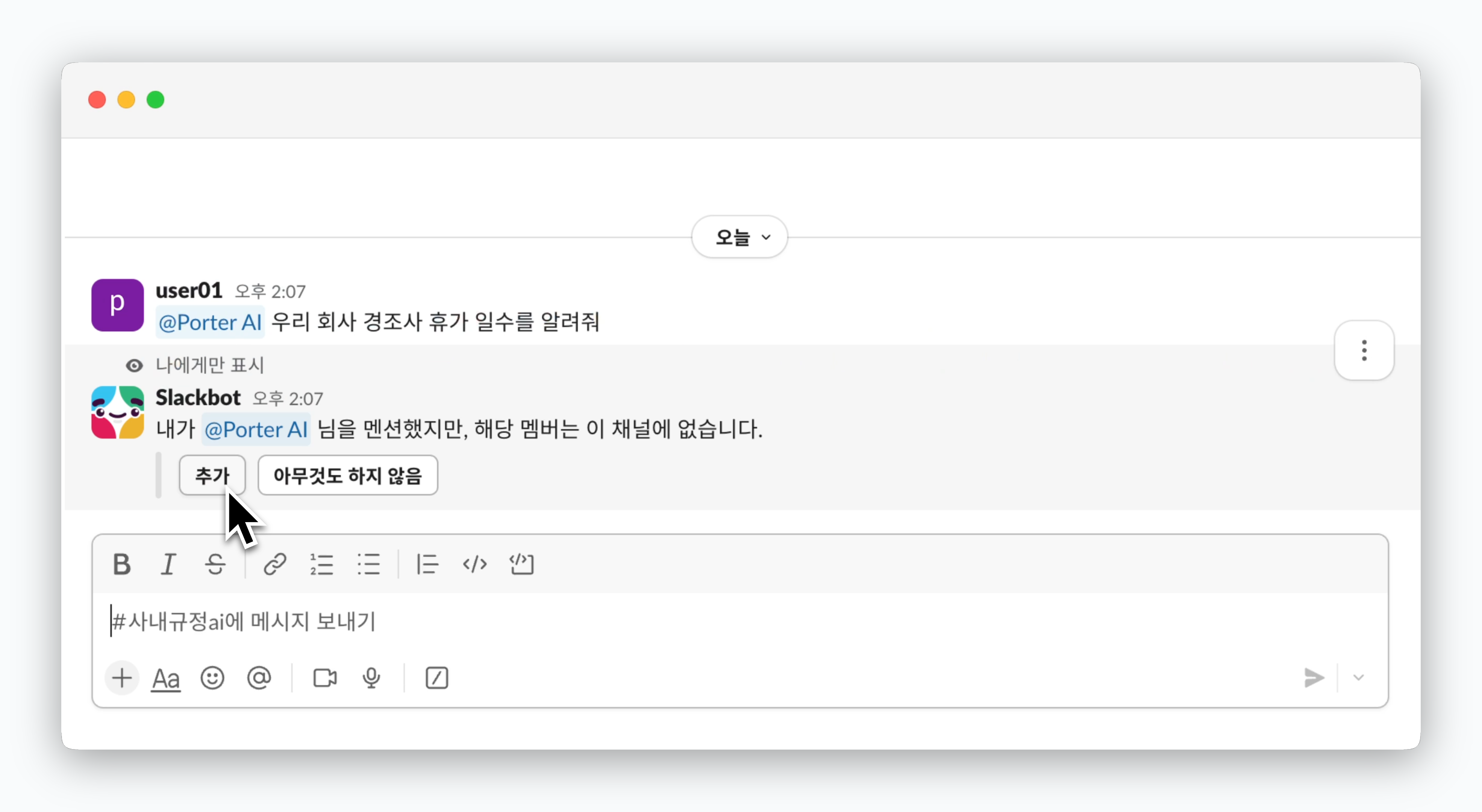
If you haven't manually added the Porter AI app to the channel, an error message like the one shown below will appear instead of a response. Click the `Add` button to add the Porter AI app to the channel.
> In the connected channel, mention `@Porter AI` to start chatting with the AI.
If you haven't manually added the Porter AI app to the channel, an error message like the one shown below will appear instead of a response. Click the `Add` button to add the Porter AI app to the channel.
 ### via Direct Message
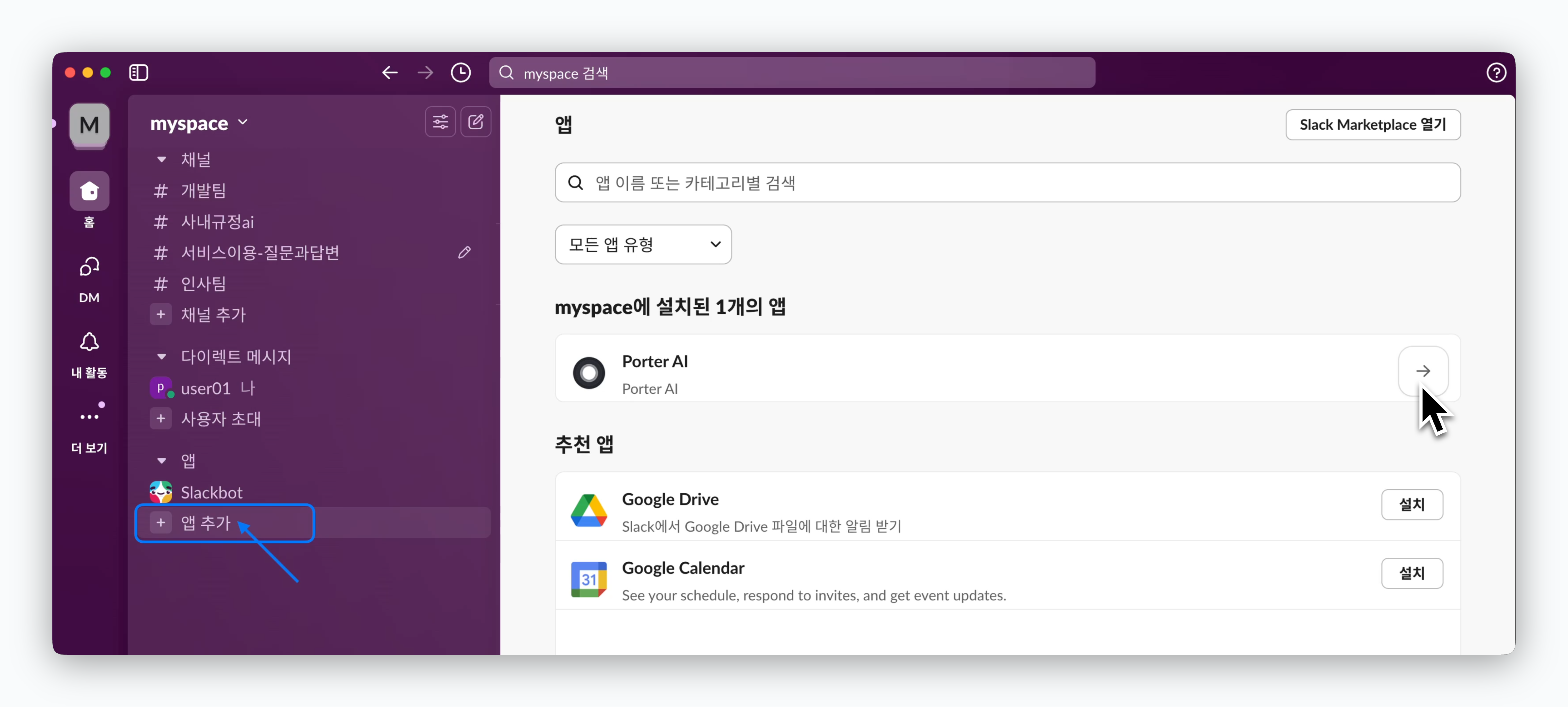 > Click `Add Apps` in the Slack sidebar and select the Porter AI app shown on the right to add the app.
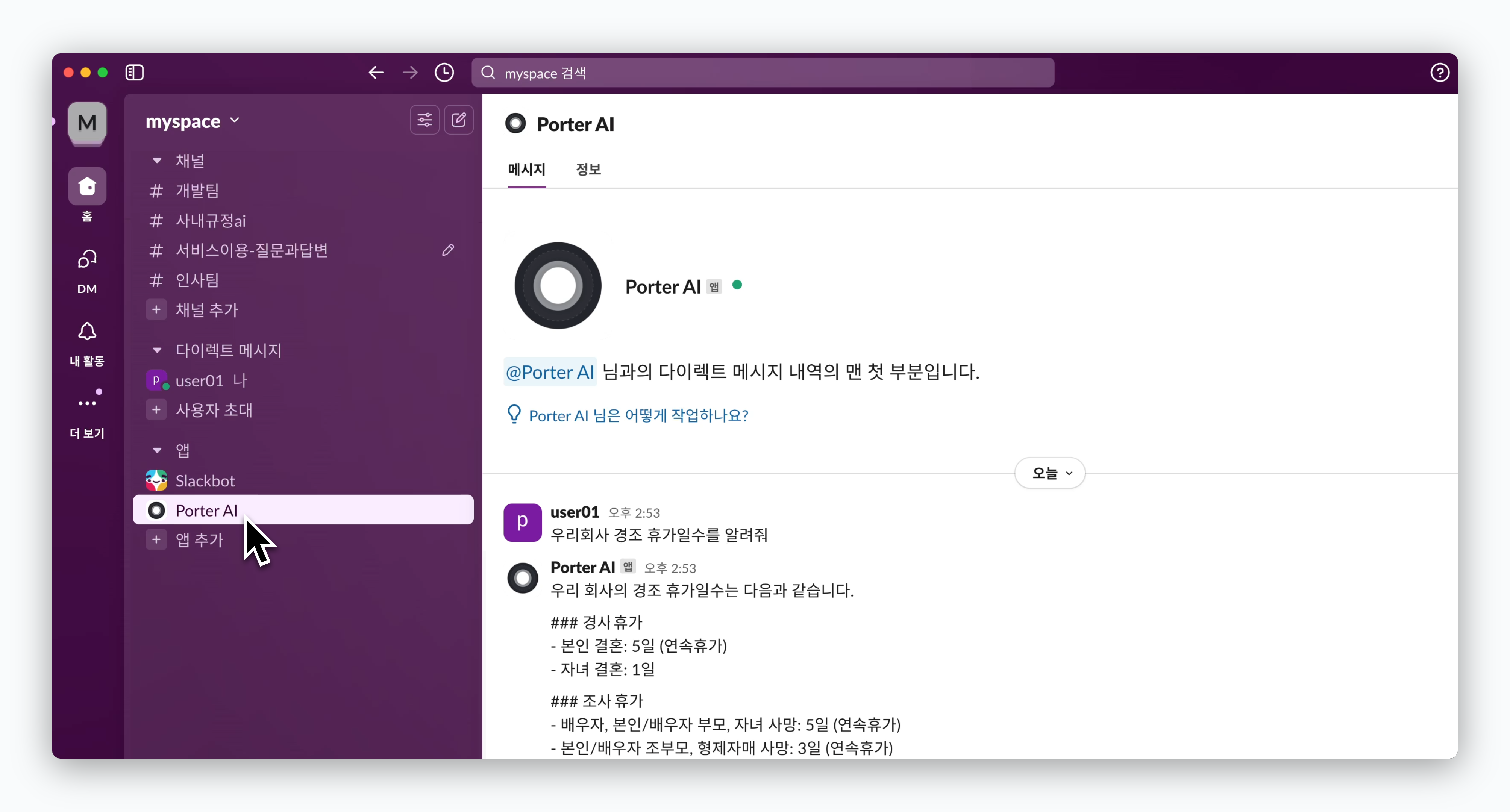 > Select the added app and ask questions to receive responses from the configured AI via Direct Message.