> ## Documentation Index
> Fetch the complete documentation index at: https://docs.getporter.ai/llms.txt
> Use this file to discover all available pages before exploring further.
# Spaces & Teams
> Guide on managing spaces, teams, and access permissions.
> A space is a workspace where you can configure AI models, knowledge bases, and other settings while inviting team members to collaborate together.
Subscriptions are made on a per-space basis. For details about Porter AI pricing plans, refer to the [Pricing page](https://getporter.ai/en/home#pricing).
***
## Space Management
### Create and Switch
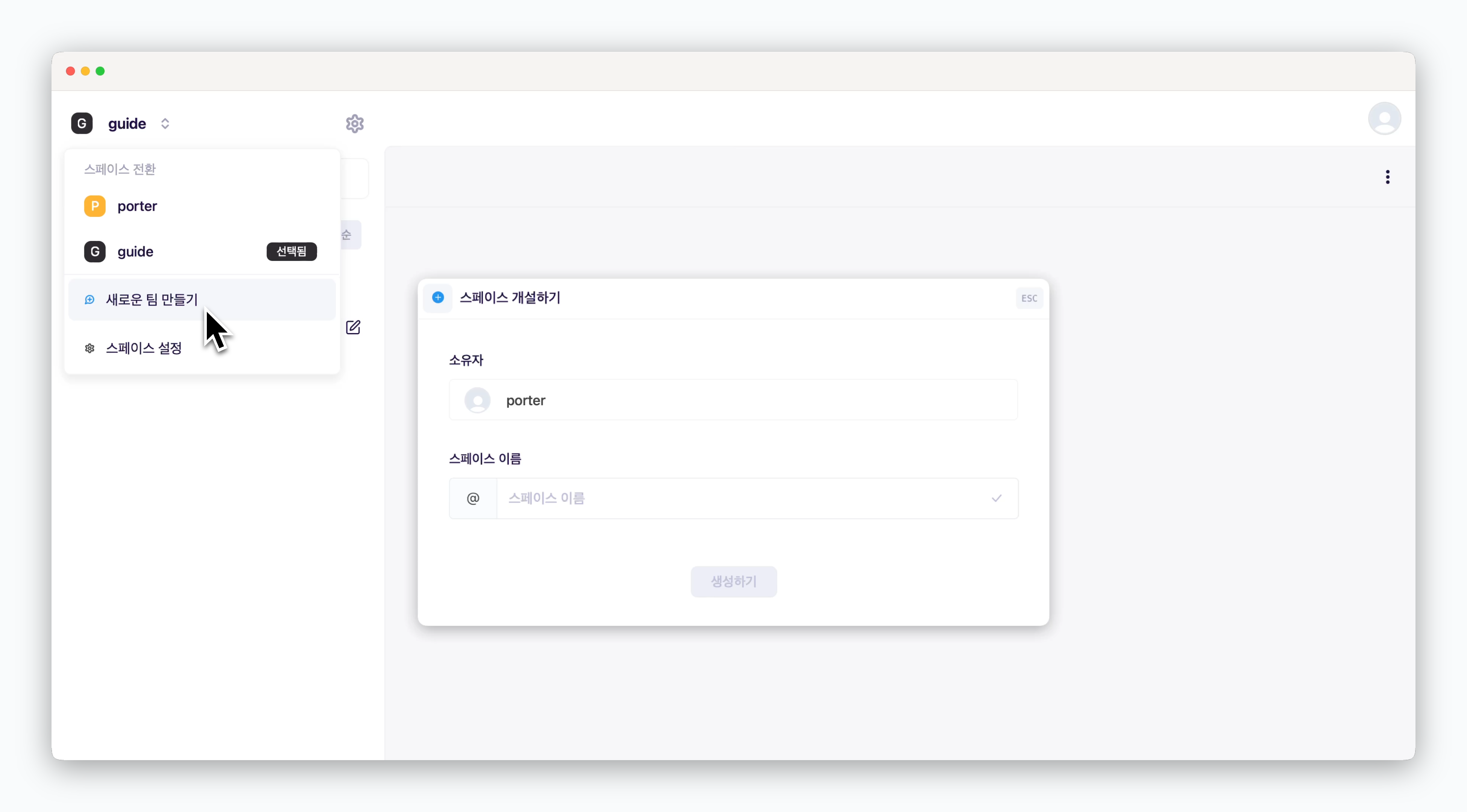 > Click the space name in the top-left of the dashboard to create a new space or switch to an invited space or your default space.
A default space is automatically created when you sign up. If you experience usage limitations despite having a subscription, verify that you're currently in the subscribed space.
### Rename and Remove
> Click the space name in the top-left of the dashboard to create a new space or switch to an invited space or your default space.
A default space is automatically created when you sign up. If you experience usage limitations despite having a subscription, verify that you're currently in the subscribed space.
### Rename and Remove
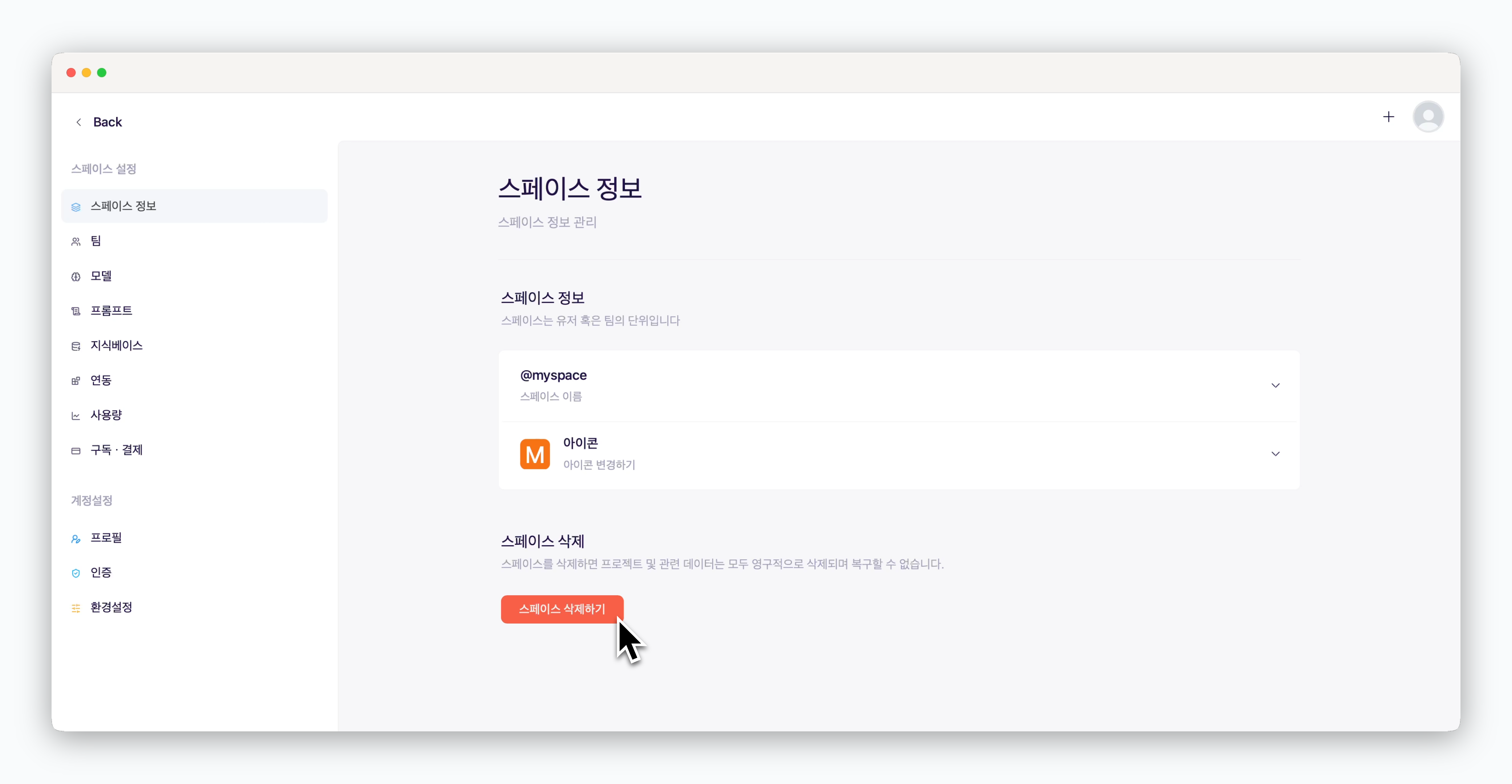 > In `Settings > Space`, you can change the space name or delete it.
The default space created when you sign up cannot be deleted and will only be removed when you delete your account.
## User Management
### Invite Members
> In `Settings > Space`, you can change the space name or delete it.
The default space created when you sign up cannot be deleted and will only be removed when you delete your account.
## User Management
### Invite Members
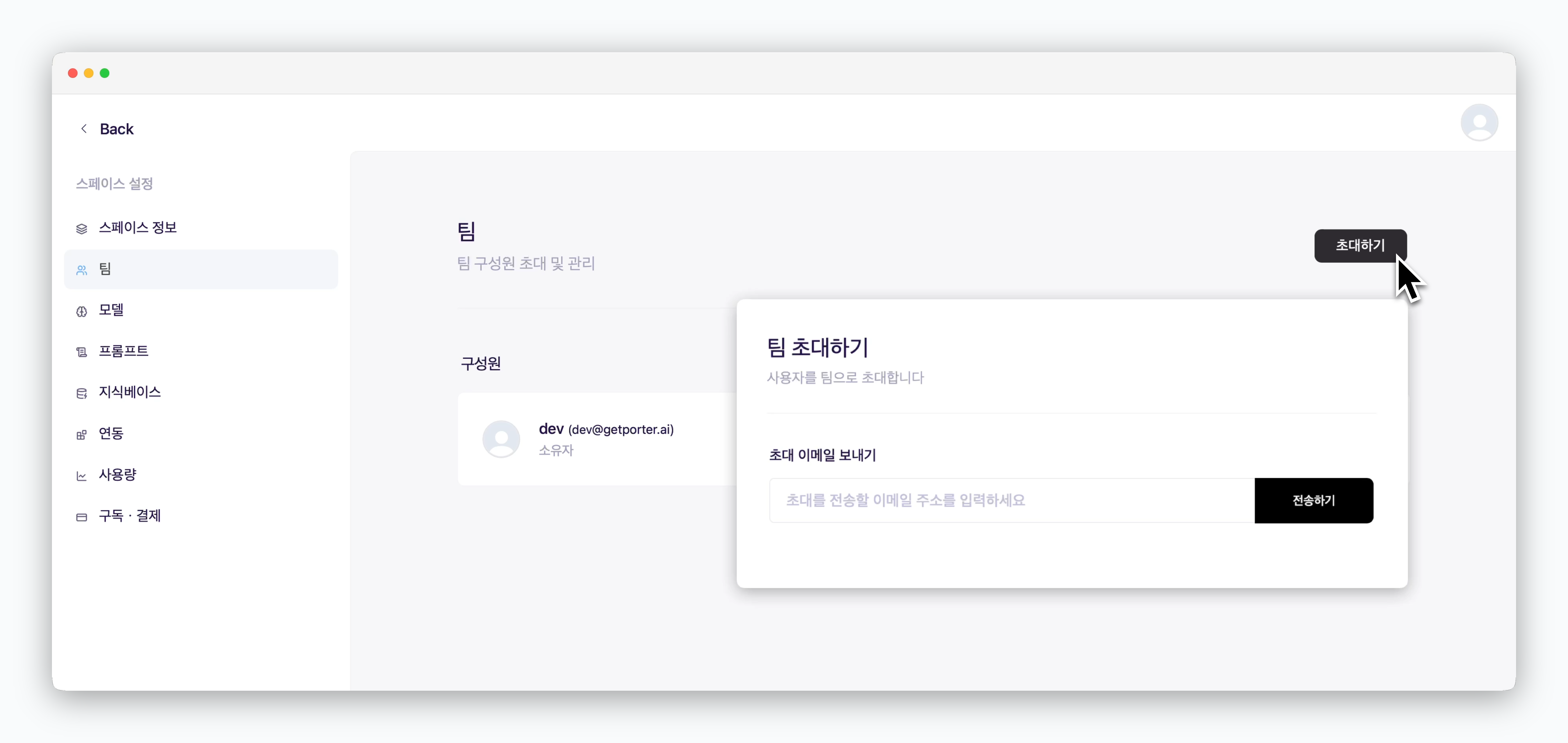 > `In Settings > Team`, click `Invite` to invite team members.
Users already registered will be automatically added as team members, while unregistered users will receive an invitation email.
> `In Settings > Team`, click `Invite` to invite team members.
Users already registered will be automatically added as team members, while unregistered users will receive an invitation email.
 ### Permissions
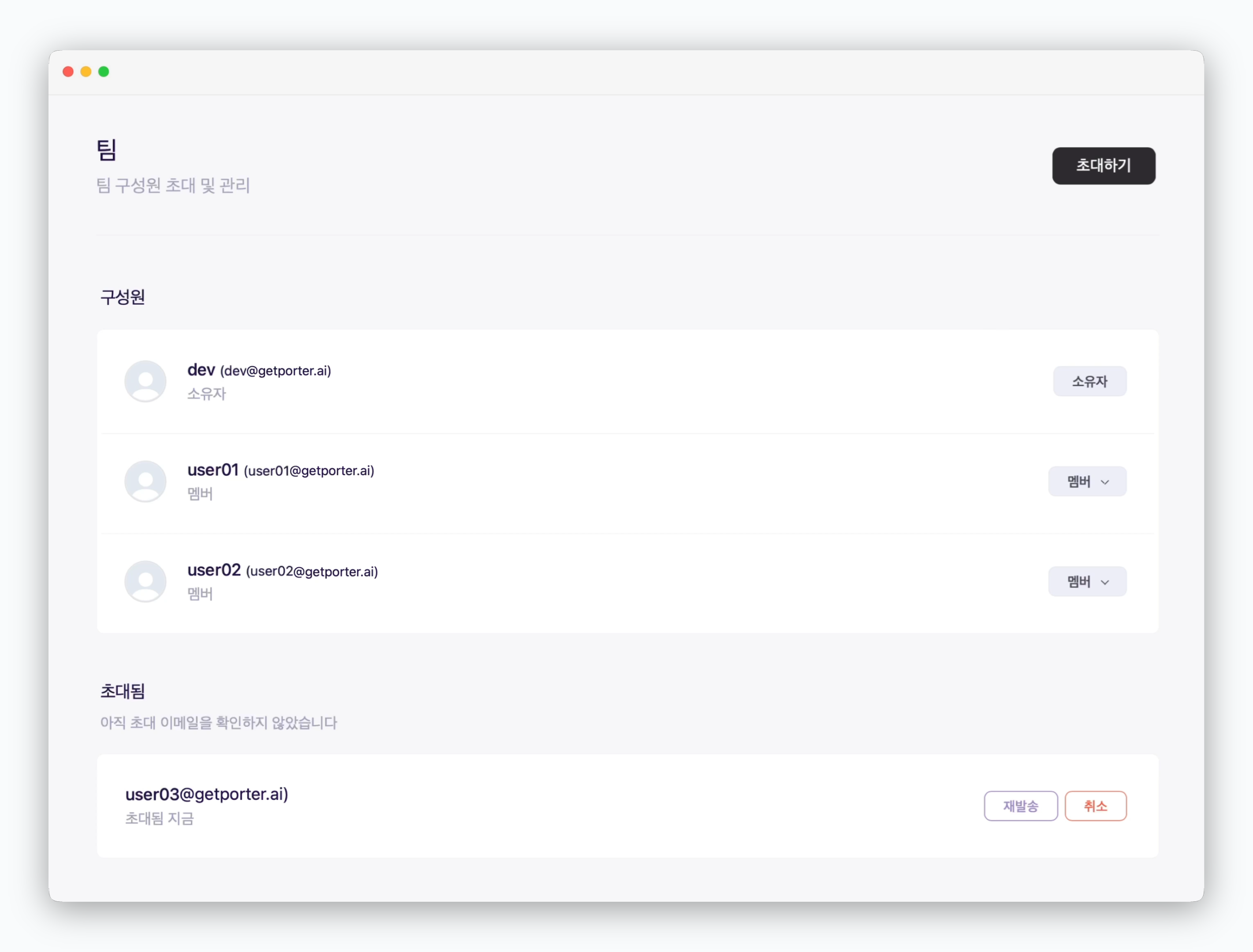
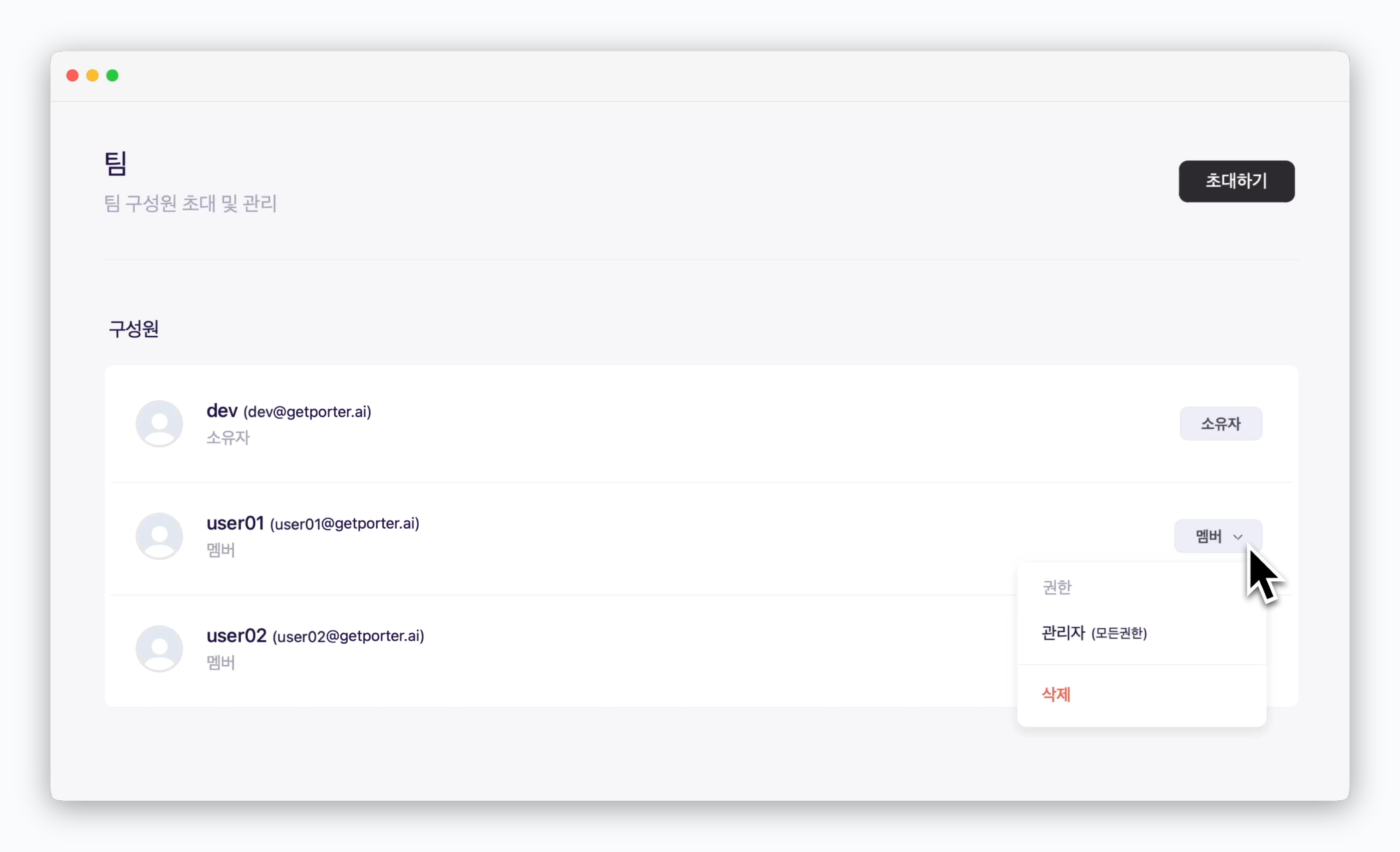 > Click the dropdown menu next to each member to change their permissions or remove them.
Types of Permissions
* Owner: The user who created the space (workspace) and can invite team members, with all administrative privileges.
* Admin: Has all management permissions including team member invitation, AI model and API key configuration, and default chat instructions.
* Member: Can select models to use from those configured by administrators and add personal knowledge bases.
> Click the dropdown menu next to each member to change their permissions or remove them.
Types of Permissions
* Owner: The user who created the space (workspace) and can invite team members, with all administrative privileges.
* Admin: Has all management permissions including team member invitation, AI model and API key configuration, and default chat instructions.
* Member: Can select models to use from those configured by administrators and add personal knowledge bases.