> ## Documentation Index
> Fetch the complete documentation index at: https://docs.getporter.ai/llms.txt
> Use this file to discover all available pages before exploring further.
# 메일러
> 인증 메일 발송에 사용할 메일러 설정 방법을 안내합니다.
SMTP 또는 SendGrid를 연결해 인증, 승인, 비밀번호 재설정 메일을 발송하도록 설정할 수 있습니다.
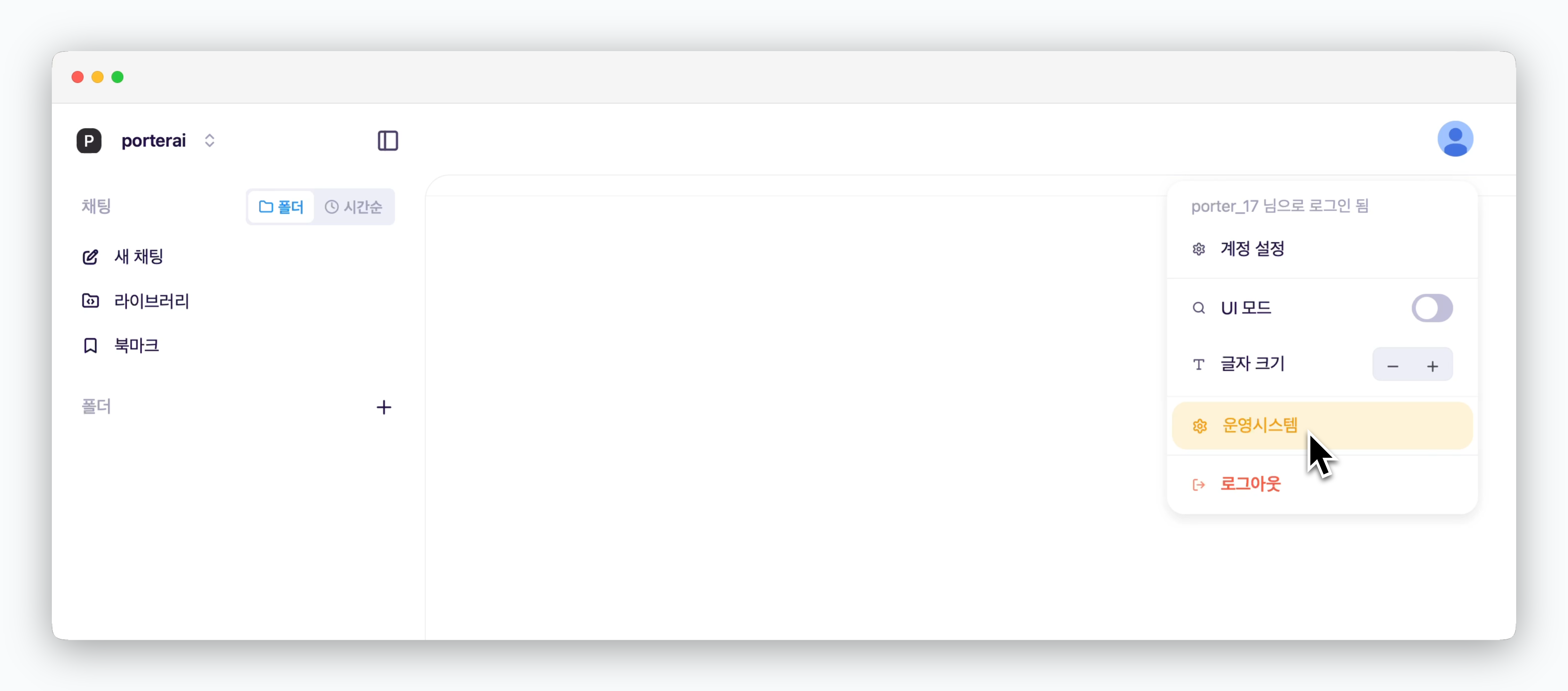 대시보드 우측 상단의 프로필 아이콘을 클릭하면 운영 시스템에 접속할 수 있습니다.
[운영 시스템 관리자 권한을 부여](/ko/enterprise/user-management#관리자-권한-부여)받은 사용자 계정으로만 접속 가능합니다.
대시보드 우측 상단의 프로필 아이콘을 클릭하면 운영 시스템에 접속할 수 있습니다.
[운영 시스템 관리자 권한을 부여](/ko/enterprise/user-management#관리자-권한-부여)받은 사용자 계정으로만 접속 가능합니다.
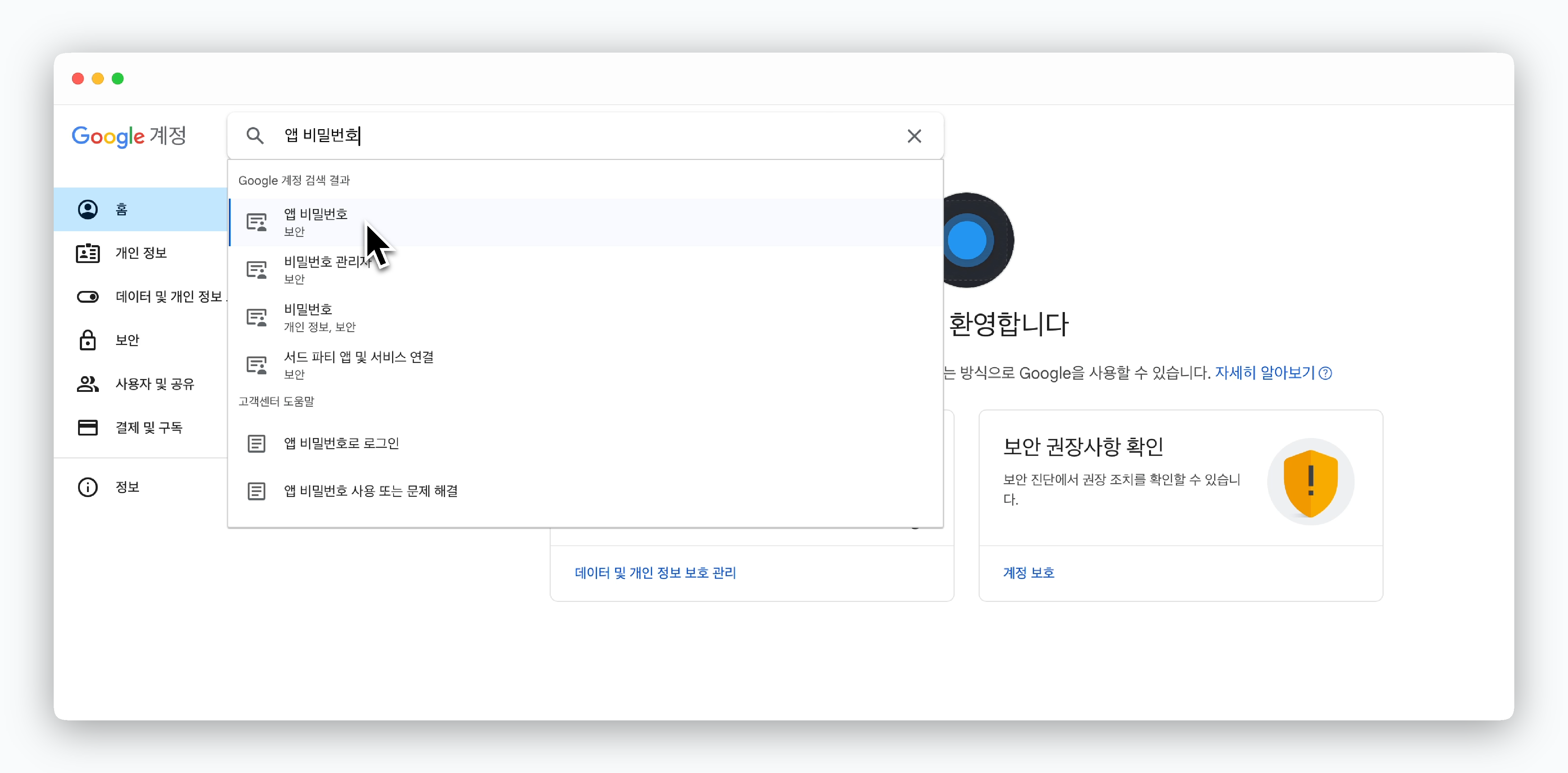
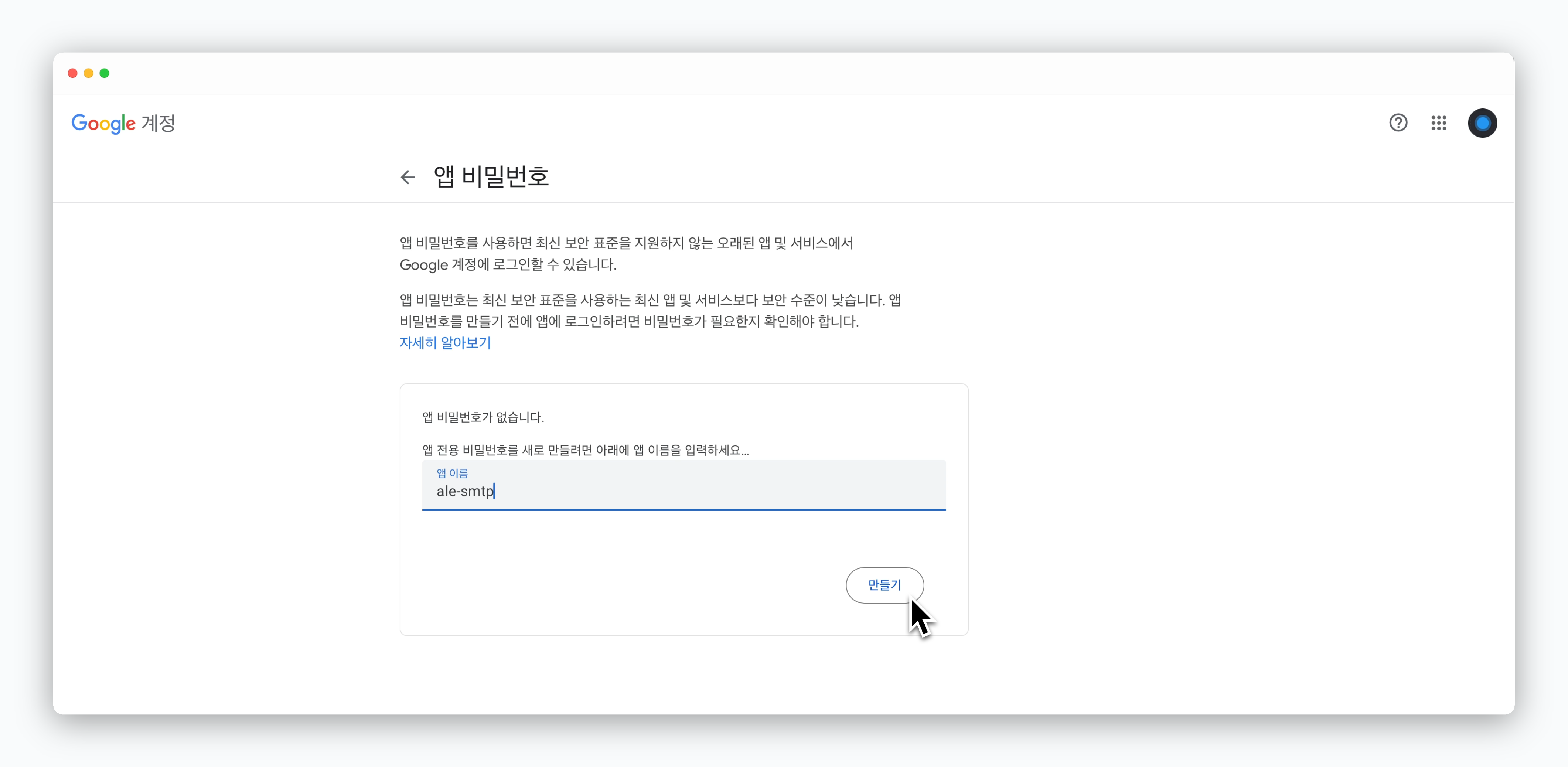
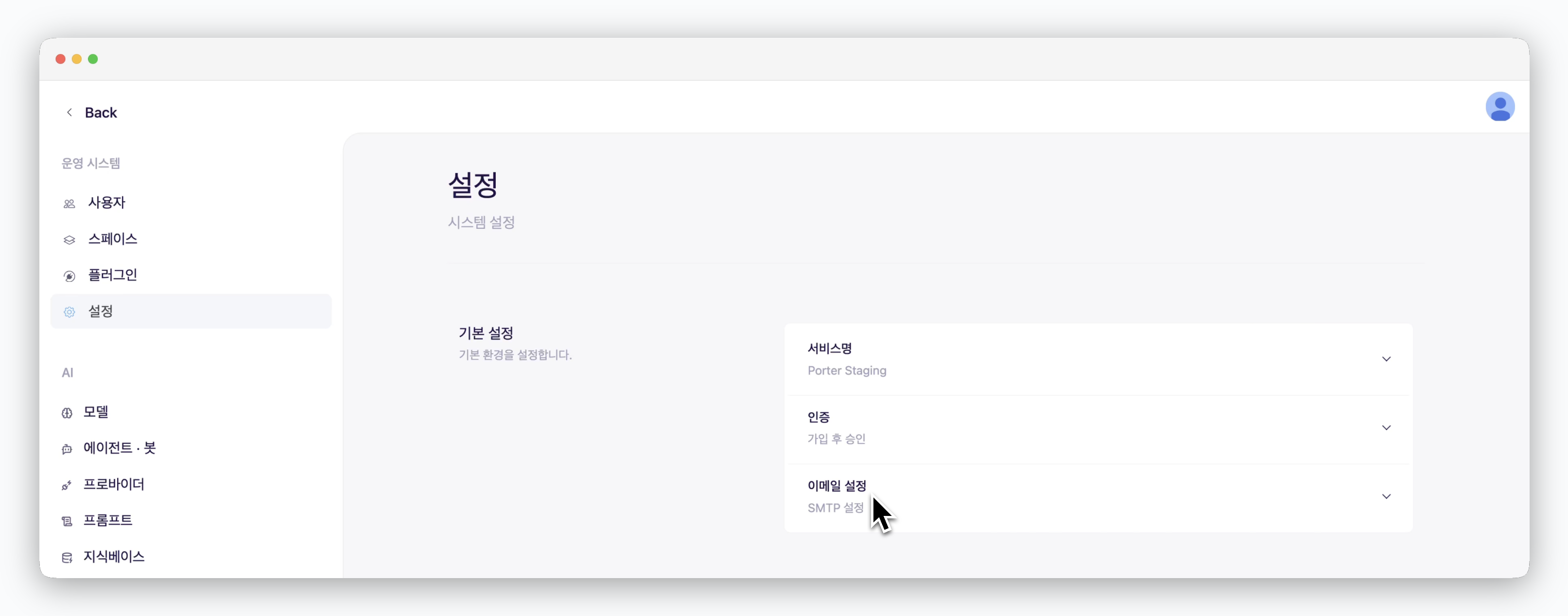 > 메일러 유형으로 SMTP 또는 SendGrid를 선택할 수 있으며, Gmail 계정을 SMTP 서버로 활용하려면 아래의 가이드를 따라 설정하세요.
Gmail 계정을 SMTP 서버로 활용하기 위해서는 다음의 설정이 필요합니다.
* 2단계 인증(2-Step Verification) 활성화
* 조직 계정의 관리자가 보안 정책상 App Passwords 기능을 비활성화한 경우, 관리자에게 활성화 요청
> 메일러 유형으로 SMTP 또는 SendGrid를 선택할 수 있으며, Gmail 계정을 SMTP 서버로 활용하려면 아래의 가이드를 따라 설정하세요.
Gmail 계정을 SMTP 서버로 활용하기 위해서는 다음의 설정이 필요합니다.
* 2단계 인증(2-Step Verification) 활성화
* 조직 계정의 관리자가 보안 정책상 App Passwords 기능을 비활성화한 경우, 관리자에게 활성화 요청
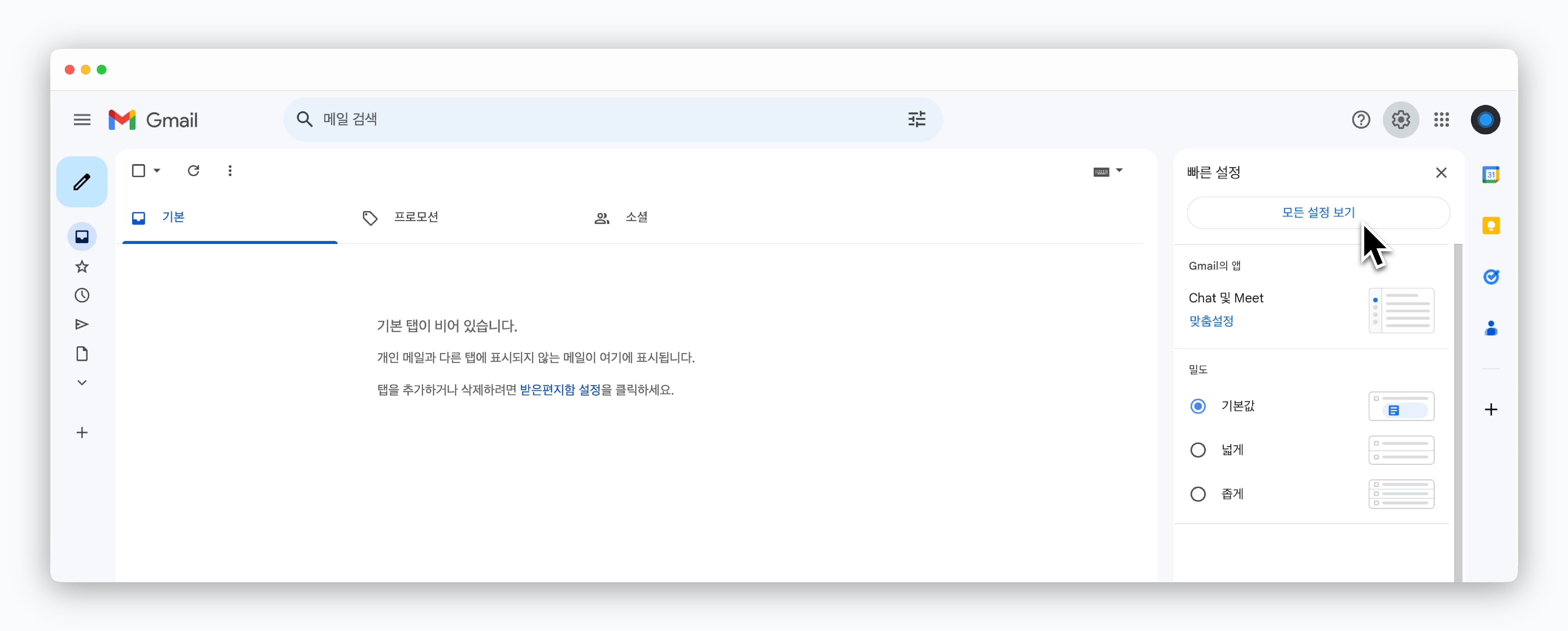
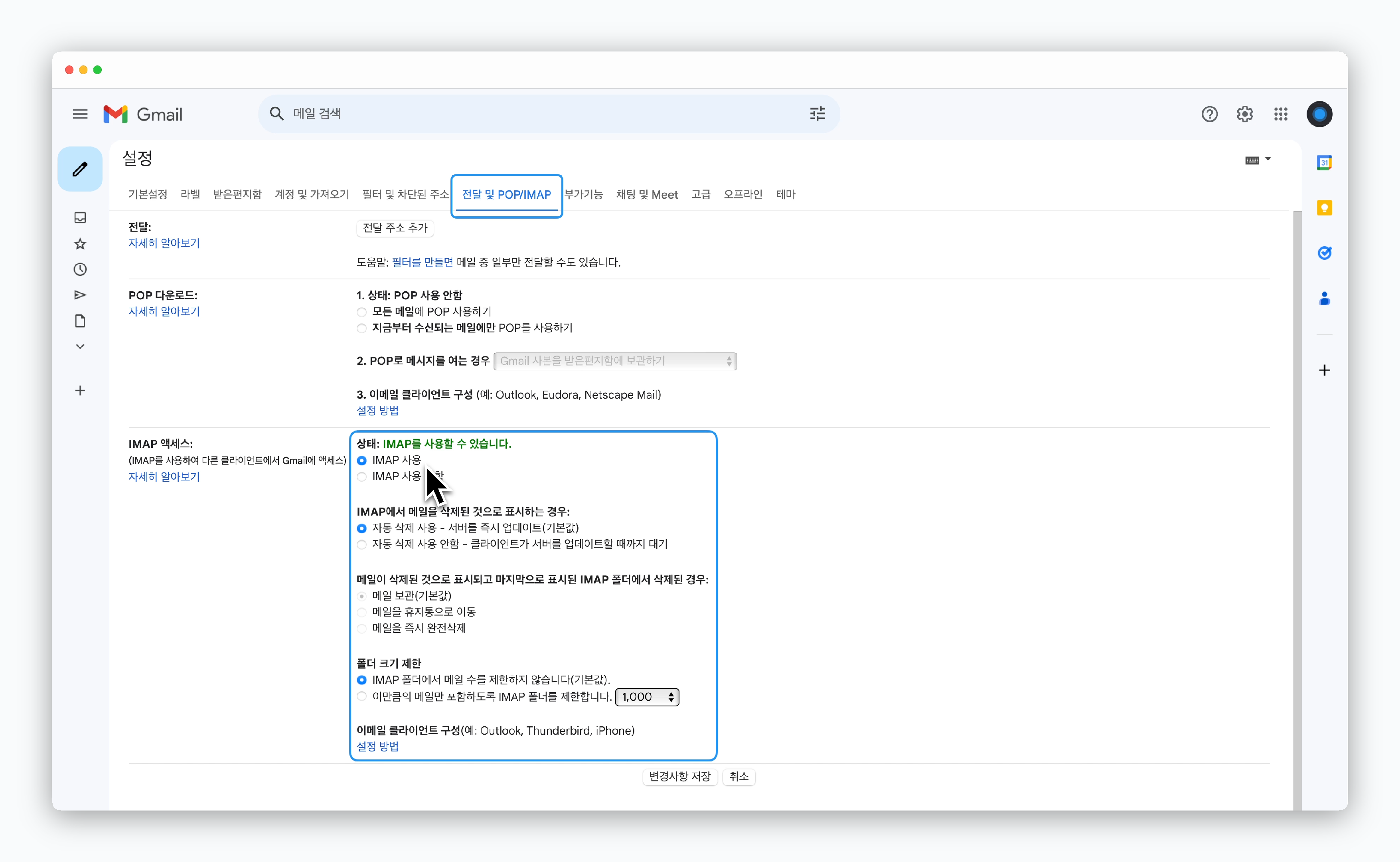
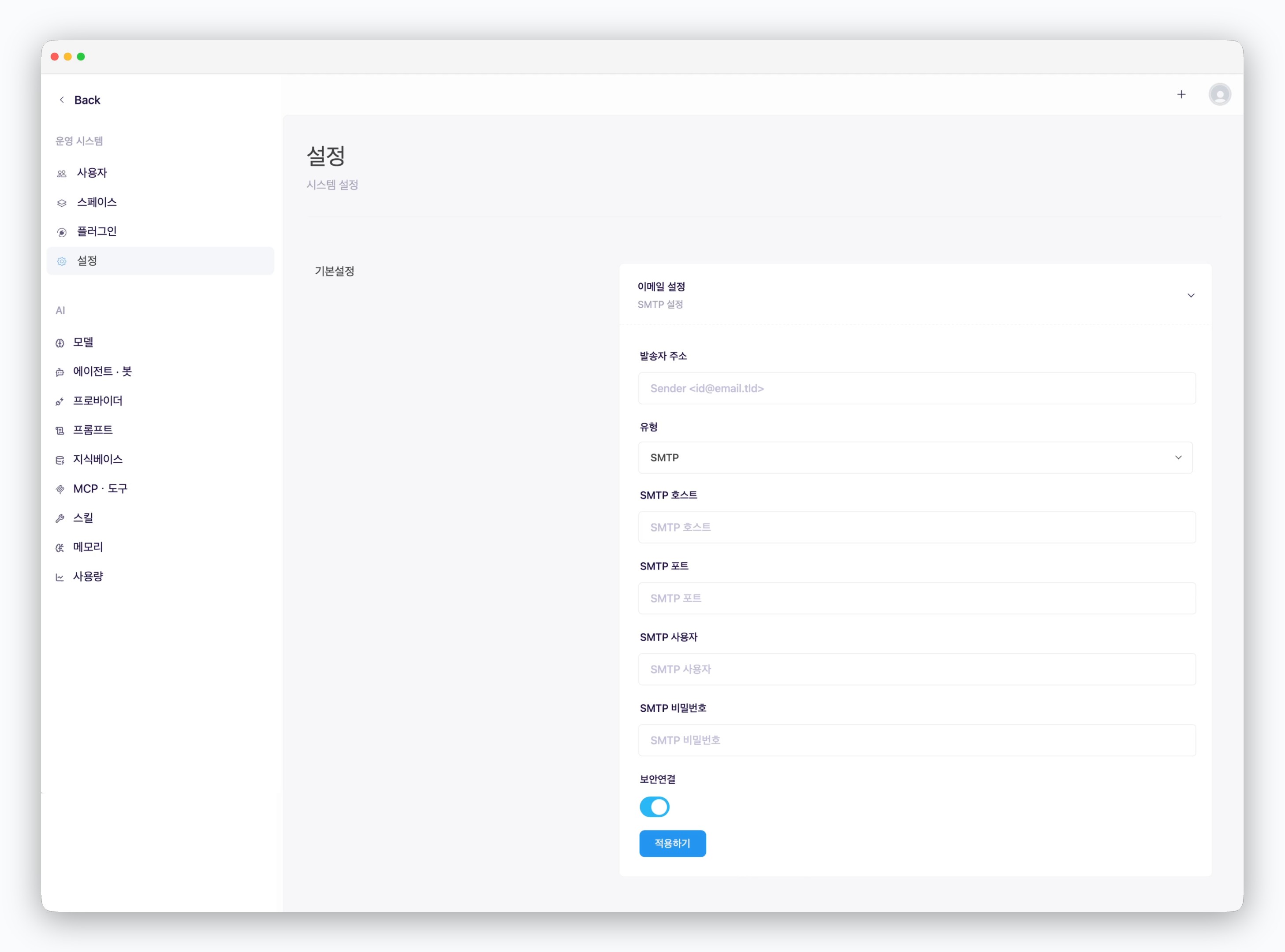 * **발송자 주소**: 송신자 메일 주소
* **유형**: SMTP
* **SMTP 호스트**: smtp.gmail.com
* **SMTP 포트**: 465
* **SMTP 사용자**: SMTP 설정 Gmail 주소
* **SMTP 비밀번호**: 앱 비밀번호
* **보안 연결**: 활성화
* **발송자 주소**: 송신자 메일 주소
* **유형**: SMTP
* **SMTP 호스트**: smtp.gmail.com
* **SMTP 포트**: 465
* **SMTP 사용자**: SMTP 설정 Gmail 주소
* **SMTP 비밀번호**: 앱 비밀번호
* **보안 연결**: 활성화