> ## Documentation Index
> Fetch the complete documentation index at: https://docs.getporter.ai/llms.txt
> Use this file to discover all available pages before exploring further.
# 이미지 생성
> 스레드에서 이미지를 생성하고 편집하는 방법에 관한 가이드입니다.
***
## 이미지 생성 모델 선택하기
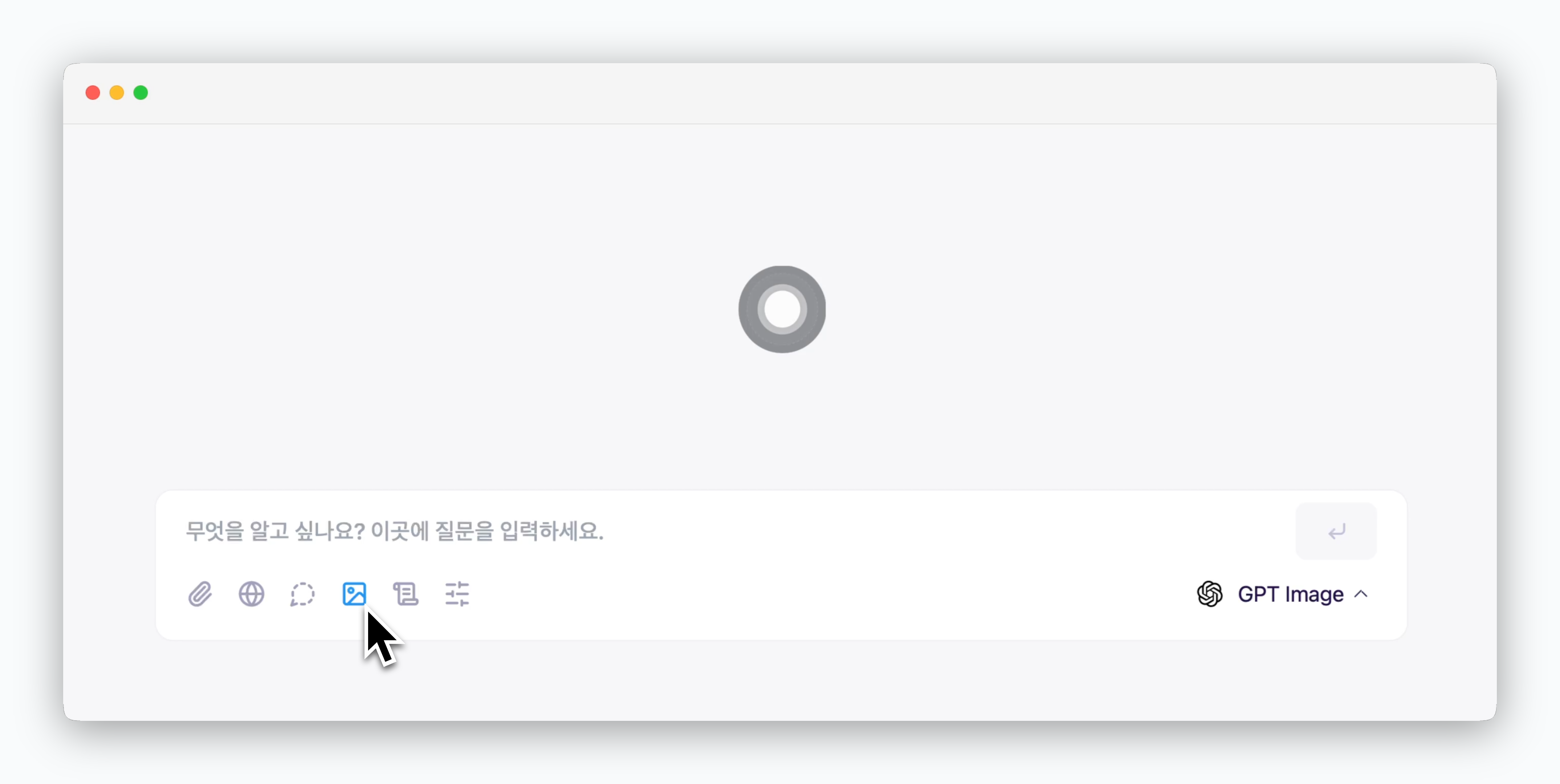 > 대화창의 아이콘을 클릭하면 이미지 생성 모델을 호출할 수 있습니다.
## 이미지 설정
> 대화창의 아이콘을 클릭하면 이미지 생성 모델을 호출할 수 있습니다.
## 이미지 설정
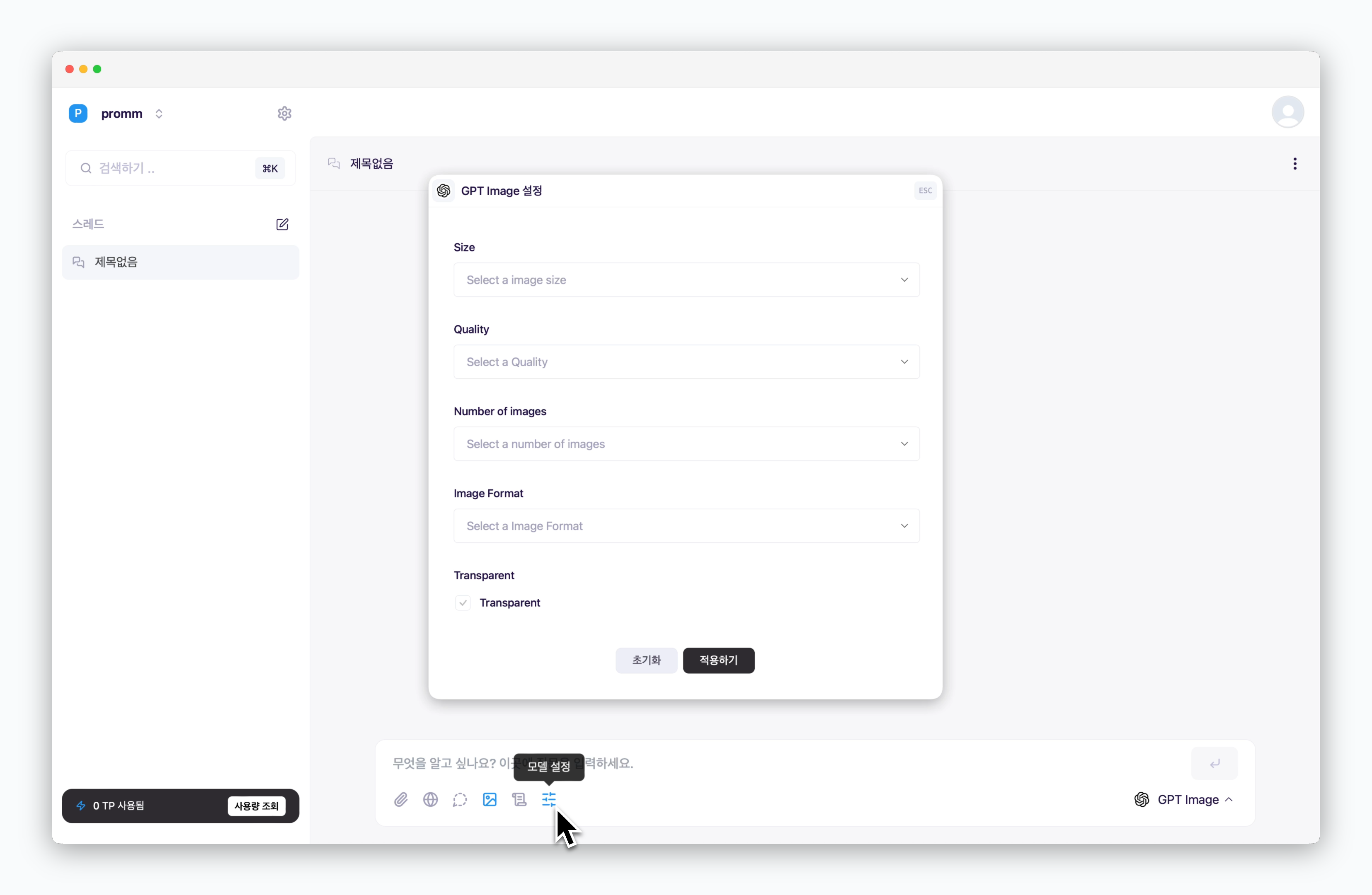 > 대화창의 아이콘으로 생성할 이미지의 사이즈와 해상도 등을 설정할 수 있습니다.
설정할 수 있는 항목은 호출할 이미지 생성 모델별로 다릅니다.
## 이미지 생성하기
> 대화창의 아이콘으로 생성할 이미지의 사이즈와 해상도 등을 설정할 수 있습니다.
설정할 수 있는 항목은 호출할 이미지 생성 모델별로 다릅니다.
## 이미지 생성하기
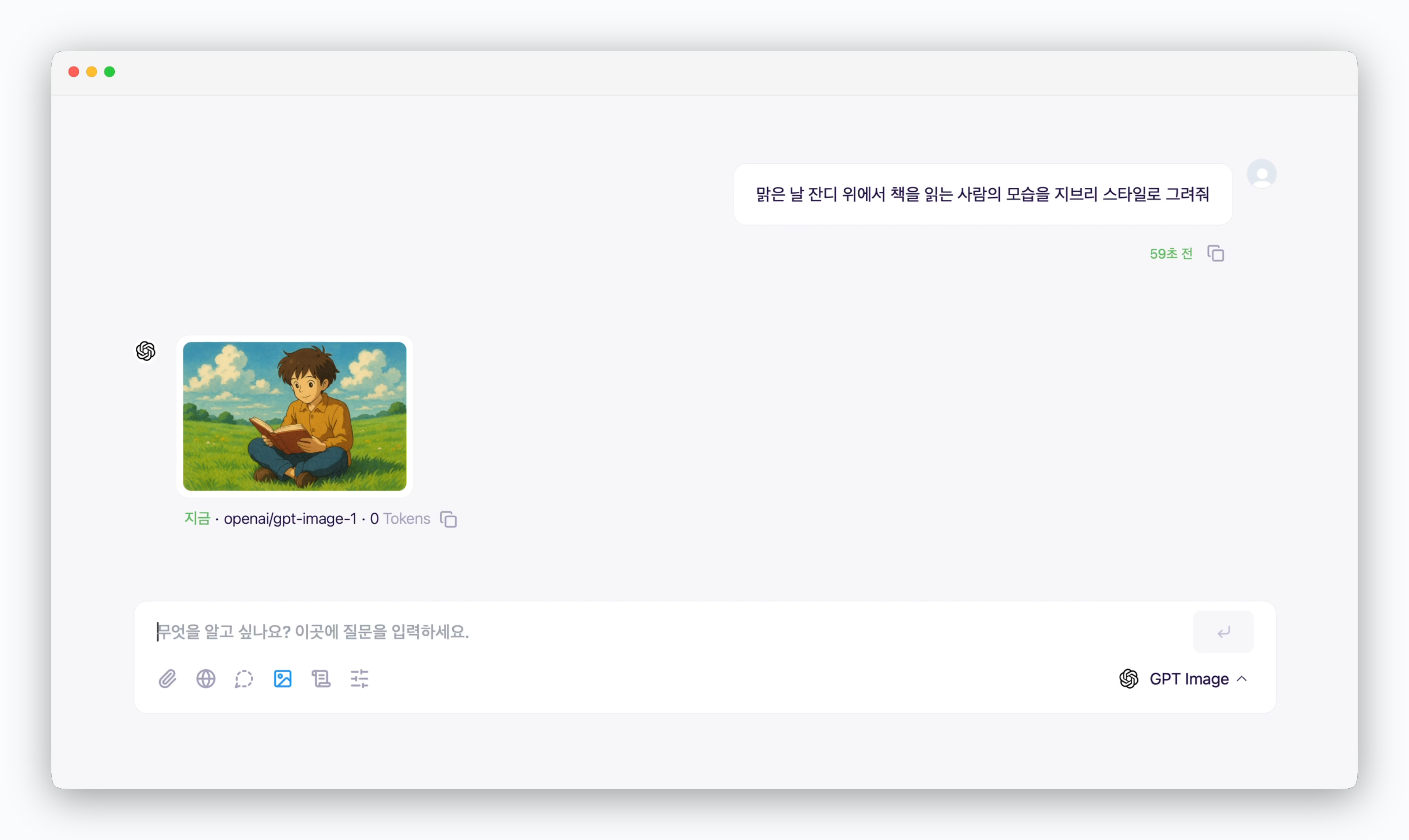 > 대화창에서 이미지를 설명하는 것으로 이미지가 생성됩니다.
## 이미지 수정하기
> 대화창에서 이미지를 설명하는 것으로 이미지가 생성됩니다.
## 이미지 수정하기
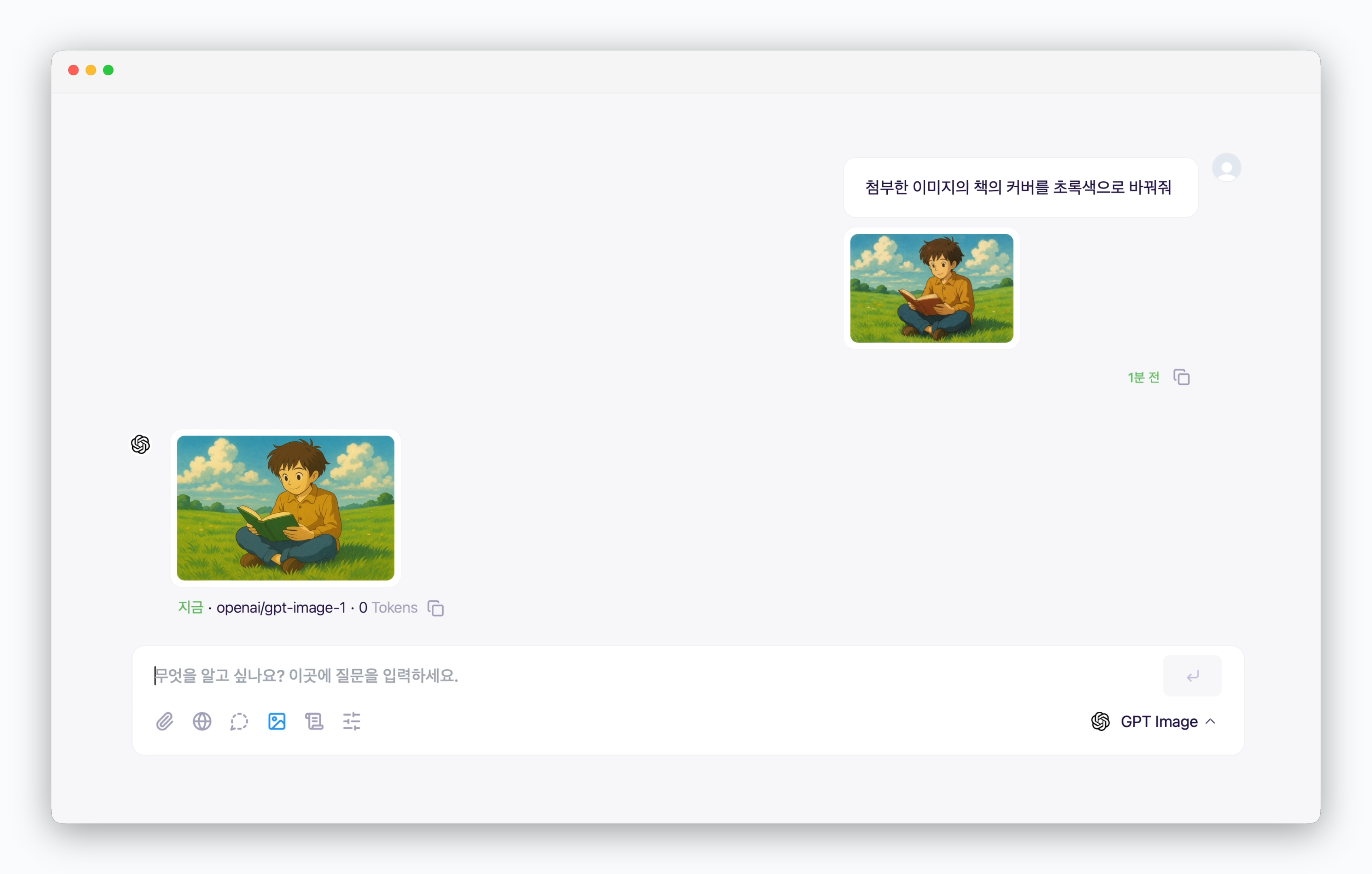 > 업로드한 이미지 파일을 수정할 수 있습니다.
## 이미지 병합하기
> 업로드한 이미지 파일을 수정할 수 있습니다.
## 이미지 병합하기
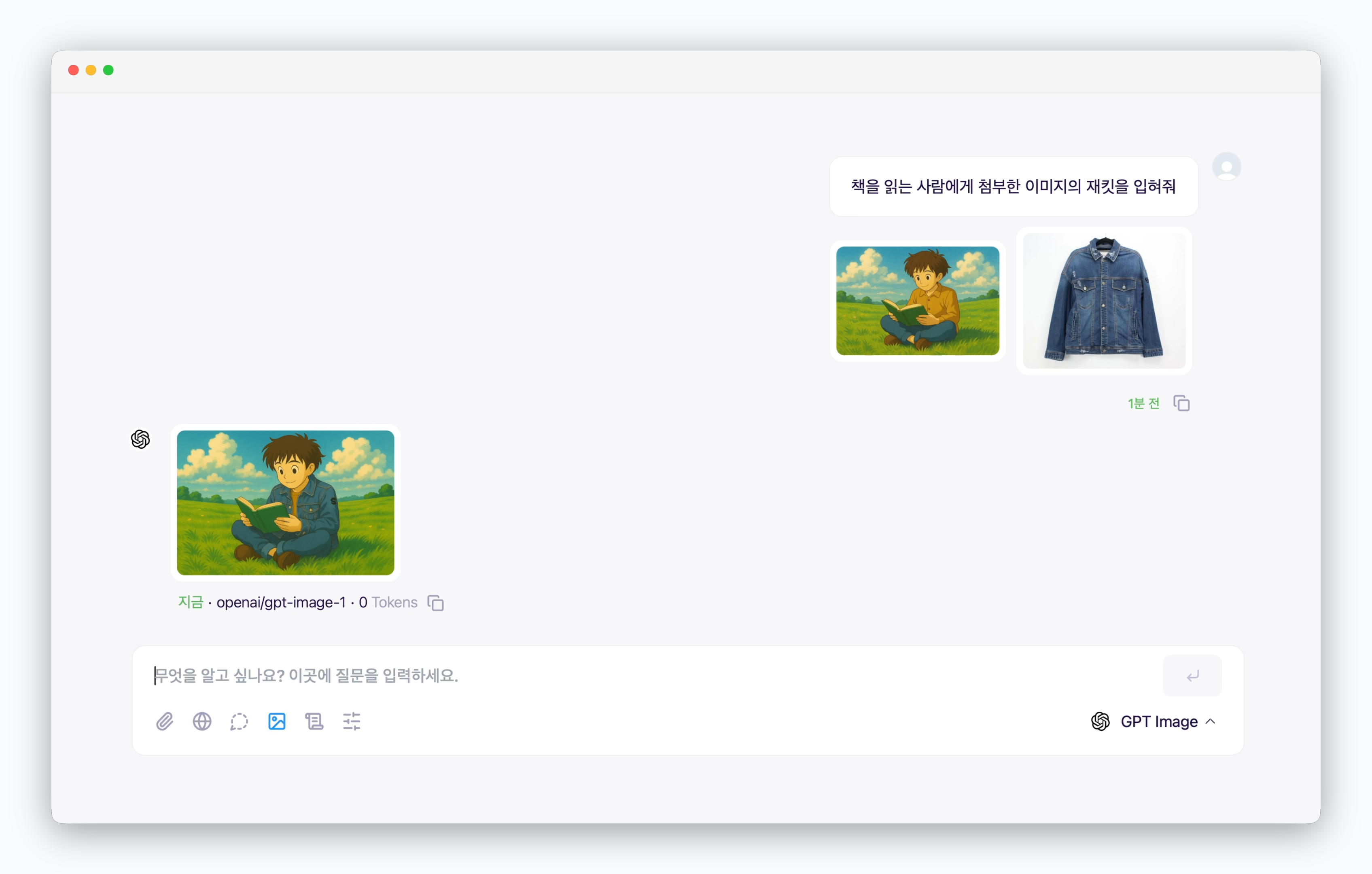 > 여러 개의 이미지를 업로드한 후 목적에 맞게 병합할 수 있습니다.