> ## Documentation Index
> Fetch the complete documentation index at: https://docs.getporter.ai/llms.txt
> Use this file to discover all available pages before exploring further.
# Jira 워크스페이스 연동
> Porter AI에서 Jira의 이슈를 조회하고 관리합니다.
Jira에서 발급한 API 키로 Porter AI와 연결하여 Jira에서 관리하는 프로젝트 이슈를 조회하고 관리할 수 있습니다.
## Jira 커넥터 설치
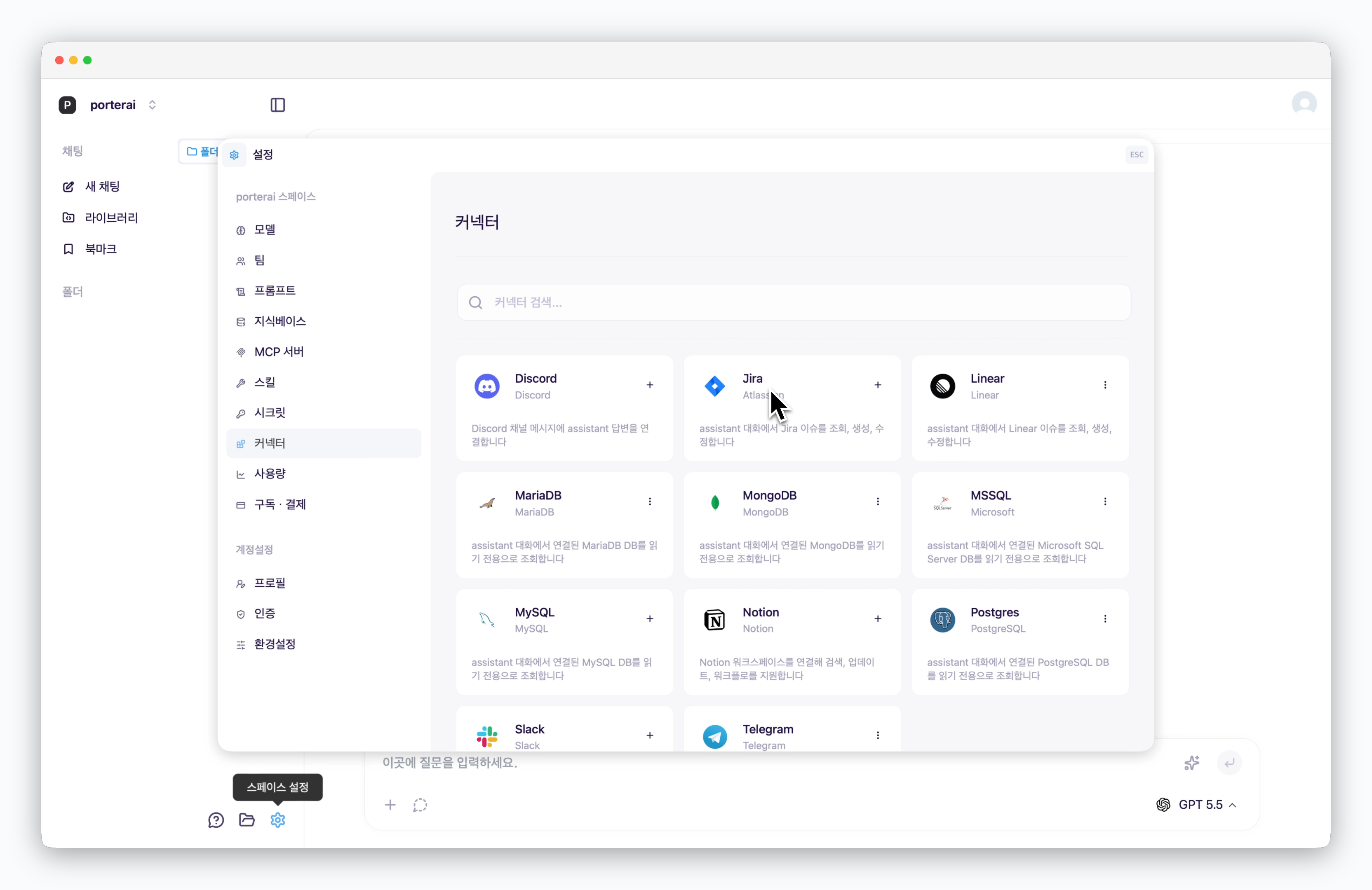 > `설정 > 커넥터`에서 Jira를 선택한 후 커넥터를 설치하세요.
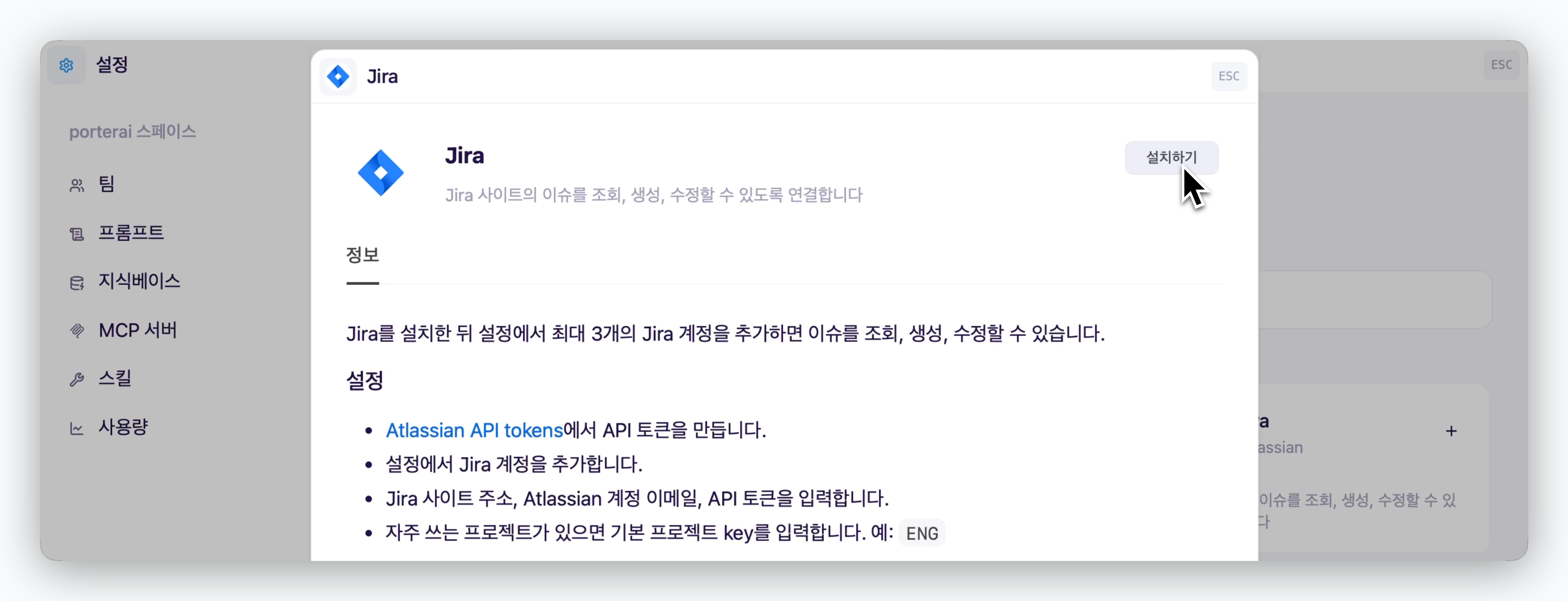 ## Jira 연결하기
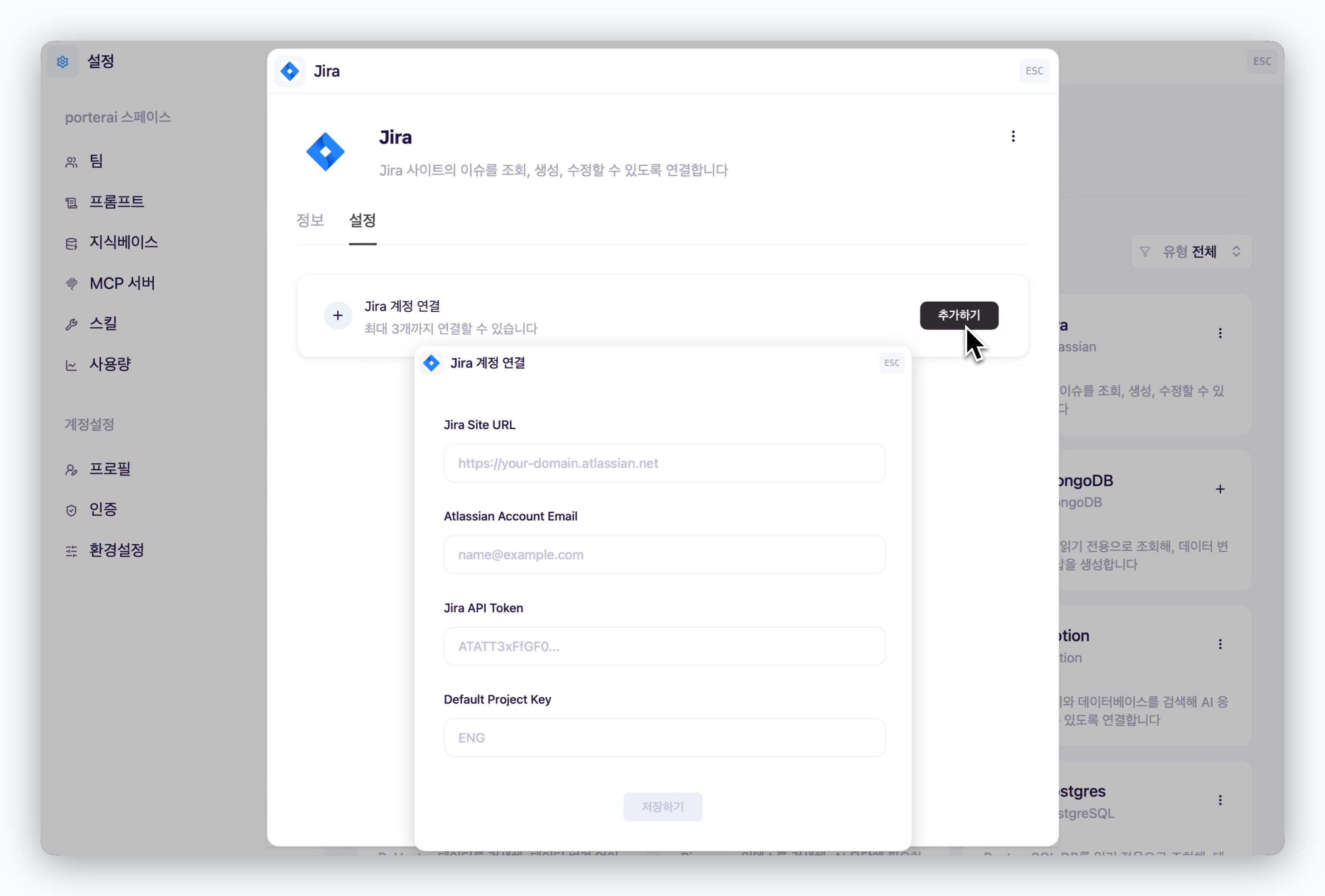 > 커넥터 설정 탭에서 `추가하기` 버튼을 클릭하고 Jira API 키 등을 입력하면 Porter AI와 Jira가 연동됩니다.
| 설정 항목 | 설명 | 입력 예시 |
| :-------------------------- | :--------------------- | :---------------------------------- |
| **Jira Site URL** | 연동하려는 Jira의 전체 도메인 주소 | `https://your-domain.atlassian.net` |
| **Atlassian Account Email** | 아틀라시안 계정 이메일 | `name@example.com` |
| **Jira API Token** | 아틀라시안에서 발급받은 API 인증 토큰 | `ATATT3xFfGF0...` |
| **Default Project Key** | 지라 프로젝트 식별 키 | 이슈 번호 `ENG-123`에서 `ENG` |
`계정 설정(Account Settings) > 보안 탭` API 토큰 섹션에서 생성할 수 있습니다. [Atlassian 계정 관리 페이지](https://id.atlassian.com/manage-profile/security/api-tokens)
API 키는 화면상에 노출되지 않으며, 암호화되어 안전하게 보관됩니다.
## 채팅에서 사용하기
> 커넥터 설정 탭에서 `추가하기` 버튼을 클릭하고 Jira API 키 등을 입력하면 Porter AI와 Jira가 연동됩니다.
| 설정 항목 | 설명 | 입력 예시 |
| :-------------------------- | :--------------------- | :---------------------------------- |
| **Jira Site URL** | 연동하려는 Jira의 전체 도메인 주소 | `https://your-domain.atlassian.net` |
| **Atlassian Account Email** | 아틀라시안 계정 이메일 | `name@example.com` |
| **Jira API Token** | 아틀라시안에서 발급받은 API 인증 토큰 | `ATATT3xFfGF0...` |
| **Default Project Key** | 지라 프로젝트 식별 키 | 이슈 번호 `ENG-123`에서 `ENG` |
`계정 설정(Account Settings) > 보안 탭` API 토큰 섹션에서 생성할 수 있습니다. [Atlassian 계정 관리 페이지](https://id.atlassian.com/manage-profile/security/api-tokens)
API 키는 화면상에 노출되지 않으며, 암호화되어 안전하게 보관됩니다.
## 채팅에서 사용하기
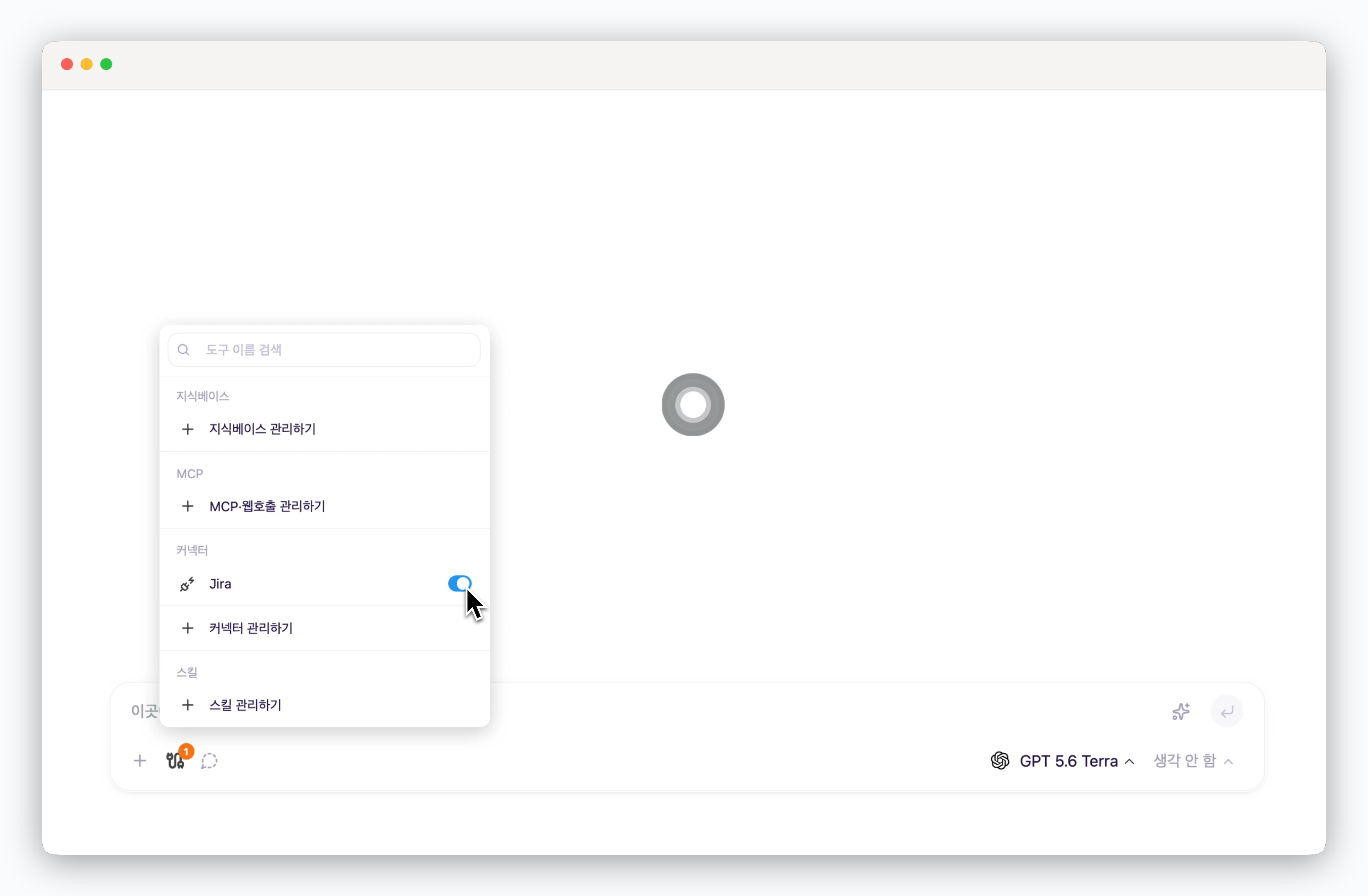 > 채팅창 좌측의 아이콘을 클릭하고 추가한 커넥터를 활성화하면, Porter AI에서 Jira의 이슈를 조회하거나 관리할 수 있습니다.