> ## Documentation Index
> Fetch the complete documentation index at: https://docs.getporter.ai/llms.txt
> Use this file to discover all available pages before exploring further.
# AI 모델
> 스레드에서 사용할 AI 모델을 설정하고 관리하는 방법에 관한 가이드입니다.
***
## 사용할 모델 관리
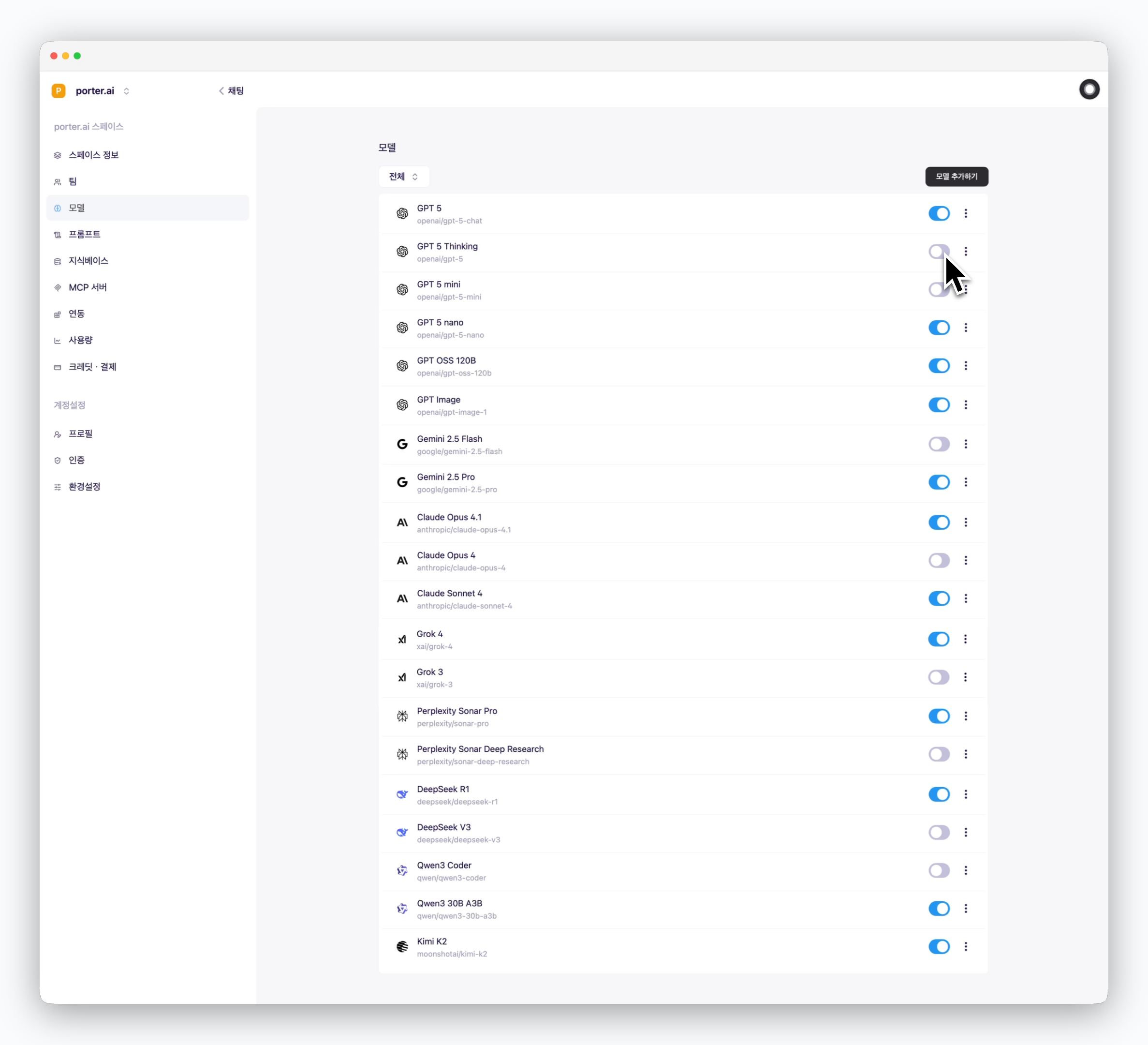 > `설정 > 모델`의 모델 섹션에서, 사용하고자 하는 모델을 활성화하거나, 사용하지 않을 모델을 비활성화 하는 방식으로, 채팅창에서 사용할 수 있는 모델을 관리할 수 있습니다.
## 모델 추가하기
> `설정 > 모델`의 모델 섹션에서, 사용하고자 하는 모델을 활성화하거나, 사용하지 않을 모델을 비활성화 하는 방식으로, 채팅창에서 사용할 수 있는 모델을 관리할 수 있습니다.
## 모델 추가하기
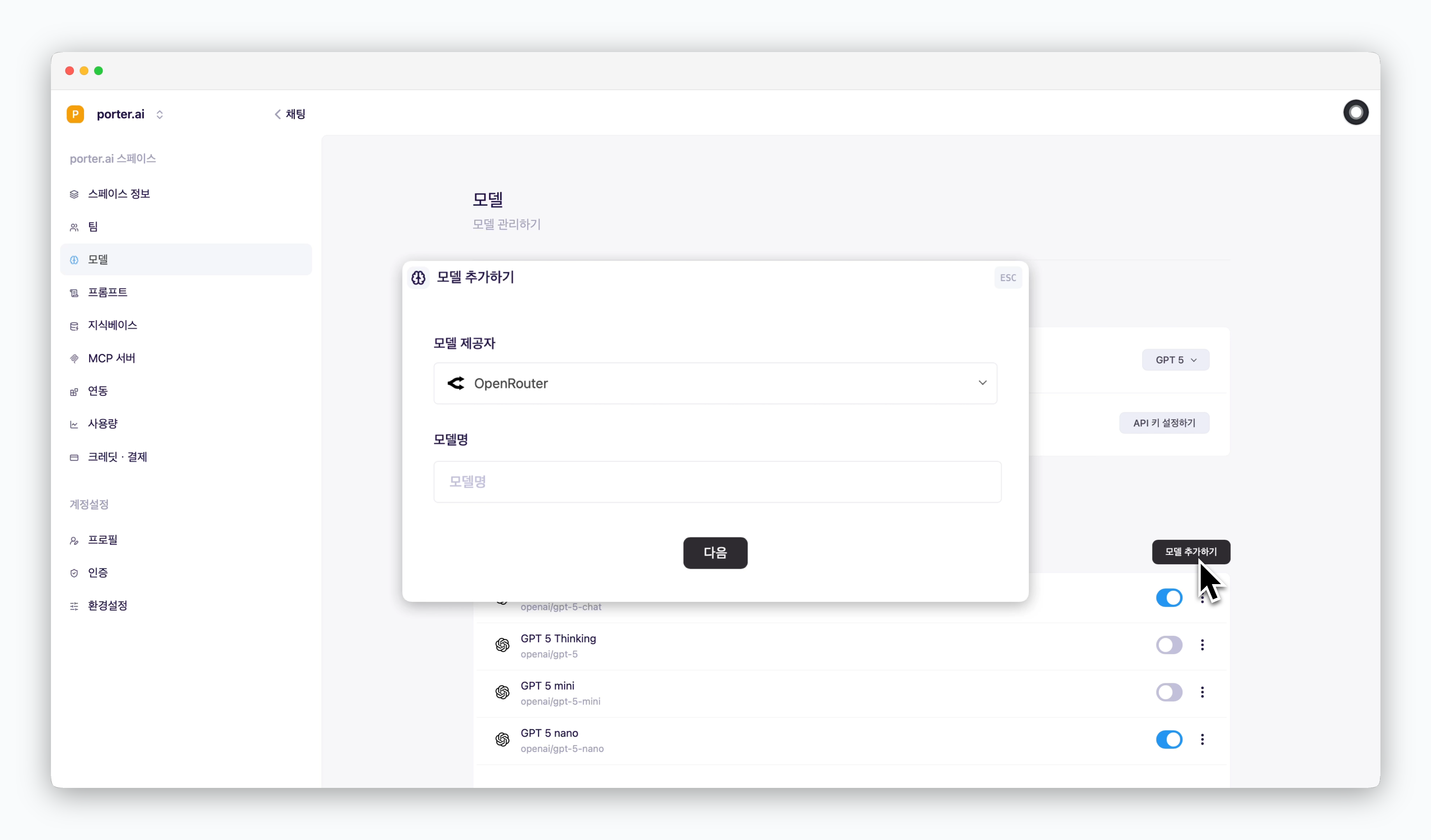 > `모델 추가하기`를 클릭하면, Porter AI에서 제공되지 않는 모델을 추가할 수 있습니다.
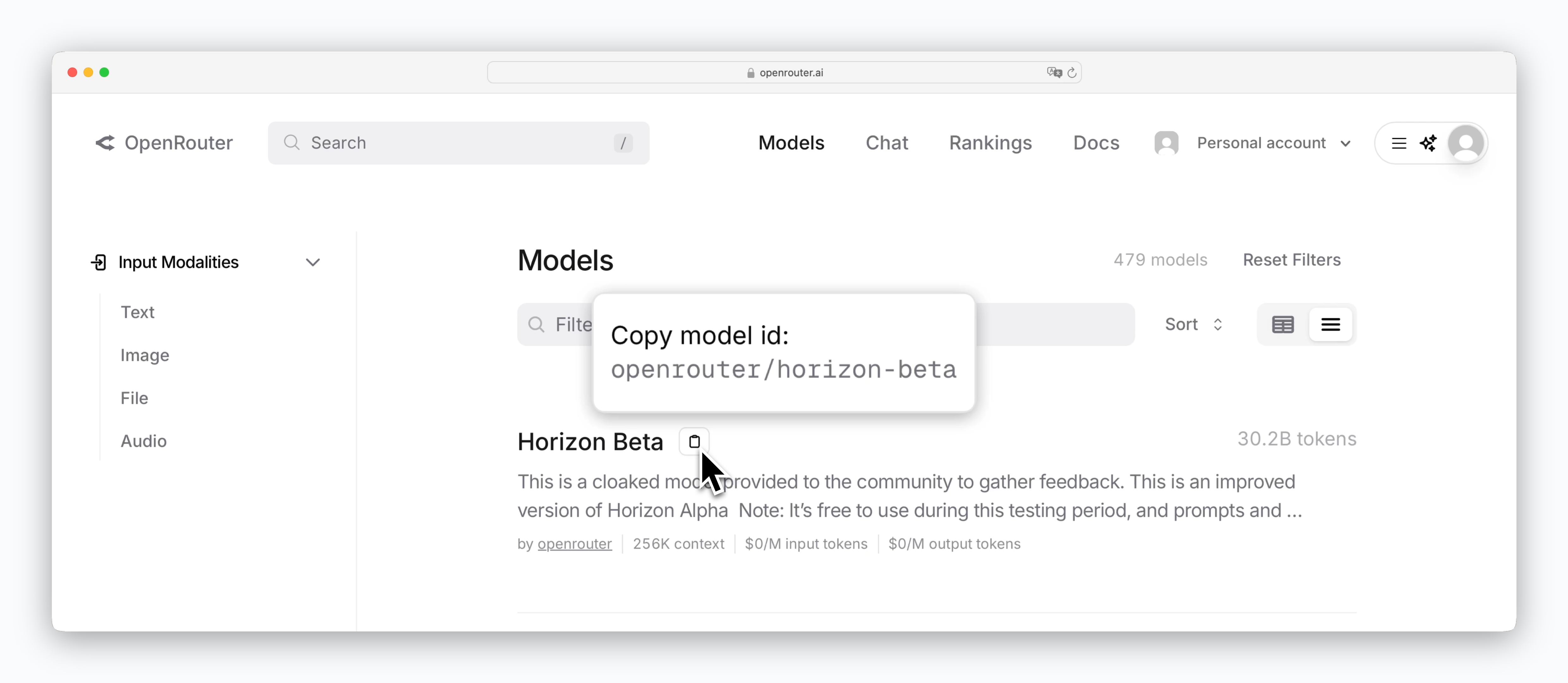
OpenRouter에서 제공하는 모델의 경우 API키를 등록하지 않아도, OpenRouter에서 조회한 `model id` 값을 모델명 필드에 입력하면 해당 모델을 추가해서 사용할 수 있습니다.
> `모델 추가하기`를 클릭하면, Porter AI에서 제공되지 않는 모델을 추가할 수 있습니다.
OpenRouter에서 제공하는 모델의 경우 API키를 등록하지 않아도, OpenRouter에서 조회한 `model id` 값을 모델명 필드에 입력하면 해당 모델을 추가해서 사용할 수 있습니다.
 OpenAI, AWS Bedrock 등 [AI 모델 제공사의 API키를 등록하면](/ko/api), 해당 제공사의 모델을 같은 방식으로 추가할 수 있습니다.
## 스레드 기본 모델 설정
OpenAI, AWS Bedrock 등 [AI 모델 제공사의 API키를 등록하면](/ko/api), 해당 제공사의 모델을 같은 방식으로 추가할 수 있습니다.
## 스레드 기본 모델 설정
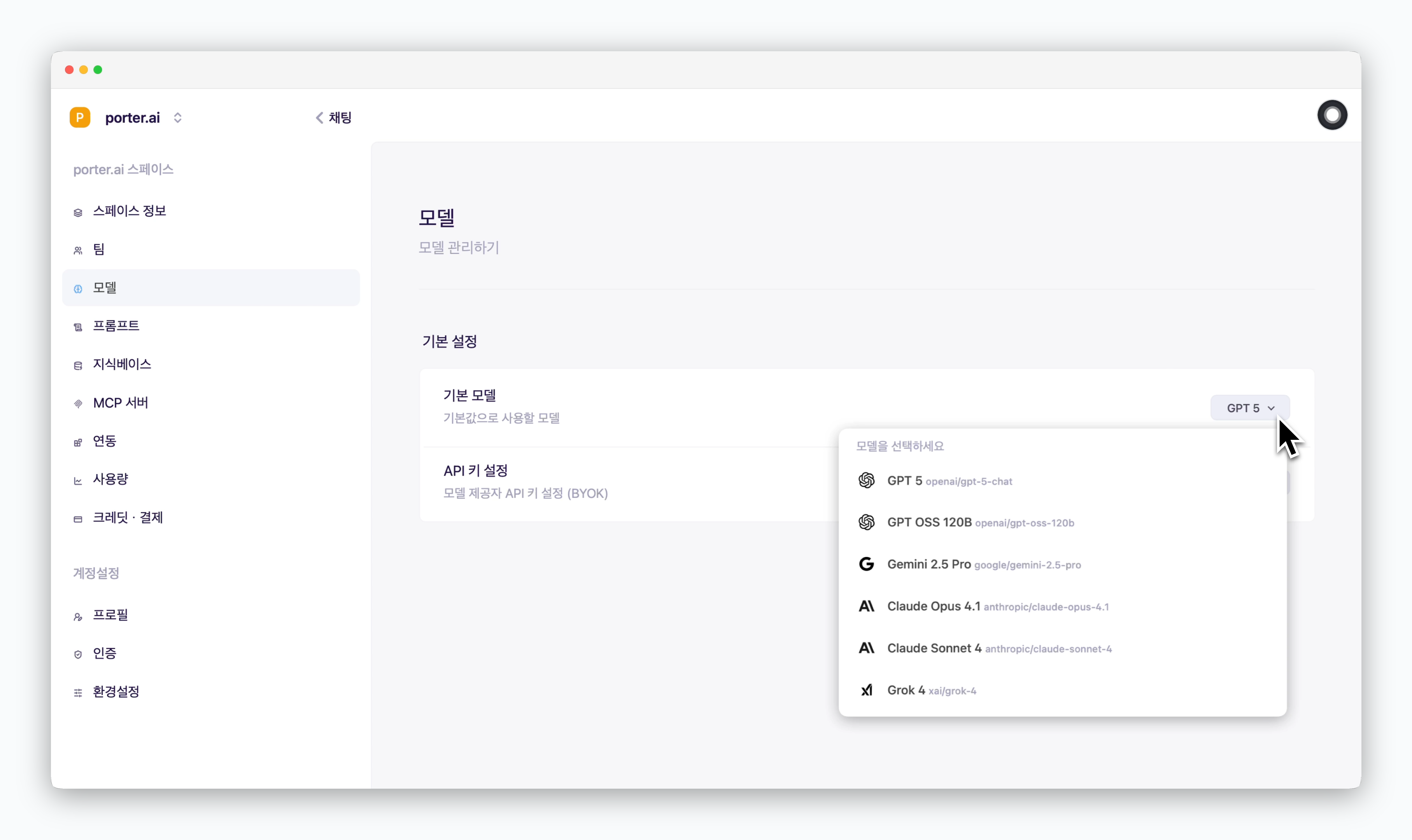 > 기본 모델 섹션에서 채팅창 생성시 기본값으로 사용할 AI모델을 설정할 수 있습니다.
기본 모델은 활성화한 모델 중에서 선택할 수 있습니다.
> 기본 모델 섹션에서 채팅창 생성시 기본값으로 사용할 AI모델을 설정할 수 있습니다.
기본 모델은 활성화한 모델 중에서 선택할 수 있습니다.